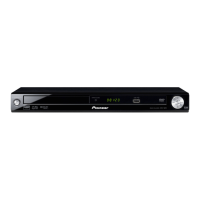
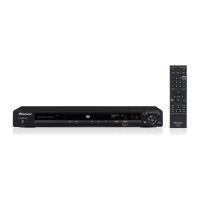
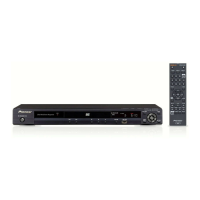
Need help?
Do you have a question about the Pioneer DV-K102 and is the answer not in the manual?
Read/retain instructions, clean carefully, use proper attachments, avoid water and unstable placement.
Follow grounding, protect cords, avoid overloading, blockages, heat, and improper locations.
Refer to qualified personnel, use correct parts, check safety, ground antennas, avoid power lines.
Product adheres to FCC/ICES rules. Use shielded cables. Follow polarized plug cautions.
Unauthorized alterations may invalidate the user's right to operate the equipment.
Details playable disc types: DVD, Super VCD, Video CD, CD with format specifications.
Supports various DVD audio formats and offers easy setup via on-screen menus.
Select subtitle/audio languages and view scenes from different camera angles.
Unit is designed to use minimal electricity when in standby mode.
Explains DVD title/chapter structure vs. Super VCD/CD track structure.
Guide on how to proceed: familiarize with player, make connections, set up, play disc, enjoy features.
Verify all necessary accessories (cords, remote, manual) are present.
Instructions for inserting batteries into the remote control unit.
Point remote at sensor within range and angle. Avoid strong light on sensor.
Identifies STANDBY/ON, POWER, STANDBY indicator, KEY CONTROL, number buttons.
STOP, Forward, Reverse, Pause, PLAY, and Remote Sensor buttons.
MIC jacks, volume/echo knobs, Disc Tray, Display Window functions.
Explains indicators for 96 kHz, TITLE, GUI, ANGLE, LAST MEMO, CONDITION, DOLBY DIGITAL.
Shows playback mode, disc type, numbers, time, and other disc information.
Connect audio/video via DIGITAL OUT (coaxial/optical) and VIDEO/S-VIDEO OUT jacks.
CONTROL IN jack, ATTENUATOR/TV SYSTEM switches, and AC IN power terminal.
Buttons for playback, menu navigation, system setup, and audio/subtitle selection.
Buttons for LAST MEMORY, KARAOKE SETUP, search, repeat, and key control.
Guide to connecting player using included audio and video cords.
Connect VIDEO OUT to TV/monitor and AUDIO OUT to TV/amplifier using provided cables.
Connect optical/coaxial digital outputs to AV amplifier/decoder for digital audio.
Connect stereo audio output to amplifier or TV/monitor stereo inputs.
Connect S-video or composite video output to TV/monitor for video playback.
Connect for system control and set TV SYSTEM switch for NTSC/PAL output.
Simplify setup with on-screen, multiple-choice questions for audio, video, language.
Establishes OSD language for menus and messages (Chinese model only).
Adjust aspect ratio (4:3 or 16:9) for optimal viewing on TV or monitor.
Configure Dolby Digital, DTS, 96 kHz PCM, and MPEG output settings.
Steps for playing DVDs, Super VCDs, Video CDs, and CDs after initial setup.
Use remote buttons to navigate menu screens and select options.
Use Video Noise Reduction (VNR) to reduce picture noise and improve image quality.
Skip forward or back to next/previous chapters or tracks on discs.
Scan discs forward or in reverse at various speeds during playback.
Procedure to stop playback, eject disc, and switch unit to standby or off.
Restart DVD/Video CD playback from where it was stopped in Normal mode.
Overview of operating Setup screen menus for system configuration.
Change Setup Menu Mode to 'Expert' for advanced functions.
Understand color codes (Blue, Green, Yellow) indicating disc format applicability.
Configure digital audio output for Dolby Digital, DTS, and MPEG formats.
Set sampling frequency for PCM output (96 kHz or 48 kHz).
Adjust aspect ratio (4:3 Letter Box, 4:3 Pan & Scan, 16:9 Wide) for optimal display.
Guidance on matching screen size settings to DVD/Super VCD formats.
Configure OSD language (Chinese model) and adjust OSD position on wide screens.
Enable or disable the display of operation indicators and messages.
Basic steps for enjoying karaoke: mode selection, mic setup, disc loading.
Address howling and single play function behavior.
Adjust digital echo level and change musical key using remote or unit controls.
Understand microphone operation, key control, and 'Once More' feature.
Remove singer's voice from music discs for karaoke play.
Steps to reserve songs, stop playback, continue program, and confirm reservation details.
Clear programmed song contents using the CLEAR button.
Press KARAOKE SETUP to display and set karaoke functions for discs.
Eliminate vocals by setting 'Vocal' to 'OFF'. Select specific vocal tracks.
Silences singer's vocal while you sing; becomes audible when you stop.
Optimize vocal volume for karaoke practice using the Vocal Volume setting.
Adjust musical key using Key Control in the Karaoke Setup menu.
Disable guide melody for karaoke discs to sing with instrumental only.
Choose desired subtitle language for DVDs with multiple subtitle tracks.
Select desired audio language for DVDs with multiple language tracks.
Select stereo or channel audio type for Super VCD/Video CD/CD.
Set default audio language for DVDs; changes are retained.
Set default subtitle language; changes are retained.
Input language code or select from list for audio language settings.
Set default menu language for DVDs; syncs with subtitle language if selected.
Automatically sets audio/subtitles based on program content (foreign vs. domestic films).
Select language for subtitles that appear even when subtitles are off.
Turn subtitles on/off, or select assist subtitles for explanation.
Adjust audio DRC for clearer soft sounds without increasing loud sounds.
Select Cinema, Animation, or Standard picture quality for optimal viewing.
Engage slow playback by holding STEP/SLOW. Speed adjustable for DVDs.
Pause playback or advance frame-by-frame using PAUSE and STEP/SLOW.
Choose Field, Frame, or Auto for paused DVD image quality.
Use SEARCH MODE and number buttons to locate content on discs.
Choose Auto, Title, or Chapter search type for direct access.
Select different camera angles when viewing DVDs with multi-angle option.
Adjust surround settings and turn angle indicator on/off.
Repeat specific sections, chapters, or entire titles/discs.
Press CLEAR to cancel active repeat functions.
Steps to enter or confirm the 4-digit password for parental controls.
Requires correct password input to start playback of discs with parental restrictions.
Adjust parental lock level according to disc content and save settings.
Procedure to change the existing password.
Save current playback position using LAST MEMORY button.
Restart playback from the saved point in stop mode.
Remove saved playback location data.
Save player settings for up to 15 DVDs; settings are recalled automatically.
Clear saved settings using the CONDITION MEMORY and CLEAR buttons.
Shows DVD title, chapter, elapsed time, and bitstream transmission rate.
Displays track number and elapsed time for Super VCD, CD, and Video CD.
Select blue or black background for the screen when the player is in stop mode.
Restore all settings to default by holding STOP while powering on.
Proper methods for holding, cleaning, and storing discs to prevent damage.
Avoid cracked/warped discs, special shapes, and ensure correct optical cable use.
Avoid moving during playback, install stably, and ensure vents are not blocked.
Avoid extreme conditions, heat sources, and handle power cord carefully.
Switch to standby when not in use and allow acclimatization to prevent condensation.
Address disc loading, playback errors, mark indicators, and ineffective settings.
Resolve no picture/color, aspect ratio, picture disturbance, and remote control malfunctions.
Troubleshoot digital output, connection problems, stereo issues, and low volume.
Address key control, mic sound, howling, and static electricity effects.
Defines Dolby Digital, DTS, MPEG, Dynamic Range, Multi-angle, and Sampling Frequency.
Explains Digital Bitstream, Digital Output, Karaoke Mode, and Aspect Ratio.
Defines Chapter Number, Title Number, and Regional Restriction Codes.
Explains Multi-Language Subtitles, Multiple Languages, Parental Lock Level.
Defines PCM, Playback Control (PBC), Sampling Frequency, and S-video.
Covers System Control, Regional Restriction Codes, and Title Number.
Details system type, power requirements, consumption, weight, dimensions, and operating environment.
Lists digital audio characteristics and video/audio output levels and jacks.
List of accessories provided with the unit.
 General
| Brand | Pioneer |
|---|---|
| Model | DV-K102 |
| Category | DVD Player |
| Language | English |


 To Next Page