EasyManua.ls Logo

Pioneer DVR-RT502 - User Manual

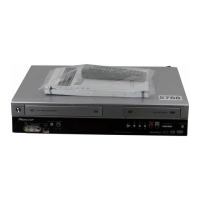
Pioneer DVR-RT502
96 pages
Print Icon
To Next Page IconTo Next Page
Loading...
 
   

 
  

2J40801B_En_01_05 5/29/06, 4:44 PM1

Table of Contents

Question and Answer IconNeed help?

Do you have a question about the Pioneer DVR-RT502 and is the answer not in the manual?

Summary

IMPORTANT SAFETY INSTRUCTIONS

Chapter 1 Before you start

Features

Details on playback capabilities and disc compatibility.

Playback function

Overview of how to play back various media and scenes.

Recording function

Explanation of recording modes and timer functions.

Edit function

Information on editing recorded titles and playlists.

Dubbing function

Instructions for dubbing content between media types.

Chapter 2 Controls and displays

Front panel

Identification of controls and indicators on the front of the unit.

Rear panel

Identification of input/output jacks and connections on the rear.

Display window

Explanation of the unit's display symbols and indicators.

Remote control

Detailed breakdown of all remote control buttons and their functions.

Putting the batteries in the remote control

Instructions for inserting batteries into the remote.

Remote control basics

Basic tips for using the remote control effectively.

Using the remote control

Guidelines for optimal remote operation and range.

Power Source

Information on connecting the unit to the AC power source.

Chapter 3 Connecting up

Antenna connection

How to connect the antenna system to the DVD/VCR.

DVD;VCR TO TV CONNECTION

Methods for connecting the DVD/VCR to a television.

Cable TV connections

Instructions for connecting various cable TV system configurations.

Connections with the TV or audio component

Connecting the unit to TVs or audio systems via different outputs.

Chapter 4 Getting started

Auto clock setting

Procedure for automatically setting the unit's internal clock.

Setting the video channel

How to set the TV to receive the DVD/VCR video signal.

Using the SETUP MENU

Guide to navigating and using the system setup menus.

Setting the language

Choosing menu, DVD menu, audio, and subtitle languages.

OSD LANGUAGE

Setting the language for on-screen display.

DVD MENU

Selecting the DVD menu language from available options.

AUDIO

Selecting the audio language for DVD playback.

SUBTITLE

Selecting the subtitle language for DVD playback.

Setting the parental control

Configuring settings to restrict playback of certain discs.

Temporarily cancelling parental control

How to temporarily bypass parental control settings.

Setting the clock

Manually setting the date, time, and time zone.

DAYLIGHT SAVING TIME

Setting or disabling daylight saving time adjustments.

Setting the disc

Operations for formatting, protecting, or finalizing discs.

REFORMAT

Erasing and preparing recorded DVD-RAM/RW discs.

NEW DISC FORMAT

Formatting new discs and selecting the recording mode.

FINALIZE

Making discs compatible with other DVD players.

PROTECT DISC

Preventing recorded content from being erased or edited.

DVD-RAM Physical Format

Formatting DVD-RAM discs for initial use or recognition.

DIMMER (Brightness of the display window)

Adjusting or turning off the front panel display brightness.

DISPLAY;CALL (Turning the screen display “ON” or OFF)

Turning the TV output screen display on or off.

Setting the screen

General section for screen-related settings.

TV SCREEN

Selecting the TV screen size for optimal image display.

STILL MODE

Setting how still images are displayed during DVD playback.

LINE1 INPUT;LINE2 INPUT

Selecting video input sources (S-Video or Video).

Setting the image quality

Adjusting image quality settings like brightness.

BRIGHTNESS

Controlling the brightness level of the displayed image.

Setting the audio

Configuring audio output and settings.

DRC

Dynamic Range Control for adjusting sound output.

EXTERNAL AUDIO INPUT

Selecting audio input modes (Stereo, L CH, R CH).

SAP (Second Audio Program)

Enabling or disabling the Second Audio Program feature.

DOLBY DIGITAL OUTPUT

Configuring Dolby Digital audio output settings.

Setting the recording

General section for recording setup options.

INITIAL REC TO

Setting the default recording media.

INITIAL REC MODE

Setting the default recording mode (XP, SP, LP, EP).

AUTO CHAPTER

Automatically creating chapter marks during recording.

INDEX PICTURE

Setting thumbnail image registration for DVD-RW titles.

BLACK LEVEL CONTROL (REC)

Adjusting black level for recording input source.

Setting the channel

Configuring channel memory and tuning for TV/Cable.

ADD;DELETE (channels)

Manually adding or deleting channels from memory.

Setting other items

Adjusting slide show interval and other settings.

TV;CABLE SELECT

Switching between TV and Cable modes for channel tuning.

AUTO CH MEMORY

Automatically scanning and storing available channels.

JPEG INTERVAL

Setting the time interval for JPEG slide shows.

DivX VOD

Information on DivX Video On Demand support.

Chapter 5 Playback

Playback procedure

Step-by-step guide to playing back discs.

Playback by selecting a title

How to select and play specific titles from a DVD menu.

Checking media information

Displaying information about the loaded disc or tape.

Special playback

Overview of special playback functions.

Fast forward playback

Speeding up playback in the forward direction.

Review playback

Speeding up playback in the reverse direction.

Still playback

Pausing playback to view a static image.

Frame advance

Moving playback frame by frame.

Slow motion playback

Playing back video at reduced speeds.

Locating a chapter or track

Navigating to specific chapters or tracks on the disc/tape.

Commercial skip; Locating a specific scene

Skipping commercials or finding specific scenes.

Repeat playback

Options for repeating playback segments.

One touch repeat

Repeating the last 10 seconds of playback.

A-B repeat playback

Repeating a selected segment between two points.

Title, Chapter repeat playback

Repeating entire titles or chapters.

Title selection; DVD menu

Navigating DVD menus to select titles and content.

Changing angles; Zooming

Adjusting camera angles and zooming during playback.

Changing soundtrack language; Sub-titles

Selecting audio languages and subtitle options.

The CD Track Info screen

Displaying track information for music CDs.

Playing back a selected track

Selecting and playing individual tracks from a CD.

Random, repeat and program play

Various playback modes for CDs like random or programmed order.

Playing back track by specifying the time

Starting playback from a specific time point within a track.

MP3;WMA;JPEG;DivX playback

Playing back audio and image files from CDs.

Using the BROWSER screen

Navigating folders and files on media discs.

Playing back MP3;WMA files

Specific instructions for playing MP3 and WMA audio files.

Playing back JPEG files

Displaying JPEG image files, including slide show functionality.

Playing back DivX video files

Playing DivX video files and specifications.

Progressive scan

Enabling progressive scan for enhanced picture quality.

Different scanning modes

Explanation of interlaced vs. progressive scan technologies.

Loading and unloading a cassette tape

Instructions for inserting and ejecting video tapes.

Cassette tape playback

Basic playback operations for VCR tapes.

Forward;Reverse picture search mode

Searching for scenes while tape is winding.

Special playback

VCR specific playback modes like still picture and slow motion.

Picture search

Searching for specific visual points on a tape.

Still picture

Pausing VCR playback on a single frame.

Slow motion

Playing VCR tapes in slow motion.

Manual tracking adjustment

Adjusting tracking for clear VCR picture quality.

Repeat playback

Setting the VCR tape to play repeatedly.

Commercial skip

Skipping commercials during VCR playback.

To display VCR operation status

Showing VCR status information on the display.

ZERO RETURN function; Video index search system

Using tape counter functions and index search.

Chapter 6 Recording

Read this before recording on disc

Essential information before starting disc recording.

Types of disc

Compatible disc types for recording (DVD-RAM, -RW, -R).

Recording modes

Explanation of recording quality and time modes (XP, SP, LP, EP).

Disc remaining time

Information on available space and recording duration on discs.

Images that cannot be recorded

Understanding copy-protection signals and their impact on recording.

Recording a TV program

Steps to record programs directly from TV channels.

Recording one program while watching another

How to watch TV while recording.

To stop recording

Procedures for stopping the recording process.

One-touch Timer Recording (OTR)

Simple timed recording with a single button press.

VCR Plus+ programming system

Using PlusCode numbers for easy timer programming.

Setting the timer program using the VCR Plus+ system

Entering program details and setting timer recordings via VCR Plus+.

Setting timer recording

Manual setup of timer recordings for date, time, and channel.

Chase Playback

Starting playback of a recorded program while recording continues.

Stereo recording and playback

Recording and playing Hi-Fi Stereo TV broadcasts.

Chapter 7 Editing

Editing the disc

Overview of editing capabilities for VR and Video modes.

Title menu

Accessing and viewing recorded titles for editing.

Original title

Understanding original titles created during recording.

Playlist

Creating and managing playlists of selected scenes or titles.

Editing a playlist

General section for playlist editing operations.

Creating a playlist

Steps to create a new playlist from original titles.

Changing a title name

Renaming titles using the on-screen keyboard.

Erasing a scene (Edit title)

Removing unwanted scenes from a playlist or title.

Combining the title

Merging multiple titles into a single playlist.

Erasing a playlist

Deleting created playlists without affecting original titles.

Editing an original title

Editing options available for original titles in VR mode.

Adding a chapter mark

Inserting chapter marks into titles for easier navigation.

Combining chapters

Merging chapters by erasing chapter marks.

Changing an original title name

Renaming original titles on DVD-R and Video mode discs.

Erasing an original title

Deleting original titles and their associated recordings.

Changing a disc name

Renaming the entire disc from the title menu.

Using the keyboard screen

How to input characters using the on-screen keyboard.

Erasing a character

Removing characters during text input.

Selecting between uppercase and lowercase letters

Switching between letter cases for text input.

Chapter 8 Dubbing

Dubbing a tape onto a disc

Recording video from a tape onto a disc.

Dubbing a disc onto a tape

Recording video from a disc onto a tape.

Dubbing only the specified titles or the playlist

Dubbing specific titles or playlists selectively.

Dubbing only a specified scene

Dubbing only a particular scene from a disc.

Dubbing using other equipment

Connecting external VCRs or camcorders for dubbing.

When a video is recorded using this unit

Recording video onto the unit from external sources.

Chapter 9 Additional information

Language code list

Codes for setting display, audio, and subtitle languages.

Screen sizes and disc formats

Information on aspect ratios and disc format compatibility.

Glossary

Definitions of technical terms and features used in the manual.

Error;Warning message list

List of error messages and their possible solutions.

Troubleshooting

Guidance for resolving common operational problems and symptoms.

Handling discs

Proper methods for handling, cleaning, and storing discs.

Damaged discs

Precautions regarding the use of damaged or shaped discs.

Cleaning the pickup lens

Instructions for cleaning the unit's optical pickup lens.

Handling video tapes

Guidelines for using video tapes and avoiding damage.

Storing video tapes

Recommendations for storing video tapes properly.

Video head cleaning

Information on video head clogging and cleaning.

Moving the recorder

Steps to take before moving the unit.

Resetting the recorder

How to restore the unit to factory default settings.

Hints on installation

Advice on choosing a suitable location for the unit.

Specifications

Detailed technical details and characteristics of the DVD/VCR unit.

Summary

IMPORTANT SAFETY INSTRUCTIONS

Chapter 1 Before you start

Features

Details on playback capabilities and disc compatibility.

Playback function

Overview of how to play back various media and scenes.

Recording function

Explanation of recording modes and timer functions.

Edit function

Information on editing recorded titles and playlists.

Dubbing function

Instructions for dubbing content between media types.

Chapter 2 Controls and displays

Front panel

Identification of controls and indicators on the front of the unit.

Rear panel

Identification of input/output jacks and connections on the rear.

Display window

Explanation of the unit's display symbols and indicators.

Remote control

Detailed breakdown of all remote control buttons and their functions.

Putting the batteries in the remote control

Instructions for inserting batteries into the remote.

Remote control basics

Basic tips for using the remote control effectively.

Using the remote control

Guidelines for optimal remote operation and range.

Power Source

Information on connecting the unit to the AC power source.

Chapter 3 Connecting up

Antenna connection

How to connect the antenna system to the DVD/VCR.

DVD;VCR TO TV CONNECTION

Methods for connecting the DVD/VCR to a television.

Cable TV connections

Instructions for connecting various cable TV system configurations.

Connections with the TV or audio component

Connecting the unit to TVs or audio systems via different outputs.

Chapter 4 Getting started

Auto clock setting

Procedure for automatically setting the unit's internal clock.

Setting the video channel

How to set the TV to receive the DVD/VCR video signal.

Using the SETUP MENU

Guide to navigating and using the system setup menus.

Setting the language

Choosing menu, DVD menu, audio, and subtitle languages.

OSD LANGUAGE

Setting the language for on-screen display.

DVD MENU

Selecting the DVD menu language from available options.

AUDIO

Selecting the audio language for DVD playback.

SUBTITLE

Selecting the subtitle language for DVD playback.

Setting the parental control

Configuring settings to restrict playback of certain discs.

Temporarily cancelling parental control

How to temporarily bypass parental control settings.

Setting the clock

Manually setting the date, time, and time zone.

DAYLIGHT SAVING TIME

Setting or disabling daylight saving time adjustments.

Setting the disc

Operations for formatting, protecting, or finalizing discs.

REFORMAT

Erasing and preparing recorded DVD-RAM/RW discs.

NEW DISC FORMAT

Formatting new discs and selecting the recording mode.

FINALIZE

Making discs compatible with other DVD players.

PROTECT DISC

Preventing recorded content from being erased or edited.

DVD-RAM Physical Format

Formatting DVD-RAM discs for initial use or recognition.

DIMMER (Brightness of the display window)

Adjusting or turning off the front panel display brightness.

DISPLAY;CALL (Turning the screen display “ON” or OFF)

Turning the TV output screen display on or off.

Setting the screen

General section for screen-related settings.

TV SCREEN

Selecting the TV screen size for optimal image display.

STILL MODE

Setting how still images are displayed during DVD playback.

LINE1 INPUT;LINE2 INPUT

Selecting video input sources (S-Video or Video).

Setting the image quality

Adjusting image quality settings like brightness.

BRIGHTNESS

Controlling the brightness level of the displayed image.

Setting the audio

Configuring audio output and settings.

DRC

Dynamic Range Control for adjusting sound output.

EXTERNAL AUDIO INPUT

Selecting audio input modes (Stereo, L CH, R CH).

SAP (Second Audio Program)

Enabling or disabling the Second Audio Program feature.

DOLBY DIGITAL OUTPUT

Configuring Dolby Digital audio output settings.

Setting the recording

General section for recording setup options.

INITIAL REC TO

Setting the default recording media.

INITIAL REC MODE

Setting the default recording mode (XP, SP, LP, EP).

AUTO CHAPTER

Automatically creating chapter marks during recording.

INDEX PICTURE

Setting thumbnail image registration for DVD-RW titles.

BLACK LEVEL CONTROL (REC)

Adjusting black level for recording input source.

Setting the channel

Configuring channel memory and tuning for TV/Cable.

ADD;DELETE (channels)

Manually adding or deleting channels from memory.

Setting other items

Adjusting slide show interval and other settings.

TV;CABLE SELECT

Switching between TV and Cable modes for channel tuning.

AUTO CH MEMORY

Automatically scanning and storing available channels.

JPEG INTERVAL

Setting the time interval for JPEG slide shows.

DivX VOD

Information on DivX Video On Demand support.

Chapter 5 Playback

Playback procedure

Step-by-step guide to playing back discs.

Playback by selecting a title

How to select and play specific titles from a DVD menu.

Checking media information

Displaying information about the loaded disc or tape.

Special playback

Overview of special playback functions.

Fast forward playback

Speeding up playback in the forward direction.

Review playback

Speeding up playback in the reverse direction.

Still playback

Pausing playback to view a static image.

Frame advance

Moving playback frame by frame.

Slow motion playback

Playing back video at reduced speeds.

Locating a chapter or track

Navigating to specific chapters or tracks on the disc/tape.

Commercial skip; Locating a specific scene

Skipping commercials or finding specific scenes.

Repeat playback

Options for repeating playback segments.

One touch repeat

Repeating the last 10 seconds of playback.

A-B repeat playback

Repeating a selected segment between two points.

Title, Chapter repeat playback

Repeating entire titles or chapters.

Title selection; DVD menu

Navigating DVD menus to select titles and content.

Changing angles; Zooming

Adjusting camera angles and zooming during playback.

Changing soundtrack language; Sub-titles

Selecting audio languages and subtitle options.

The CD Track Info screen

Displaying track information for music CDs.

Playing back a selected track

Selecting and playing individual tracks from a CD.

Random, repeat and program play

Various playback modes for CDs like random or programmed order.

Playing back track by specifying the time

Starting playback from a specific time point within a track.

MP3;WMA;JPEG;DivX playback

Playing back audio and image files from CDs.

Using the BROWSER screen

Navigating folders and files on media discs.

Playing back MP3;WMA files

Specific instructions for playing MP3 and WMA audio files.

Playing back JPEG files

Displaying JPEG image files, including slide show functionality.

Playing back DivX video files

Playing DivX video files and specifications.

Progressive scan

Enabling progressive scan for enhanced picture quality.

Different scanning modes

Explanation of interlaced vs. progressive scan technologies.

Loading and unloading a cassette tape

Instructions for inserting and ejecting video tapes.

Cassette tape playback

Basic playback operations for VCR tapes.

Forward;Reverse picture search mode

Searching for scenes while tape is winding.

Special playback

VCR specific playback modes like still picture and slow motion.

Picture search

Searching for specific visual points on a tape.

Still picture

Pausing VCR playback on a single frame.

Slow motion

Playing VCR tapes in slow motion.

Manual tracking adjustment

Adjusting tracking for clear VCR picture quality.

Repeat playback

Setting the VCR tape to play repeatedly.

Commercial skip

Skipping commercials during VCR playback.

To display VCR operation status

Showing VCR status information on the display.

ZERO RETURN function; Video index search system

Using tape counter functions and index search.

Chapter 6 Recording

Read this before recording on disc

Essential information before starting disc recording.

Types of disc

Compatible disc types for recording (DVD-RAM, -RW, -R).

Recording modes

Explanation of recording quality and time modes (XP, SP, LP, EP).

Disc remaining time

Information on available space and recording duration on discs.

Images that cannot be recorded

Understanding copy-protection signals and their impact on recording.

Recording a TV program

Steps to record programs directly from TV channels.

Recording one program while watching another

How to watch TV while recording.

To stop recording

Procedures for stopping the recording process.

One-touch Timer Recording (OTR)

Simple timed recording with a single button press.

VCR Plus+ programming system

Using PlusCode numbers for easy timer programming.

Setting the timer program using the VCR Plus+ system

Entering program details and setting timer recordings via VCR Plus+.

Setting timer recording

Manual setup of timer recordings for date, time, and channel.

Chase Playback

Starting playback of a recorded program while recording continues.

Stereo recording and playback

Recording and playing Hi-Fi Stereo TV broadcasts.

Chapter 7 Editing

Editing the disc

Overview of editing capabilities for VR and Video modes.

Title menu

Accessing and viewing recorded titles for editing.

Original title

Understanding original titles created during recording.

Playlist

Creating and managing playlists of selected scenes or titles.

Editing a playlist

General section for playlist editing operations.

Creating a playlist

Steps to create a new playlist from original titles.

Changing a title name

Renaming titles using the on-screen keyboard.

Erasing a scene (Edit title)

Removing unwanted scenes from a playlist or title.

Combining the title

Merging multiple titles into a single playlist.

Erasing a playlist

Deleting created playlists without affecting original titles.

Editing an original title

Editing options available for original titles in VR mode.

Adding a chapter mark

Inserting chapter marks into titles for easier navigation.

Combining chapters

Merging chapters by erasing chapter marks.

Changing an original title name

Renaming original titles on DVD-R and Video mode discs.

Erasing an original title

Deleting original titles and their associated recordings.

Changing a disc name

Renaming the entire disc from the title menu.

Using the keyboard screen

How to input characters using the on-screen keyboard.

Erasing a character

Removing characters during text input.

Selecting between uppercase and lowercase letters

Switching between letter cases for text input.

Chapter 8 Dubbing

Dubbing a tape onto a disc

Recording video from a tape onto a disc.

Dubbing a disc onto a tape

Recording video from a disc onto a tape.

Dubbing only the specified titles or the playlist

Dubbing specific titles or playlists selectively.

Dubbing only a specified scene

Dubbing only a particular scene from a disc.

Dubbing using other equipment

Connecting external VCRs or camcorders for dubbing.

When a video is recorded using this unit

Recording video onto the unit from external sources.

Chapter 9 Additional information

Language code list

Codes for setting display, audio, and subtitle languages.

Screen sizes and disc formats

Information on aspect ratios and disc format compatibility.

Glossary

Definitions of technical terms and features used in the manual.

Error;Warning message list

List of error messages and their possible solutions.

Troubleshooting

Guidance for resolving common operational problems and symptoms.

Handling discs

Proper methods for handling, cleaning, and storing discs.

Damaged discs

Precautions regarding the use of damaged or shaped discs.

Cleaning the pickup lens

Instructions for cleaning the unit's optical pickup lens.

Handling video tapes

Guidelines for using video tapes and avoiding damage.

Storing video tapes

Recommendations for storing video tapes properly.

Video head cleaning

Information on video head clogging and cleaning.

Moving the recorder

Steps to take before moving the unit.

Resetting the recorder

How to restore the unit to factory default settings.

Hints on installation

Advice on choosing a suitable location for the unit.

Specifications

Detailed technical details and characteristics of the DVD/VCR unit.

Pioneer DVR-RT502 Specifications

General IconGeneral
TypeDVD VCR Combo
DVD Recorder TypeDVD Recorder
Number of Discs1
Recordable MediaDVD-R, DVD-RW
Video SystemNTSC
Number of VCR Heads4
Remote Control TypeStandard
InputsComposite, S-Video, RF
Remote ControlYes
Playable MediaCD, CD-R, CD-RW, DVD, VHS
Width16.54 inches
Height3.94 inches
VHS FormatsVHS
OutputsComposite, S-Video, RF

Related product manuals