EasyManua.ls Logo

Pixie Point - Finding Pixified Items: Advanced Steps; Panorama Scan and AR Mode; Metal Detector Mode; Low Signal Search

Default Icon
5 pages
Print Icon
To Next Page IconTo Next Page
To Previous Page IconTo Previous Page
Loading...
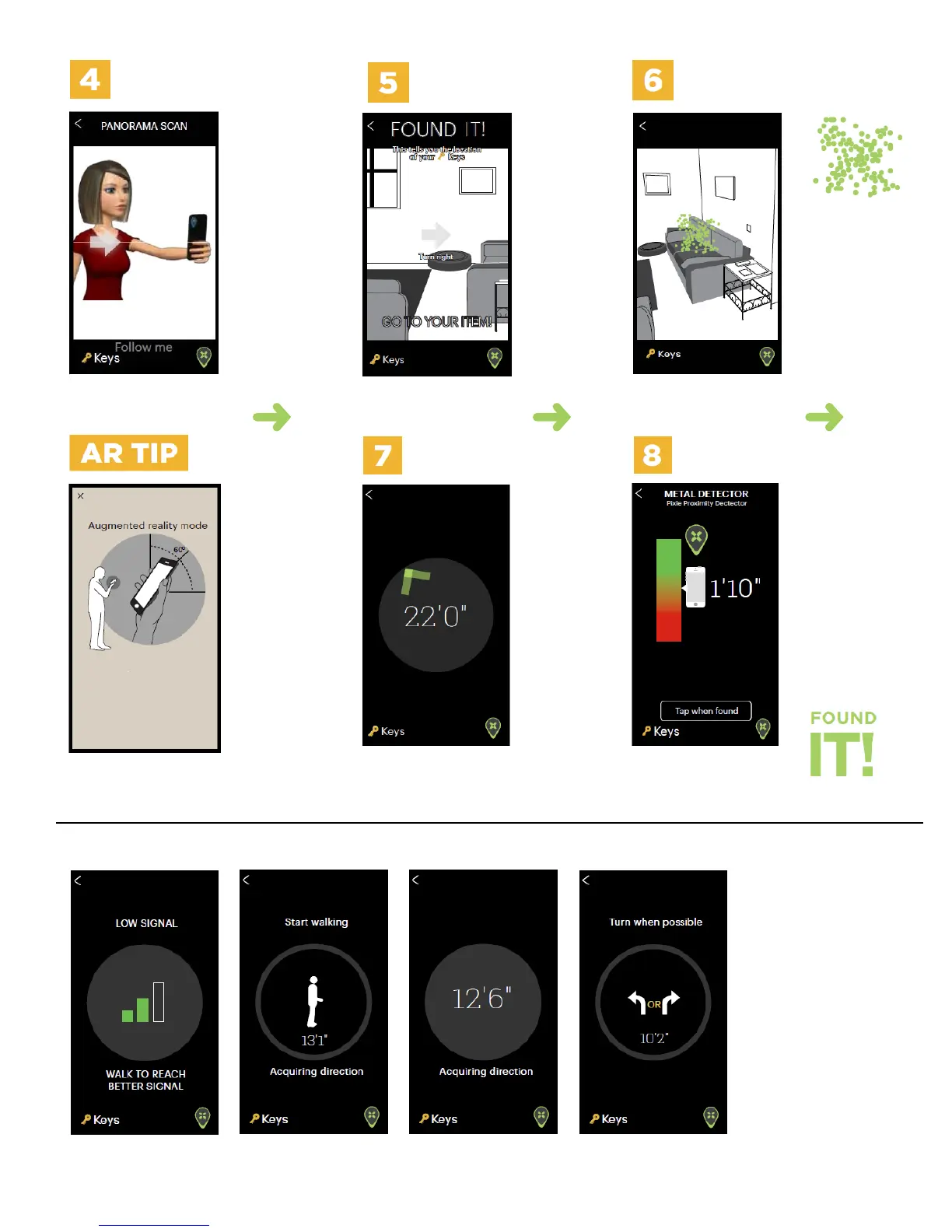
Scan slowly
while staying
in place just like
you are taking
a panorama
picture. Keep
the shadowed
arrow as close
as possible to
the solid one.
If the red arrow
appears you are
going too fast.
Immediately
after the App
locates the
searched item,
Augmented
Reality (AR)
mode is
presented.
At the end of
Panorama
Scan,
Turn right
or Turn left
message is
displayed, to
guide you to
your item.
Pixie Dust
image shows
you where
the Pixiefied
item is hiding.
The AR mode is
active when the
phone is tilted at
a 60° or higher
angle. When
phone is below
a 60° angle,
The Pointer
mode (arrow and
distance) will be
displayed.
Once you start
walking, the
App
will
automaticaly
switch to
Pointer
mode. Hold
your
phone straight
in front of you,
pointing in the
direction you
are walking.
Metal detector
mode
When you are
within 5 feet/ 1.5
meters from your
item, the App will
move into Metal
Detector mode.
This mode is like
a hot\cold game.
You will be assisted
with both Sounds
and Visual queues.
On screen is
displayed the
distance from
the phone to
your item.
NOTE: that your item could be anywhere from the floor to the ceiling. So let the phone do the searching; move the phone up/down and side to side. As the phone gets closer -
HOT - the distance number goes down and the sound become more frequent and higher in pitch. As the phone moves away - COLD - the distance number gets higher and the
sound slows and gets lower in pitch.
LOW SIGNAL SEARCH
When signal strength is
too low, or Panorama Scan
could not locate your item,
the App will ask you to walk.
The exact location of your
item, will be determined as
you are walking. Hold your
phone straight in front of
you and start walking in
any direction to begin.
Then walk according to the
in-App instructions until the
item is located.

TIP: You can tap the walking person icon on the screen, and the app will show you the exact distance to your item.