
 Need help?
Do you have a question about the Plantronics Poly Voyager Focus 2 Office and is the answer not in the manual?
Provides details on connecting the headset system to various desk phone setups A, B, C, or D.
Details the controls and functions of the headset, including ANC, volume, and call buttons.
Explains the function of the EHS cable for automatic call answering and ending.
Describes the HL10 lifter's function in automatically lifting and returning the handset.
Guides on how to pair the headset with its base station for initial setup.
Instructions for connecting the headset to a smartphone via Bluetooth.
Explains how to position the microphone boom and adjust the headband for comfort.
Details the process of charging the headset using the base or a USB cable.
How to check the current battery level of the headset.
Instructions for keeping the device firmware up-to-date using Poly Lens App.
How to turn the headset on and off using the power switch.
How to adjust headset, desk phone, and ringtone volumes.
Steps for initiating, receiving, and terminating calls using the headset or base.
How to mute and unmute the headset during an active call.
Controls for managing audio playback, including play, pause, skip, and rewind.
How to activate Siri, Google Assistant, or Cortana via the headset.
Information on Active Noise Canceling and its adjustment levels.
How to select the primary audio channel or phone line for calls.
Explanation of the headset LED's illumination for call status.
How to use the headset in corded mode to improve audio quality and charge.
Solutions for issues with not hearing a dial tone, including charging and pairing.
Clarifies the multi-device connectivity capabilities of the headset.
Troubleshooting steps for audio static, including base positioning and volume adjustments.
Advice for resolving distorted audio, focusing on distance and volume settings.
Steps to resolve echo issues, involving volume and microphone placement.
Tips to eliminate background buzz, such as base placement and power source.
Reasons why voice assistants might not activate and how to fix them.
Troubleshooting for the handset lifter not functioning.
Solutions for softphone call issues, including pairing and default audio devices.
Adjusting volume settings for optimal call quality in softphone applications.
Steps to redirect audio from the headset back to PC speakers.
Guides on using the headset with Microsoft Teams, including button functions and settings.
Information on using the headset with softphones other than Microsoft Teams.
Solutions for audio interruptions during softphone calls, suggesting corded mode.
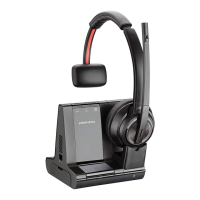
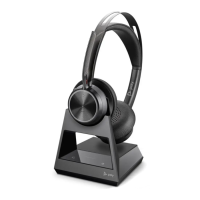
The Poly Voyager Focus 2 Office is a Bluetooth headset system designed for use with both computers and desk phones, offering a versatile solution for communication in various office environments. This system comprises a headset and a base unit, which together provide a comprehensive set of features for managing calls, listening to media, and enhancing user comfort and productivity.
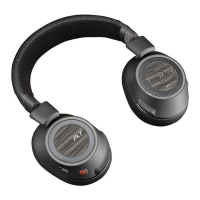
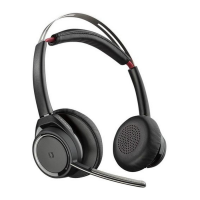
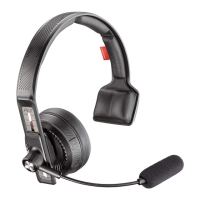
The headset itself is a key component, featuring Active Noise Cancelling (ANC) with adjustable settings (off/low/high) to help users focus by reducing external noise. It includes intuitive controls for volume adjustment (up and down), a call button for answering/ending calls and interacting with Microsoft Teams (on Teams models, requiring the Teams app), and a dedicated button for activating the default voice assistant (Siri/Google Assistant). For media control, the headset offers play/pause, next track, and previous track functionalities, though these may vary by application and may not function with web-based apps. A mute/unmute button, power on/off switch, and Bluetooth pairing control complete the headset's interface. The microphone boom is designed to be rotatable, allowing users to wear the headset on either the right or left side, with the audio automatically syncing to the chosen side. The boom should be positioned approximately two finger widths from the corner of the mouth for optimal performance. For comfort, the headband can be gently flexed wider.
The base unit serves as the central hub for the system, connecting the headset to both computers and desk phones. It features a computer button and a Microsoft Teams button (on Teams models) for selecting the audio source. A Bluetooth LED indicates pairing status, while a desk phone button allows for switching to desk phone audio. A charging LED provides visual feedback on the headset's charging status. The base also includes a USB port, a power jack, a handset lifter jack, a telephone interface cable jack, and a Bluetooth pairing button. For desk phone integration, the base offers controls for desk phone listening volume, desk phone speaking volume, and a desk phone configuration switch (A-G) to ensure compatibility with various phone models. The base also has a ringtone feature to alert users of incoming calls when the headset is not being worn.
Setting up the system involves connecting the base to the desk phone and computer. For desk phones, there are several setup options: a dedicated headset port, a standard handset port (requiring manual handset removal for calls if an HL10 lifter or EHS cable is not used), an EHS cable (sold separately), or an HL10 lifter (sold separately). The configuration switch on the bottom of the base needs to be set correctly (e.g., 'A' for most phones, 'D' for Cisco phones) to ensure proper dial tone and call control. The base should be positioned at least 6 inches from the desk phone and 12 inches from the computer to prevent noise and interference.
Pairing the headset to the base is typically pre-configured, but re-pairing involves sliding the headset's power switch to the pairing position and pressing the Bluetooth pairing button on the base. Pairing to a mobile device is also straightforward, requiring the headset to be put into pair mode and then selected from the mobile device's Bluetooth settings. The headset can pair with up to 8 devices but maintains simultaneous connections with only two, including the base.
Charging the headset is done by placing it in the base's cradle or by connecting it via a micro USB cable to a computer or wall charger. The headset LEDs flash during charging and turn off when fully charged, which takes approximately 2 hours. Battery status can be checked by sliding and releasing the power switch, which triggers a voice alert or illuminates the headset LEDs.
The system's functionality can be customized and enhanced through the Poly Lens App, which allows for firmware updates, advanced settings, and device call control for softphones. Firmware updates are crucial for performance improvements and new features, and it's important not to use the device or stream media during an update.
Smart sensors in the headset respond to wearing and removal, automatically answering calls or resuming media when worn, and keeping calls in the headset or pausing media when removed. These sensors can be reset by charging the headset for 10 seconds while powered on or by pressing and holding the Mute and Call buttons for more than 4 seconds until the LEDs flash purple four times. Sensors can also be disabled via the Poly Lens App or by a specific button combination.
Additional features include track selection (next/previous), fast forward/rewind for media, and voice assistant activation for smartphones. The ANC feature helps manage noise in different environments. Users can change their default outbound phone line/audio channel through the base or the Poly Lens App. An online indicator LED on the headset illuminates red to signal to others that the user is on a call. For situations with Bluetooth density problems, a corded mode (audio over USB) is available, where the headset connects directly to the computer via a USB cable, and the headset charges simultaneously.
Troubleshooting guidance covers common issues such as not hearing a dial tone, static, distorted sound, inability to activate voice assistants, and problems with handset lifters or softphone calls. Solutions often involve checking connections, adjusting volume levels on the headset, base, or computer, verifying pairing, and ensuring correct base configuration settings. For Microsoft Teams models, specific instructions are provided for interacting with the Teams app and ensuring compatibility with other softphones.
 General
| Wearing style | Over-the-ear |
|---|---|
| Bluetooth version | Bluetooth 5.1 |
| Voice prompts | Yes |
| Smart sensors | Yes |
| Dynamic Mute Alert | Yes |
| Connectivity | Bluetooth, USB |
| Wireless range | 98 ft (30 m) |
| Noise Cancellation | Active Noise Cancellation (ANC) |
| Ear Cushions | Memory foam |
| Controls | On-ear controls |
| Water Resistance | No |
| Warranty | 2 years |
| Charging time | 2 hours |



 To Next Page