13
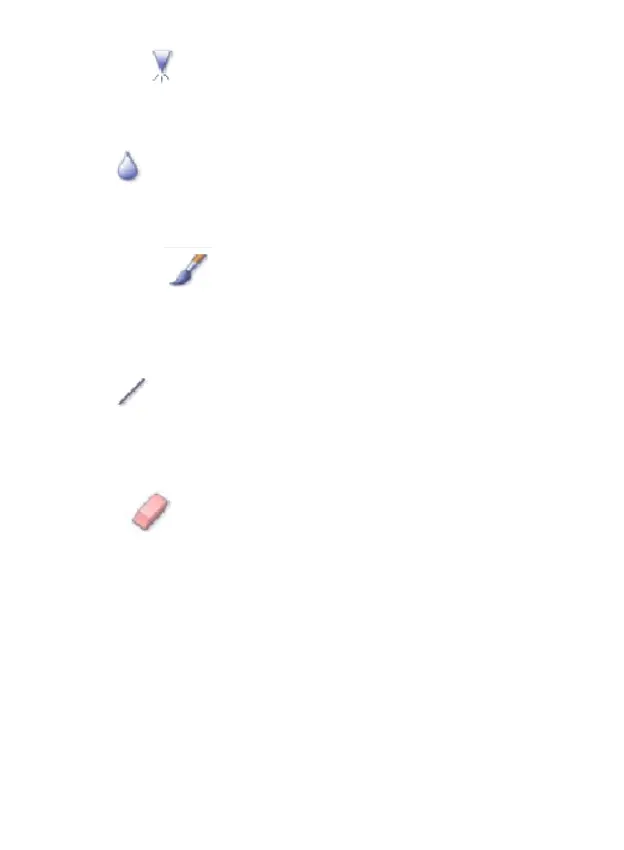
2.5 Sharpen
Sharpen blurry areas. Click and drag the sliders to change the brush size
and transparency.
2.6 Blur
Smooth out rough areas. Click and drag the sliders to change the brush
size and intensity.
2.7 Paint Brush
Allows you to “paint” on your image when you click and drag the mouse.
Click and drag the sliders to change the brush size and transparency.
2.8 Line
Draw a straight line in the photo. Click and drag the sliders to change the
line width and transparency.
2.9 Eraser
Simulate an eraser, removing the image painting by paintbrush and line
tools from your photo. Click and drag the sliders to change the eraser size
and effect.
3. Clipboard
Clip the pictures by selecting Rectangular, Elliptical, Freehand, Magic want
and Magnetic.
Note: For more detailed information, please refer to the help section of the program.


 To Next Page
 Loading...