Setup
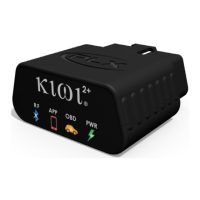
Configuring Kiwi 2+
1. Locate your car’s OBDII port and
plug in Kiwi 2+
Most cars have OBD located on the driver’s side below the steering wheel.
By OBD standards the connector must be located within three feet of the driver and must
not require any tools to be revealed. If your OBD port is not visible in plain sight trying
looking under the dash, behind ashtrays, and around/in fuse boxes.
2. Pair Kiwi
A. For maximum compatibility and the best user experience please make sure your
operating system has been updates to iOS 9.1
B. Open your iPhone’s Wi-Fi Settings and turn Wi-Fi on
C. Select Scan
D. Scroll down to Devices and Select PLXKiwi2
E. Select PLXKiwi2 to modify advanced settings
F. Under IP ADDRESS select Static Enter IP: 192.168.0.11 and Subnet: 255.255.255.0
G. Leave all other fields blank Hit the home button
3. Launch your favorite app and enjoy
Some apps may need additional configuration. Please see the next section for details.


 To Next Page