4. Configuring specific apps
1. Go to the Torque home screen (says TORQUE across the top)
2. Click the gear icon in the bottom left corner of the screen
3. Select Settings > OBD2 Adapter Settings > Connection Type
4. Make sure that Bluetooth is selected
5. Select Choose Bluetooth Device
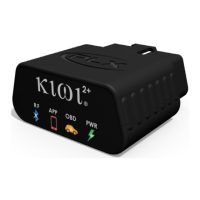
6. Select your Kiwi (PLXDevices–XXXX)
Torque should automatically connect and reconnect in the future.
1. From the OBD Auto Doctor home screen select your phones
menu button (usually or ) and select Settings
2. Verify that the selected Connection Method is Bluetooth
3. Under Bluetooth device select Search/Change
4. Select your Kiwi (PLXDevices–XXXX)
5. Select your phones back button
6. Select CONNECT
OBD Auto Doctor should now connect with your Kiwi 2+ and ECU.
Harry's
LapTimer
Rookie /
Petrolhead /
Grand Prix
1. From LapTimer’s home screen select Admin > Sensor list
(You can also select the menu button in button in the top right
corner of any screen and select Switch view … > Settings)
2. Select the Add Bluetooth ( ) button
3. Select your Kiwi (PLXDevices–XXXX)
(If Harry’s does not automatically connect, click on the sensors
name leave the field blank and select Set and OK)
4. Select OBD
Harry's should automatically connect and reconnect in the future.
1. Select the menu button at the top right corner of the screen and
select Configuration > Connection > Connection mode
2. Make sure that Bluetooth (not Kiwi 3) is selected
3. Select BT connection
4. Select your Kiwi (PLXDevices–XXXX)
5. Tap your phone’s back button twice to return to the main menu
6. Select connect
1. Select Connect (DashCmd can take up to 30 seconds to connect.)
2. If DashCommand fails to connect select Settings >
OBD-II Input Type and ensure that ELM is selected


 To Next Page