Installing GeForce™ Drivers
After installing DirectX
®
9 (or DirectX
®
8.1), the drivers for your graphics
card must be installed. To install the drivers follow these steps:
1.
When your system restarts, the ‘Auto-load’ install shield will appear after you
have re-inserted the installation CDROM, click on the Install Drivers button.
a. If your CD-ROM drive is not auto-detect enabled, click the Start button
on the task bar and then select the Run button.
b. Type “D:\launch.exe” in the dialog box and hit enter (where D:\ is the
location of your CD-ROM drive).
c. The install shield will now appear. Proceed with step 1 above.
2. The VGA Installation dialog box will appear on the screen, follow the
instructions on the screen to complete installation.
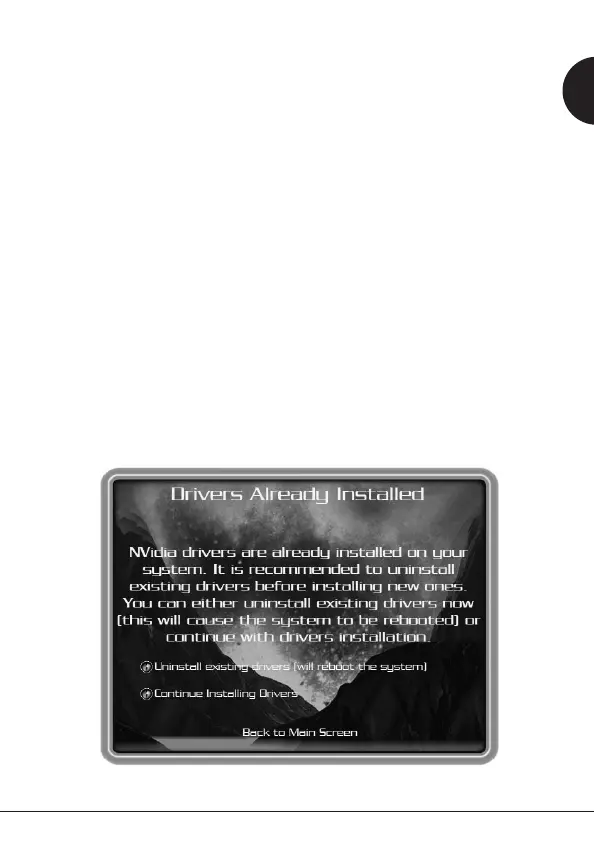
a. If you have upgraded your graphics card from another NVIDIA
®
based
card, your system will have older NVIDIA
®
drivers installed and you
will get the splash screen as shown in Figure 6.
b. It is imperative that you uninstall the NVIDIA
®
drivers in your system in
order for the new drivers to install properly.
c. To do this, click the Uninstall Existing Drivers button.
d. The existing drivers will be uninstalled and your system will be rebooted.
e. Once your system reboots, proceed with step 1 above.
Figure 6: Uninstall Existing Drivers Splash Screen
9GIV 51-03 V1.5 -
GB



 To Next Page