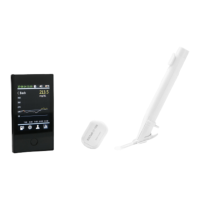
POCTech CT100C (CT10) CGM
Frequently Asked Questions
March 2020 – Global FAQ Master
How can I share my data with my HCP? Caregiver?
By downloading your glucose data into the POCTech CT-10 Software, you can display trend
results, view data viewing, and view the Ambulatory Glucose Profile (AGP) report for interpretation
of daily glucose patterns and time in range. These reports can be printed and/or saved and
shared with your healthcare professional so you can review your progress with them.
Does POCTech CT-10 have software to view the
data in more detail?
The POCTech CT-10 CGM includes the POCTech CT-10 Software that can be used to view your
glucose data in more detail. You can also print or download reports that can be shared with your
healthcare provider.
Does POCTech CT-10 provide an AGP report?
By downloading your glucose data into the POCTech CT-10 Software, you will be able to analyze
your glucose data with helpful charts and graphs, as well as the AGP Report. The AGP report can
help to monitor time in range and learn the impact of lifestyle, meds, and exercise. This report can
be shared with your healthcare provider so you can review your progress with POCTech CT-10.
What is an Ambulatory Glucose Profile (AGP)
Report?
The Ambulatory Glucose Profile (AGP) Report is a standardized single-page report of your
glucose data. The AGP Report was developed by the International Diabetes Center to provide a
visual picture of your diabetes management and to help identify glucose patterns.
(Reference: POCTech CT-10 Software User Guide)
How do I download the data from my Receiver?
You can download the glucose data into the POCTech CT-10 Software.
What platform can I use the POCTech CT-10
Software?
The POCTech CT-10 Software is available for both PC and MAC.
My POCTech CT-10 Software looks like it is in the
wrong measurement? (mg/dL vs mmol/L)
You may have downloaded the wrong version of the POCTech CT-10 Software. When you are
looking at the Overview screen, does the glucose measurements say mg/dL or mmol/L?
Agent note: If user has the wrong version of the software, help them to navigate to the correct
country website to download the right version. Their raw glucose data should automatically save
to the newly downloaded version.
Can I save the raw glucose data from the Receiver
somewhere else? (In addition to the POCTech CT-
10 Software)
PLEASE NOTE: Be careful not to delete the data for the current sensor that you are
wearing. If the data for the current sensor period is deleted by mistake, it will automatically
end the sensor session.
The raw data from your Receiver can be saved to the location of your choosing.
1) Connect the Receiver to your computer using the USB-C Cable provided in your
POCTech CT-10 Welcome Kit. The cable is located in the black Receiver box, under the
padding. PLEASE NOTE: The Receiver must be turned off in order for your computer to
identify the Receiver like a USB device.
2) Open a File Explorer window and search for a device called “USB Drive”. The drive will
contain two folders called “@font” and “database”. The raw glucose data is in the
“database” folder. From here, you can now copy the glucose data to another location.


 To Next Page
 Loading...