Need help?
Do you have a question about the POD Point Solo Smart Charger and is the answer not in the manual?
Guide for setting up an iPhone hotspot for the Solo charger.
Guide for setting up an Android hotspot for the Solo charger.
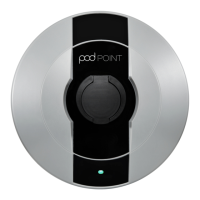
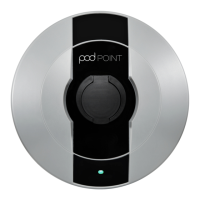
The Pod Point Solo Smart Charger is an electric vehicle (EV) charging unit designed for home use, offering a blend of speed, safety, and smart connectivity. Its primary function is to charge electric vehicles efficiently, while also providing users with advanced monitoring and control capabilities through its Wi-Fi connection.
The Solo Smart Charger connects to your home Wi-Fi network to enable a range of smart features. This connectivity allows users to monitor charging activity via the Pod Point App, ensuring they have real-time information about their EV's charging status. Beyond basic charging, the device is designed to evolve, with the ability to unlock new features through future software updates. This ensures the charger remains current with technological advancements and user needs.
For optimal performance and troubleshooting, the Solo Smart Charger facilitates remote customer service and diagnostics from Pod Point Experts. This means that if an issue arises, the support team can often diagnose and resolve it remotely, minimizing downtime and inconvenience for the user. The Wi-Fi connection also ensures that the charger receives the latest software versions, which can include performance enhancements, bug fixes, and new functionalities.
Connecting the Solo Smart Charger to Wi-Fi is a straightforward process. Users begin by ensuring their Wi-Fi password is ready and then turning the Solo off and on at the fuse box or consumer unit. A mobile device can then scan for the "podpoint" Wi-Fi network and connect to it. Once connected, users open a web browser and navigate to a specific IP address (192.168.1.1) to access the charger's settings. From there, they can select their home Wi-Fi network from a list, enter the password, and press "Connect." It's important to note that the Solo Smart Charger is designed to pair with 2.4 GHz Wi-Fi networks only. After connection, the new settings typically take 15-30 minutes to activate, though they can be activated immediately by cycling the charger's power. A blue status light with a short pink flash every few seconds indicates a successful connection. If the status light remains white, troubleshooting steps include restarting the Solo, verifying settings, or trying a different device.
Disconnecting the Solo from Wi-Fi is typically done when changing Wi-Fi passwords, routers, internet service providers, or if the charger has undergone technical service. The process involves turning off the router, then cycling the Solo's power at the fuse box. Similar to connecting, users then connect a smart device or laptop to the "podpoint" Wi-Fi network and navigate to a specific URL (192.168.1.1/profiles_config.html) in a web browser. On this page, users can scroll to the "Profiles" section, select all profiles except "PP3GWifi," and then click "Remove Selected Profiles" and save. Finally, turning the Solo off and on again at the fuse box and turning the router back on completes the disconnection, ensuring the Wi-Fi network is no longer connected to the Solo.
For situations where a home Wi-Fi connection isn't feasible, the Solo Smart Charger can also be connected via a phone hotspot. This is intended as a temporary solution for remote troubleshooting. Setting up a hotspot involves enabling the "Personal Hotspot" feature on an iOS device or the "Wi-Fi hotspot" or "Portable hotspot" on an Android device, often with the option to set a password. After the hotspot is active, the Solo is powered off and on, and a smart device connects to the "podpoint" Wi-Fi network.
If a second smart device is available, it can be used to pair the Solo to the hotspot. This involves opening a web browser on the second device, navigating to 192.168.1.1, and then selecting the hotspot from the list of available networks and entering its password. The settings will then activate, and the Solo's status light should turn blue flashing pink, indicating a successful connection to the hotspot.
If only one smart device is available (the one emitting the hotspot), the process is slightly different. After the Solo is powered off and on, and the smart device is connected to the "podpoint" Wi-Fi network, users navigate to 192.168.1.1/profiles_config.html in their web browser. Here, they manually add the hotspot's name (SSID), select WPA2 for security type, enter the hotspot's password in the "Security key" field, set "Profile Priority" to 1, and press "Add." After the page refreshes, the hotspot should appear in the profile list. The final step involves turning the hotspot on again and resetting the Solo's Wi-Fi by cycling its power. A blue flashing pink LED status light confirms a successful connection to the hotspot.
Beyond home charging, Pod Point offers a public EV charging network with over 3,000 bays across the UK and Ireland. Users can download the Pod Point App to locate nearest charge points, monitor charging activity, and manage payments. The network supports fast and rapid charging, does not require RFID cards, and offers fair pricing without subscription or connection fees. It is compatible with all plug-in vehicle models.
Pod Point also extends its services to workplaces, enabling businesses to provide EV charging for their employees. This allows employees to charge their EVs during work hours. Businesses can scale up their charging infrastructure as their workforce adopts EVs. The Pod Point App facilitates access to workplace chargers, helps with expense handling for business EV journeys, and allows users to oversee all their charging activity from their smartphone.
The Solo Smart Charger is designed for low maintenance, with its smart features contributing significantly to its upkeep. The Wi-Fi connectivity allows for remote diagnostics by Pod Point Experts, meaning many potential issues can be identified and resolved without a physical service visit. This proactive approach helps maintain the charger's optimal performance and minimizes the need for user intervention.
Automatic software updates, delivered via the Wi-Fi connection, ensure that the charger's firmware is always up-to-date. These updates can include performance improvements, security enhancements, and new functionalities, all of which contribute to the long-term reliability and efficiency of the device. By keeping the software current, the charger can adapt to changes in EV technology and network requirements, ensuring continued compatibility and optimal operation.
In cases where a connection issue arises, the troubleshooting steps provided in the connection guide, such as restarting the Solo or verifying settings, are simple maintenance actions users can perform to restore functionality. For more complex issues, the remote support system is a key maintenance feature, allowing expert assistance to be provided without requiring the user to have advanced technical knowledge.
The Pod Point network and app also contribute to the overall maintenance experience by providing a robust ecosystem for EV charging. The ability to monitor charging activity and access customer service through the app means users have readily available tools to manage their charging experience and address any concerns.
 General
| Connector Type | Type 2 |
|---|---|
| Mounting | Wall-mounted |
| Weight | 3.5 kg |
| Operating Temperature | -30°C to +50°C |
| IP Rating | IP54 |
| Input Current | 32 A |
| Tethered Cable Length | 5m |
| Connectivity | Wi-Fi |
| Smart Features | remote monitoring |
| Compliance | IEC 61851 |
| Input Voltage | 230V AC |
| Compatibility | All EVs with Type 2 connector |

 To Next Page