Need help?
Do you have a question about the Pokini Tab K10B and is the answer not in the manual?
Current information and manuals available for download.
Bolded or underlined text emphasizes designated information.
Guidelines to protect users from injury and prevent hardware damage.
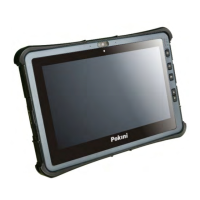
Rugged tablet for industrial and mobile applications.
Read safety guidelines before operating the device.
Warnings and precautions related to electrical components and power.
Do not use in locations with flammable gases or vapor.
Device uses passive cooling and requires airflow.
Disconnect from power before connecting/disconnecting devices.
Use only tested and approved Pokini accessories.
Follow national regulations for maximum transmission power.
Equipment tested for Class B digital device compliance with FCC rules.
Equipment may cause interference; user must correct it.
Meets government requirements for radio wave exposure.
Product passed CE test for environmental specifications.
Warning about battery explosion if incorrectly replaced.
Rugged device with wireless capabilities and specific OS support.
Inspect all components and accessories before installation.
Details display, CPU, RAM, storage, battery, power supply.
Details ports, rugged specs, IP rating, temperature, humidity.
Lists optional features available for the K10.
Lists items shipped with the Tab K10(B).
Diagram and labels for device front, rear, side, and bottom views.
Bumpers enable rugged tablet to withstand shocks and drops.
Labels and descriptions of front panel components like camera, screen, keys.
Table detailing LED indicators for Battery, FN, and Wi-Fi status.
Diagram and labels for bottom panel components like docking connector.
Diagram and labels for left panel components like USB, HDMI, Ethernet.
Details DC-IN jack and RS-232 serial port.
Information on accessing I/O ports via covers.
Labels and descriptions of rear panel components like battery, camera, fan.
How to use the optional digitizer for control.
Lists device dimensions without add-ons in mm/inches.
Guidelines for using the touch screen and digitizer.
Initial steps for powering on and activating the battery.
Step-by-step instructions for charging the device.
Press power button until screen lights to turn on.
Steps to shut down the device via Start or Desktop screen.
Instructions for installing a micro SIM card.
Guidelines for proper use and limitations of the digitizer.
Instructions for removing the protective film.
Steps to open and close the I/O compartment cover.
How to connect USB devices via Type-C and Type-A ports.
How to connect a LAN cable to the Ethernet port.
How to connect audio devices via the audio jack.
How to connect HDMI devices via micro HDMI port.
How to connect RS-232 devices using an RS-232 cable.
Steps to install/remove the handstrap.
How to attach clips to the metal loop for the handle.
How to attach clips to the metal loop for the strap.
Instructions for installing/removing the battery.
Detailed steps with images for battery installation and locking.
Step-by-step guide to connect to a wireless network.
How to access and use the BIOS setup utility.
Guidelines for preparing BIOS environment for OS installation.
How to enable legacy boot in BIOS settings.
How to save BIOS settings after configuration.
Procedure for setting up a supervisor password.
Steps to change an existing supervisor password.
Information on what to do if the supervisor password is forgotten.
Procedure to update and reflash the system BIOS.
Steps for updating BIOS via USB and PC settings.
Commands for navigating USB and updating BIOS file.
Procedure for updating the EC firmware.
Overview of the DashON utility for device settings.
Controls for EXIT, Button Lock, Screen Rotate, Airplane, Battery, Brightness, Volume.
Controls for GNSS, Wi-Fi, Bluetooth, Mobile Broadband.
Controls for Touch Lock, ECO Mode, Power Plan, Display Switch, Pass-through.
Pre-defined functions settings, supports customization.
Fix problems with Wi-Fi, security, or general operation.
Solve problems with 802.11 radio connection.
Troubleshoot issues like no power or system lock-up.
Contact dealer, representative, or website for support.
Details needed for technical assistance.
Best cleaned with a damp cloth, avoid compressed air.
Use neutral detergent or isopropyl alcohol.
Put contents in original package when returning.
Consult distributor or technical services for difficulties.
Contact for technical questions via email.


 To Next Page
 General