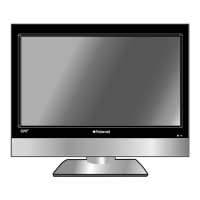
This document is the user manual for the Polaroid PL6521UHDG 65" 4K UHD Android TV.
Function Description
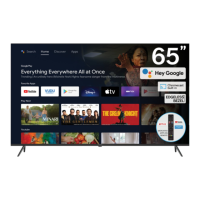
The Polaroid PL6521UHDG is a 65-inch 4K UHD Android TV designed to provide a comprehensive entertainment experience. It allows users to watch free-to-air TV in High Definition, connect to various external devices, access a wide range of apps through the Google Play Store, and stream content using Chromecast built-in. The TV features a built-in microphone for voice interaction with Google Assistant, enabling hands-free control and smart home integration. It also supports recording live TV and time-shift functions, allowing users to pause and rewind live broadcasts. The TV is designed with user-friendly controls, including a remote control with dedicated buttons for popular streaming services like Netflix and YouTube, and an on-screen menu system for easy navigation and customization of settings.
Important Technical Specifications
- Active Screen Size (diagonal): 163.9cm (65 inches)
- Resolution: 3840 x 2160 (4K UHD)
- Refresh Rate: 60Hz
- Aspect Ratio: 16:9
- Multimedia Playback Formats (USB mode):
- Music: AAC, M4A, OGG, MP3
- Photo: JPEG, JPG, BMP, PNG, GIF
- USB Output: DC 5V 500mA
- Power Source: 100-240V, 50/60Hz
- Power Consumption: 170W
- Dimensions (W x D x H):
- With Stand: 1450 x 333 x 905 mm
- Without Stand: 1450 x 85 x 842 mm
- Weight:
- Net (without stand): 16.3kg
- Gross: 22kg
- Bluetooth®: Supported
- HDMI Inputs: Multiple, supporting Ultra HD resolution and HDMI-ARC (Audio Return Channel) on HDMI 1.
- Other Inputs: USB, Mini AV, LAN (Ethernet), Antenna In.
- Outputs: Headphone Jack, Digital Audio Out (Optical).
- VESA Mounting Bracket: 400mm, with 4 x M6*12mm screws (or longer as required).
- Operating System: Android TV.
- HDR (High Dynamic Range): Supported, enhancing picture quality with brighter highlights, more realistic colors, and improved detail.
Usage Features
Setup and Installation:
The TV can be placed on a stand or wall-mounted. The manual provides detailed instructions for attaching the stand, including safety precautions regarding the TV's weight and the need for assistance. For wall-mounting, it specifies the VESA mounting bracket size and screw requirements. Initial setup involves connecting to power and an antenna for free-to-air TV.
Remote Control:
The TV comes with a remote control that requires two AAA batteries. The remote allows for basic functions like power on/off, volume control, channel selection, and navigation through menus. It also features dedicated buttons for Google Assistant (microphone), Netflix, YouTube, and Prime Video, as well as buttons for display additional information, launching the TV Guide, recording, playback controls (rewind, fast forward, play, pause, stop), subtitles, MTS (Multi-channel Television Sound), and aspect ratio adjustment. The remote supports both Bluetooth® and IR (infrared) commands, with pairing instructions provided for Bluetooth functionality. The remote control has a range of up to 5 meters and an angle of up to 30 degrees to either side of the sensor.
On-Screen Menus and Settings:
The TV's Android TV interface offers a user-friendly experience with a home screen for accessing apps, inputs, and settings. Key menu categories include:
- Picture: Adjusts picture mode (Standard, Vivid, Sport, Movie, Game, Energy Saving, User), backlight, brightness, contrast, saturation, hue, sharpness, gamma, color temperature, and advanced video settings (DNR, MPEG NR, Adaptive Luma Control, Local Contrast Control, DI Film Mode, Blue Stretch, Game Mode, PC Mode, HDMI RGB Range, Low Blue Light).
- Sound: Configures sound style (User, Standard, Vivid, Sport, Movie, Music, News, Auto), balance, bass, treble, sound surround, equalizer detail, speakers, speaker delay, digital output, SPDIF delay, auto volume control, downmix mode, and Dolby Audio Processing.
- Channel: Manages channel scan (automatic and single RF scan), channel skip, channel edit, and parental controls.
- Network & Internet: Configures Wi-Fi settings (available networks, add new network), wired network settings (proxy settings, IP settings), and other options like WOW (Wake on Wireless Network) and WOL (Wake on LAN).
- Accounts and Sign-in: Manages Google accounts (add, choose synced apps, remove, sync now).
- Google Assistant: Adjusts searchable apps and SafeSearch filter.
- Apps: Displays recently opened apps, all installed apps, app permissions, special app access, and security & restrictions.
- Retail Mode: Option to turn retail mode on/off.
- About: Provides system update information, factory reset option, status (IP address, MAC address, Bluetooth® address), legal information, Android TV OS version, and software version.
- Date & Time: Sets automatic date & time, set date, set time, set time-zone, and use 24-hour format.
- Inputs: Selects input source to customize the input name, HDMI control, device auto power off, TV auto power on, and CEC device list.
- Power: Configures sleep timer, picture off, switch off timer, and no signal auto power off.
- Screen Saver: Sets screen saver mode, when to start, and start now.
- Location: Displays location status and recent location requests.
- Accessibility: Adjusts audio type, captions, high contrast text, and text to speech.
- Restart: Restarts the TV.
- Remotes & Accessories: Manages Bluetooth® device pairing.
- High Dynamic Range (HDR): Provides information about HDR features and support.
Smart TV Features:
The Android TV platform allows users to:
- Download or Delete Apps: Access the Google Play Store to download and manage a wide variety of applications and games.
- Stream using Chromecast-enabled Apps: Cast content from Chromecast-enabled apps and Chrome browser on phones, tablets, or laptops to the TV.
- Using Voice Interaction: Interact with Google Assistant using the built-in microphone on the remote control for voice commands, searches, and smart home control.
- Connect To Google Home: Integrate the TV into a Google Home ecosystem to cast videos, stream music, and control smart power switches.
TV Guide and Recording:
The TV offers a TV Guide for free-to-air TV, allowing users to view program schedules, filter by category, and schedule recordings. It supports recording live TV to a USB storage device and provides time-shift functionality to pause and rewind live broadcasts. Important tips for recording include ensuring sufficient USB storage, avoiding interruptions during recording, and not turning off the TV during time-shift.
Maintenance Features
General Care:
- Place the TV on a level surface.
- Keep the TV away from sources that generate heat or vibrations.
- Ensure adequate space around vents for airflow.
- The remote control works up to 5 meters away from the TV.
- Unplug the TV before cleaning it.
- Clean using a dry cloth only; do not use water or chemicals.
- Use only the power supply provided.
- It is highly recommended to use safety straps for securing the TV in place.
- Keep liquid, children, and pets away from the TV at all times.
Troubleshooting:
The manual includes a comprehensive troubleshooting section to address common issues such as:
- Remote control not working: Check batteries, ensure correct polarity, remove obstacles, and verify AC power cord connection.
- TV not turning on: Check power cord, wall outlet, power button, and ensure antenna cable is securely connected.
- No picture/sound or distorted picture/sound in DTV mode: Check antenna cable, input source, "No Signal" display, different antenna cable, TV away from electronic equipment, antenna position, and picture appears fuzzy or blurry in HD channels.
- No picture/sound or distorted picture/sound from an external device: Check cable connections, restart devices, ensure correct input source, check volume, earphones, external audio device, HDMI-ARC settings, optical cable settings, and SPDIF delay.
- No/intermittent internet: Check Wi-Fi password, turn off/on access point, ensure no obstacles, check Wi-Fi connection, LAN cable, static IP settings, and contact Internet Service Provider.
- USB storage device not recognized or media files don't play properly: Ensure USB storage device is formatted in FAT32, use a utility program for unsupported formats, ensure USB device is recognized, check unsupported codec or container, and verify standard bit rates/frame rates for video.
Warranty and Support:
All Polaroid products are manufactured to high standards of performance and safety. The purchase is backed by a comprehensive 1 Year Warranty. For technical and warranty support, users can call 1300 886 649 or visit tempo.org/support.
Compliance and Disposal:
The packaging is environmentally friendly and recyclable. The product itself should be disposed of responsibly at the end of its working life. Electrical and electronic items contain materials and substances that, if handled or disposed of incorrectly, could potentially be hazardous to the environment and human health. Individuals can contact their local council or national television and computer recycling scheme for information on local e-waste management services. The product complies with the Australian Safety Standard AS/NZS 62368.1.

 Need help?

 To Next Page
 General