EasyManua.ls Logo

Polono MT800 - Page 2

Polono MT800
19 pages
Print Icon
To Next Page IconTo Next Page
To Previous Page IconTo Previous Page
Loading...
MT800
-1- -2-
LED Indicator
Solid white light: Printer is in standby mode
Solid green light: Printer is charging – LED

Flashing red light: Ribbon has been depleted
– replace ribbon
-3-
-4-
-5-
Quick Start Guide
Xiamen Hanin Electronic Technology Co., Ltd.
ADD: 5F, 8#, Aide Airport Industrial Park, Huli
District, Xiamen, China
WEB: www.hprt.com
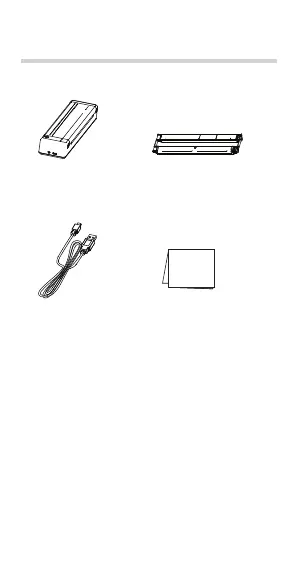
Packing List
Note:

the order.
2) The ribbon module comes preinstalled in
the printer.
Printer Ribbon Module
Appearance and Components
Front

Top Cover
Paper Inlet
LED
Indicator

Opening

Right Cover
Opening

Quick Start Guide


Bluetooth
Indicator
Note: 
Inner



Paper Sensor

Paper Feed

Sensor
Right
Paper Feed

Sensor
Right Wing


Paper Sensor
TPH


printer cover upward.


Right Cover Opening



as a guide, and press down to install.


Right Wing

To avoid errors when loading the ribbon,
make sure the arrow d
ribbon and printer align.
NOTE:
Rewind wheel

Rewind wheel

-6-
Rewind wheel

Rewind wheel




straighten out the ribbon.
4. Close the cover. You will hear it click into place.
Loading Ribbon
-7-

(From Mobile Phone)

3 seconds, and then release it when the printer







and the printer is ready.
Paper Inlet
Note: 

-8-
3. Download “H-Print” APP: Scan the QR
code below to download “H-Print” APP.
4. Connect with the printer:
1) Turn on Bluetooth on the mobile phone,

mobile app, not through the Bluetooth
devices list.
Note: 
the on screen steps in the app and was not required

in step 2.
2) Open the APP and select “Device


the device via APP, and select “MT800-XXXX

Bluetooth address)

5. Print:
1) Select 
2) Press the print icon in the top right to start

-9-


~35

Storage Temperature: -5~45

NOTE:
USB Cable