12 13
Repeat A-B
This function used to play a certain part of track/chapter/title you had determine before, between starting point
and certain end point by pressing “A-B” button. Press “A-B” button once to determine the starting point (A)
that will be repeated. displayed on the TV screen. Press “A-B” button again to determine the end point
(B) that will be repeated. displayed on the TV screen. The selected part will be repeated continuously. To
cancel REPEAT A-B repetition, press “A-B” button again.
Zoom (enlarge)
This function used to enlarge picture view while playing a disc.
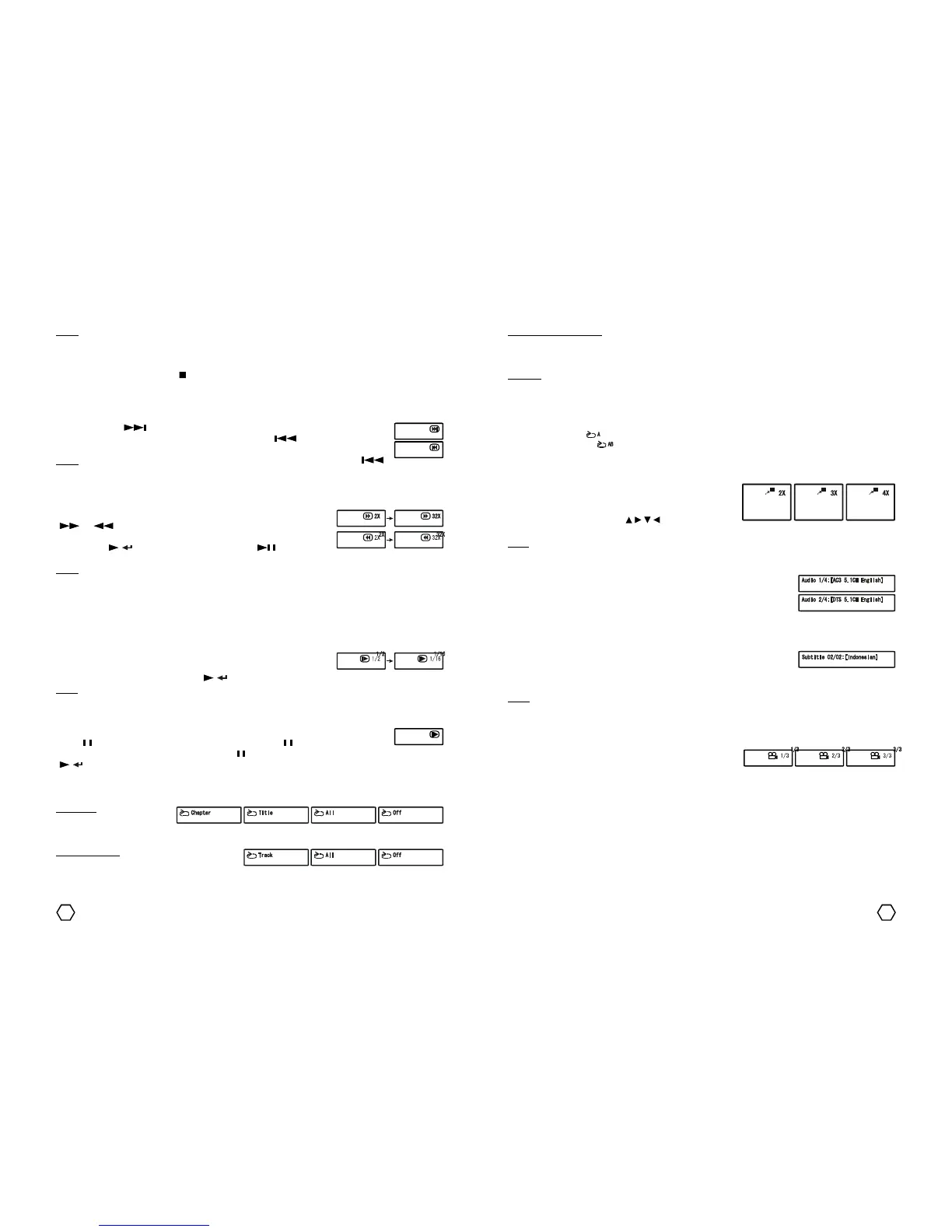
There are 3 zoom level of enlarging picture, each time “ZOOM”
button is pressed, the pictures view will enlarged to 2x, 3x and
4x. During ZOOM you can use “ / / / ” navigator button to
find the preferred picture part. Press “ZOOM” button again to back to normal.
Note : ZOOM only works when playing DVD/SVCD/VCD disc and ZOOM does not work when playing MP4 disc.
Next/Previous
When play, press “ ” (next) button to go to the next chapter (DVD) or track (SVCD/VCD/
CD/MPEG4/MP3). Previous : When beginning play, press “ ” (previous) to go to the
previous chapter (DVD) or track (SVCD/VCD/CD/MPEG4/MP3).
Note : For DVD/SVCD/VCD/CD, you can go to the previous title/chapter/track (by “ ”
button) if played time is less than 3 seconds, if more than 3 seconds the current title/chapter/track that will
be played again.
Fast Forward/Fast Reverse
You can find a certain part of the disc/chapter/track using this fucntion. Press
“ ” / “ ” button to search forward/reverse the certain part of the disc,
repeat the pressing of the button to select 2x, 4x, 8x, 16x and 32x search
speed. Press “ / ” button on the remote control or “ ” button on the
front panel to back to play normal.
Note : - While playing SVCD/VCD/MPEG4/CD disc, if fast forward reach the beginning part of the next
track, it will back to normal play.
- While playing SVCD/VCD/MPEG4/CD disc, if fast reverse reach the beginning part of the current
track, it will back to normal play.
- While playing DVD/SVCD/VCD/MPEG4 disc, while fast forward or fast reverse there will be no
sound (mute).
Slow (slow motion play)
When play press “SLOW/AM/FM” button, repeat pressing “SLOW/AM/FM”
button until you get desired speed. Available slow motion speed are : 1/2, 1/
4, 1/8, 1/16 then back to normal. Press “ / ” button on the remote control to back to normal play.
Note : Slow motion does not works for MP3/JPEG/CD disc. Slow motion only works for DVD/SVCD/VCD/
MPEG4 disc.
Step (frame by frame)
When playing DVD/SVCD/VCD/MPEG4 disc, step is used to play the scene frame by frame.
Press “ /STEP” button to activate step function. Each time “ /STEP” button is pressed,
picture is played frame by frame. Press and hold “ /STEP” button to play step function continuously. Press
“ / ” button on the remote control to back to normal play.
Repeat Play
This function is used to repeat certain title/chapter/track or entire disc.
DVD disc : While playing DVD
disc, title/chapter or all entire
disc can be repeated. Press “REPEAT” button repeatedly to select repetition mode : CHAPTER, TITLE, ALL and
OFF (off REPEAT function).
SVCD/VCD disc : While playing SVCD/VCD disc,
track or all entire disc can be repeated. Before
using this function, make sure you has turn off PBC (play back control) function. Press “REPEAT” button
repeatedly to select repetition mode : TRACK, ALL and OFF (off REPEAT function).
Note :
1. If only there is 1 title on the DVD disc, program menu display will same as SVCD/VCD/CD disc program
menu display.
2. To exit from PROGRAM play, press “PROG/MEM” button to enter to program menu, select STOP, then
select EXIT. Other way, press “ ” (stop) button twice.
3. RESUME function can works in PROGRAM mode.
4. Program only works when playing DVD/SVCD/VCD/CD disc.
MPEG4/MP3/JPEG disc : While playing MPEG4/MP3/JPEG disc, there are 4 play mode : REPEAT ONE
(continuously repeat the selected track), REPEAT FOLDER (continuously repeat all tracks in entire played
folder), RANDOM (play all tracks in entire played folder by randomly) and CONTINUE (play all tracks in entire
played folder sequencely). Press “REPEAT” button repeatedly to select the one of the repetition mode.
CD disc : While playing CD disc, available repeat mode : TRACK, ALL, RANDOM and CONTINUE.
Audio language
Many DVD disc has soundtrack that recorded in many language. “AUDIO” button
is used to select the different audio language. This button can be used to select
SURROUND sound format that is recorded on the disc (example : DOLBY DIGITAL,
STEREO and DTS). To change the language while playing DVD disc, press
“AUDIO” button until displayed Audio language info on the TV screen.
Subtitle (on the screen text)
Many DVD disc recorded with multi-subtitle. “SUB-T” button is used to select
your preferred subtitle. When playing DVD disc, press “SUB-T” button until
appear preferred subtitle language. To deactivate subtitle, press “SUB-T” button repeatedly until displayed
SUBTITLE OFF on the TV screen.
Note : Note all DVD disc recorded in multi-language subtitle.
Camera Angle (viewing angle option)
Many DVD disc provides camera angle facility to enable you watch the scene in different viewing angle. If
ANGLE MARK (refer General setup menu) is set to ON, camera symbol will be displayed on the TV screen to
indicates that camera angle option are available (if DVD disc has
more than 1 camera angle). As example : If there are 3 extra
camera angle, press “ANGLE” button to change to another camera angle view, OSD camera angle will appear
as beside. Pressing “ANGLE” button afterward will move the camera angle view to the next angle.


 To Next Page
 Loading...