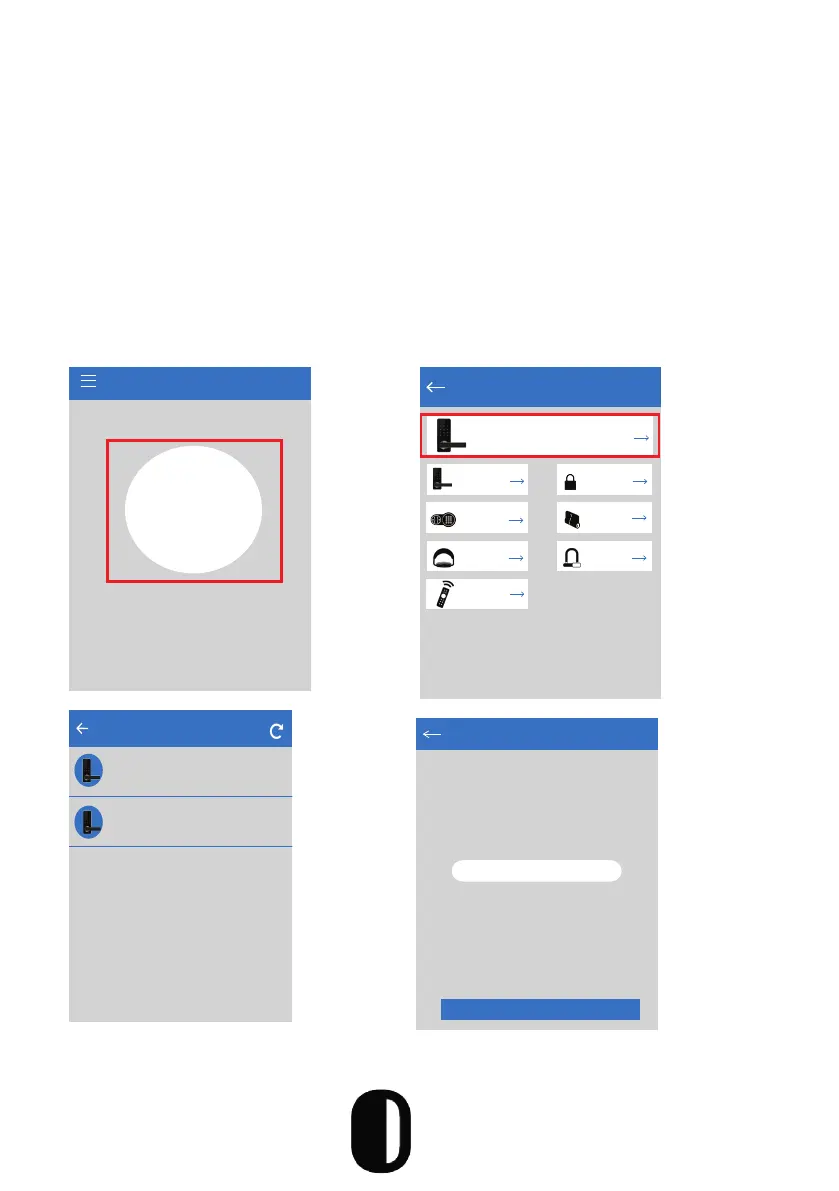
2) Register a new account with your email address or login with an
existing account (skip this step if you have an existing account)
• The verication code will be sent to the user’s mobile phone or
email and registration will be successful after verication
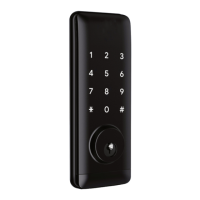
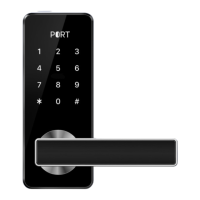
3) Touch the glass panel to light, click “+Add Lock’’ on the app (TTLock
supports multiple types of lock devices. You must select the lock type)
4) The lock nearby will appear on the phone screen, click “+”
5) Rename the lock if you wish (EX: front door, back door, oce, etc.)
6) Wait for “lock added” conrmation (Often times it will be a soft sound
once conrmation is received.
TTLock
Press to Add Lock
+
The phone must be within 6 feet of the
Smart Lock during the Pairing process
Choose Lock Type
All Locks
Scan all types of locks
Door Lock
Padlock
Safe Lock
Lock
Cylinder
Parking
Lock
Bicycle
Lock
Remote
Control
Nearby Locks
BL01_63230b
+
S202C_f4324e
14


 To Next Page