Bluetooth Management
Make sure there is no problem with Bluetooth communication. After
connecting the phone to the door lock, click “ ” to unlock (the phone (the phone
needs to be within 16 feet of the door to unlock. The door will always needs to be within 16 feet of the door to unlock. The door will always
remain locked until or unless it is changed to passage mode-see setting)remain locked until or unless it is changed to passage mode-see setting)
On the app a voice command will sound “unlock”, and if there is any On the app a voice command will sound “unlock”, and if there is any
communication problem with bluetooth, voice command will sound communication problem with bluetooth, voice command will sound
“operation failed”. Then close the app and start over.“operation failed”. Then close the app and start over.
Setting Your Passcode
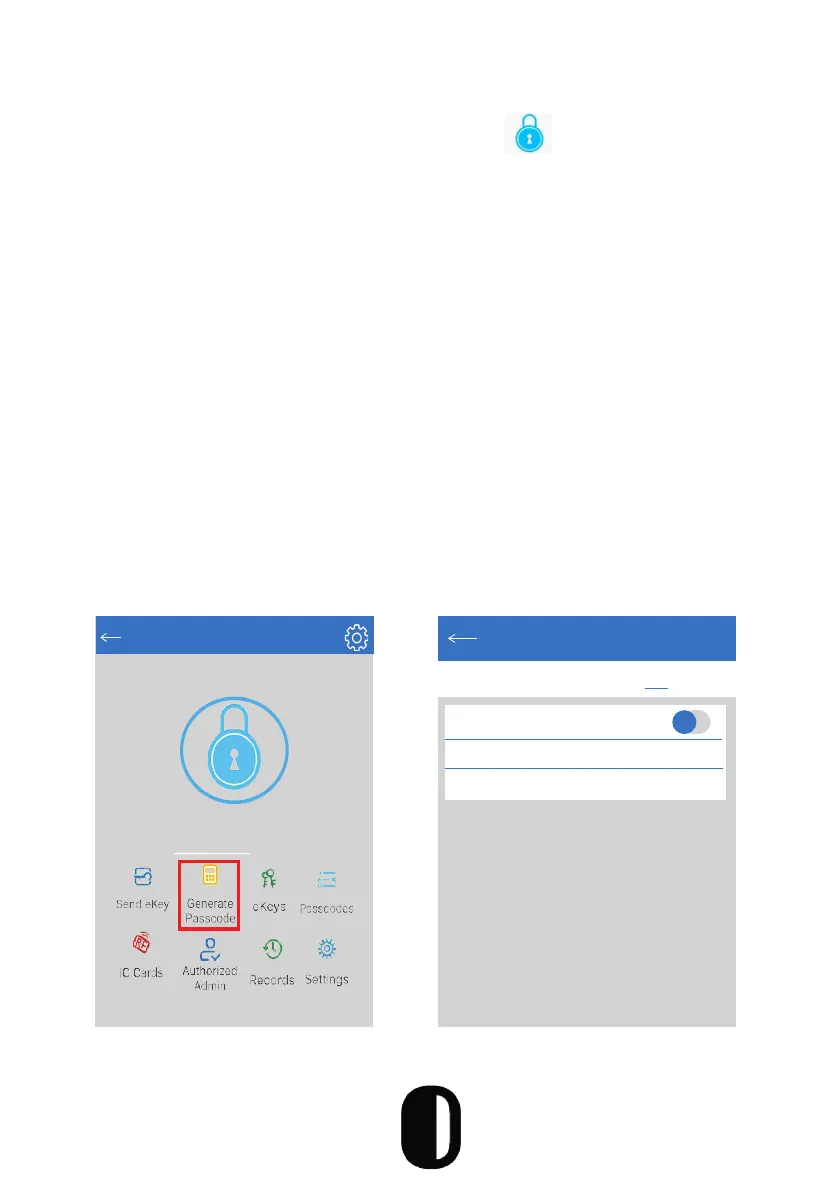
Passcodes can be used to unlock the door. Create a passcode by clicking
“Generate Passcode” on the app. System will create a generic passcode
and it can be changed to your favorite code after using the generic code
once. To change the passcode click passcode and type your desired
code; and click ok. Passcodes can be generated for: permanent, limited
time, single use and custom schedule.
Generate Passcode
anent Timed One-Time Erase Custom Recurri
Permanent
Start Time
2020-03-06 09:00
End Time
2020-03-06 09:00
15
TTLock
S31A
Touch to Unlock. Long Press to Lock


 To Next Page