15
future meals for your pet. Press
and hold the button for 2
seconds. Your PortionPro Rx will
show you:
● 2nd prior meal time with a
to indicate successful meal
delivery or to indicate an
unsuccessful meal delivery
● Most recent meal time with
a to indicate successful
meal delivery or to indicate
an unsuccessful meal delivery
● Next meal time
● Total cups of food per day
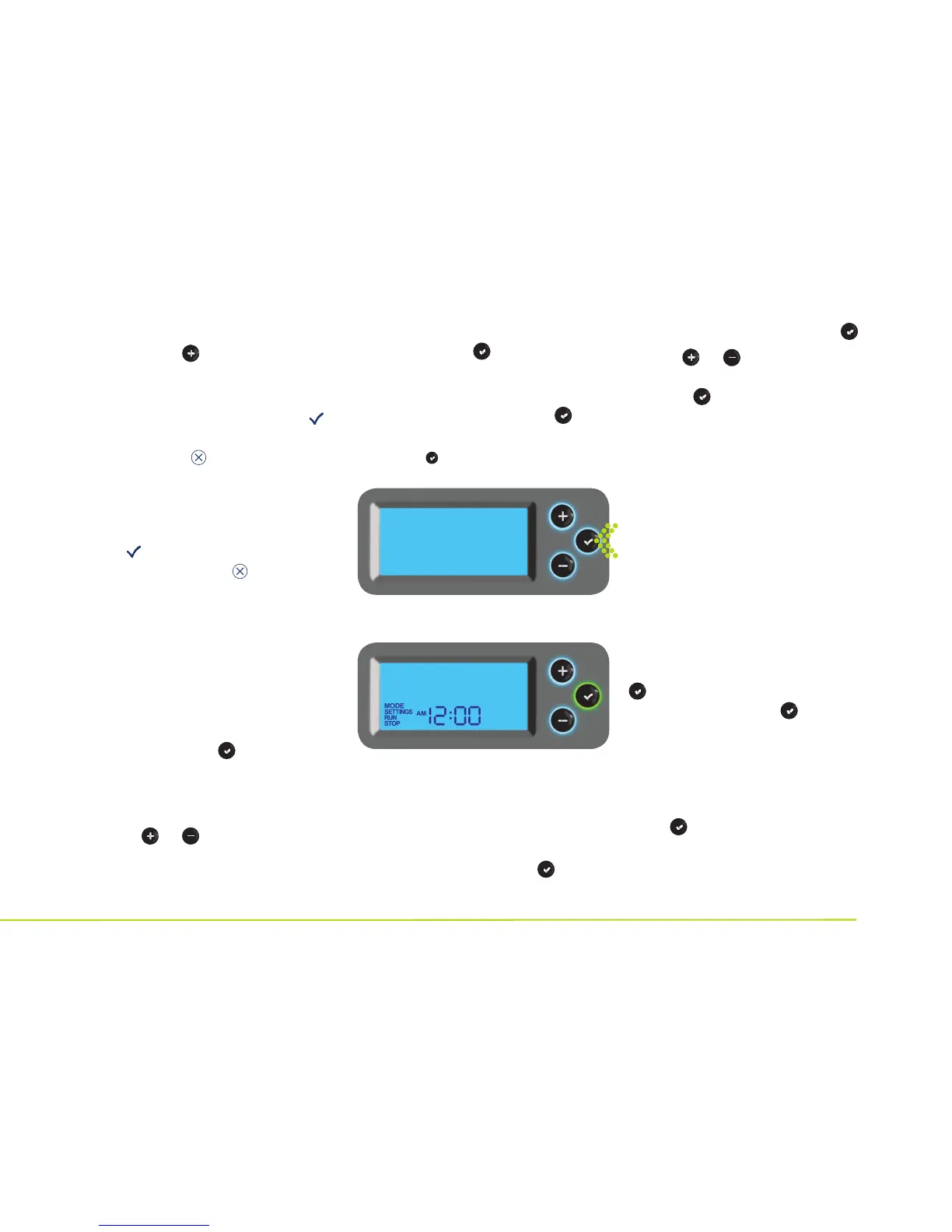
Menu Screen The menu screen
will enable you to change the
settings or operating mode of
your PortionPro Rx. To enter the
menu screen, hold for 2 seconds.
The LCD screen will display
MODE, SETTINGS, RUN, and
STOP.
● Use or to scroll to
any of these 4 options.
● When the desired option
blinks, press again.
● If you inadvertently enter
the menu screen, simply
scroll to RUN and press .
Mode
To change between OPEN and
CLOSED mode:
● Enter the menu screen by
pressing and holding
for 2 seconds.
● Scroll to MODE and press .
● Use or to select either
OPEN or CLOSED mode.
Press to confirm selection.
CLOSED mode means that your
PortionPro Rx will operate with
the bowl door closed unless an
assigned pet comes within 2
feet. OPEN mode means that
your PortionPro Rx will operate
with the bowl door open unless
an unassigned pet comes
within 2 feet.
Settings
To change any of your existing
settings such as Meals Per Day,
enter the menu screen by holding
for 2 seconds. Scroll to
SETTINGS and press .
Follow the same steps used for
setting up your PortionPro Rx.
When changing the existing
settings, there is no need to
reassign the pet to its feeder.
Press to accept the current pet
assignment. If you want to change
one of the tag assignments,
simply bring that tag into range
Hold for 2 seconds to enter
the menu screen
Initial Menu Screen


 To Next Page