EasyManua.ls Logo

POSIFLEX HS-3510W - User Manual

POSIFLEX HS-3510W
20 pages
Print Icon
To Next Page IconTo Next Page
Loading...
1
Package Contents
HS-3510W/3512W/3514W desktop POS (x 1)
24V/60W Power Adaptor (x 1)
Power cord (x 1)
3-inch wide thermal paper roll (x 1)
Paper separator for 2” thermal paper roll (x 1)
Desktop mounting kit pack for HS-3510/3512 (x 1)
(including 1 desktop mounting bracket,
4 fixing screws, and 4 plastic anchors)
Desktop mounting kit pack for HS-3514 (x 1)
(including 1 bottom plate, 1 desktop mounting
bracket, 4 fixing screws, and 4 plastic anchors)
User manual (x 1)
Product Feature
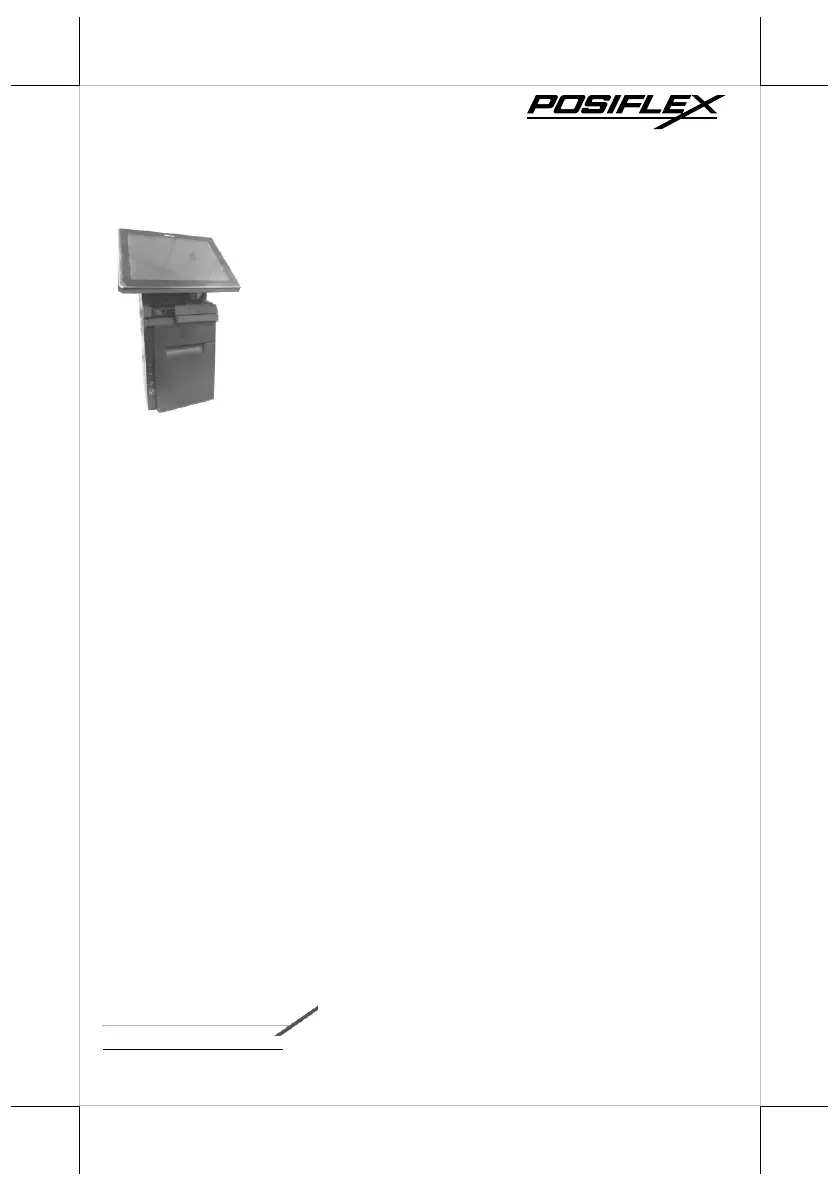
Innovative All-in-one Terminal
This compact all-in-one 10”/12”/14” touch POS now comes with a
detachable receipt printer for easy maintenance. Add an optional 2D
barcode scanner while the printer is on board, making HS-
3510W/3512W/3514W the most well-rounded all-in-one POS terminal
in the market.
Integrated Design with Advanced Manageability
HS-series integrates the most widely used peripherals including 3”
thermal printer, MSR, fingerprint sensor, 2D barcode scanner and 2nd
customer display to support your daily POS operation. The detachable
modularized design allows quick access to the components, enabling fast
and easy service and upgrades.
Aesthetics
Dressed from head to toe in timeless black or white color, the only trend
that never goes out of style, and with stylish touches added throughout,
HS-series is not just a piece of machinery, it is an elegantly crafted piece
of art that looks right at home in any store decoration.
15650900070 Ver. F0
http://www.posiflex.com
HS-3510W/3512W/3514W
JIVA Desktop POS
User Manual

Questions and Answers

  • B
    Brandi RobertsonAug 11, 2025
    How to fix paper jams in POSIFLEX HS-3510W?
    • S
      sbowmanAug 11, 2025
      To fix paper jams in your POSIFLEX Payment Terminal, follow these steps: First, open the paper jams rescue compartment by sliding the cover in the direction shown by the arrow. Inside, locate the adjustment wheel to manually adjust the cutter blade's cutting position. Rotate the wheel until the cutter blade is completely retracted. Check the cutter position through the paper exit slot to ensure the blade moves upward. Gently push down the paper roll cover release lever to open the paper roll cover. If the cover remains stuck, repeat the wheel adjustment steps. Finally, remove the jammed paper, reinstall the paper roll, and close the paper roll cover firmly.
  • H
    Heather ButlerAug 19, 2025
    How to mount POSIFLEX HS-3510W onto a table?
    • J
      Jessica EspinozaAug 19, 2025
      To mount your POSIFLEX Payment Terminal onto a table, start by taking the bottom plate with the mounting bracket out of the package and placing it with its screw holes facing up in your preferred position. Support your POS terminal with its screen facing you, then align the two screw bolts on the bottom of the POS with the rail slots of the mounting bracket. Push the POS backwards along the rail slots until the terminal locks into place. Insert two more screws into the mounting holes on the rear of the POS and fasten them to fix the terminal to the bottom plate.
  • M
    melissaleblancAug 30, 2025
    How to install 4G SIM card and activate 4G function on POSIFLEX Payment Terminal?
    • T
      Timothy SavageAug 31, 2025
      To install a 4G SIM card and activate the 4G function on your POSIFLEX Payment Terminal, first ensure that the HS-3500 series is shut down and the driver for the 4G module is properly installed. Slide the 4G SIM card into the SIM card slot with its gold contacts facing towards you. After ensuring the SIM card is well inserted, push the power button to power on your terminal. After the HS-3500 series successfully boots to Windows, wait for the Network icon to appear on the taskbar. Left-click the Network icon and select the cellular network you want to use to initiate the cellular connection.

POSIFLEX HS-3510W Specifications

General IconGeneral
BrandPOSIFLEX
ModelHS-3510W
CategoryPayment Terminal
LanguageEnglish

Related product manuals