EasyManua.ls Logo

Posturite Number Slide User Manual

Posturite Number Slide
4 pages
To Next Page IconTo Next Page
Page #1 background imageLoading...
Page #1 background image
NUMBER SLIDE
User Guide
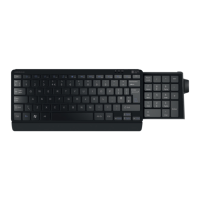
The Number Slide’s retractable number pad
slides out when you need it and away when
you are finished. This feature delivers important
ergonomic advantages over conventional
standard or mini keyboards.
Compared to standard keyboards, Number Slide
reduces the distance you need to reach and use
your mouse, which allows you to adopt a more
comfortable and suitable posture.
The Number Slide allows your mouse to be
positioned in front of your left or right shoulder
(depending in which hand you use your mouse),
which encourages a good arm/shoulder position
when using your mouse.
Being so compact, Number Slide frees up space
at your workstation so you can bring work closer
to you without compromising functionality.
ERGONOMICS
POSTURITE.CO.UK
www.posturite.co.uk/numberslide
UK keyboard layout displayed
Question and Answer IconNeed help?

Do you have a question about the Posturite Number Slide and is the answer not in the manual?

Posturite Number Slide Specifications

General IconGeneral
BrandPosturite
ModelNumber Slide
CategoryKeyboard
LanguageEnglish

Summary

Ergonomic Advantages of Number Slide

Retractable Design Benefits

Slides out when needed, away when finished, offering ergonomic advantages over standard or mini keyboards.

Reduced Mouse Reach for Better Posture

Lowers distance to mouse, enabling comfortable and suitable posture for users.

Improved Arm and Shoulder Alignment

Allows mouse positioning for better arm/shoulder alignment, depending on user's dominant hand.

Compact Space-Saving Design

Frees up workstation space, allowing closer work without compromising functionality.

Wired Version Connection

USB Ports

Connects via USB cable. Features two auxiliary USB ports on the rear for peripherals.

Keyboard Status Lights

Indicates status for Number Lock, Caps Lock, and Scroll Lock on the keyboard.

Bluetooth Version Connection

Pairing with Windows PC

Steps to pair the keyboard with a Windows PC via Bluetooth, including ON/OFF switch and CONNECT button.

Pairing with Apple Mac

Instructions for pairing the keyboard with an Apple Mac via Bluetooth System Preferences.

Pairing with Apple iPad or iPhone

Steps to pair the keyboard with an Apple iPad or iPhone using Bluetooth settings.

Charging the Bluetooth Keyboard

Connects via USB for charging. Red LED indicates charging status; turns off when full (approx. 2 hours).

Technical Specifications and Compliance

FCC Statement

Details compliance with FCC rules for digital devices, addressing potential radio frequency interference.

IC Statement

Confirms compliance with Industry Canada's licence-exempt RSSs for radio apparatus.

Product Specifications

Lists technical details including battery, Bluetooth version, voltage, current, and charging parameters.