21
1,2,3
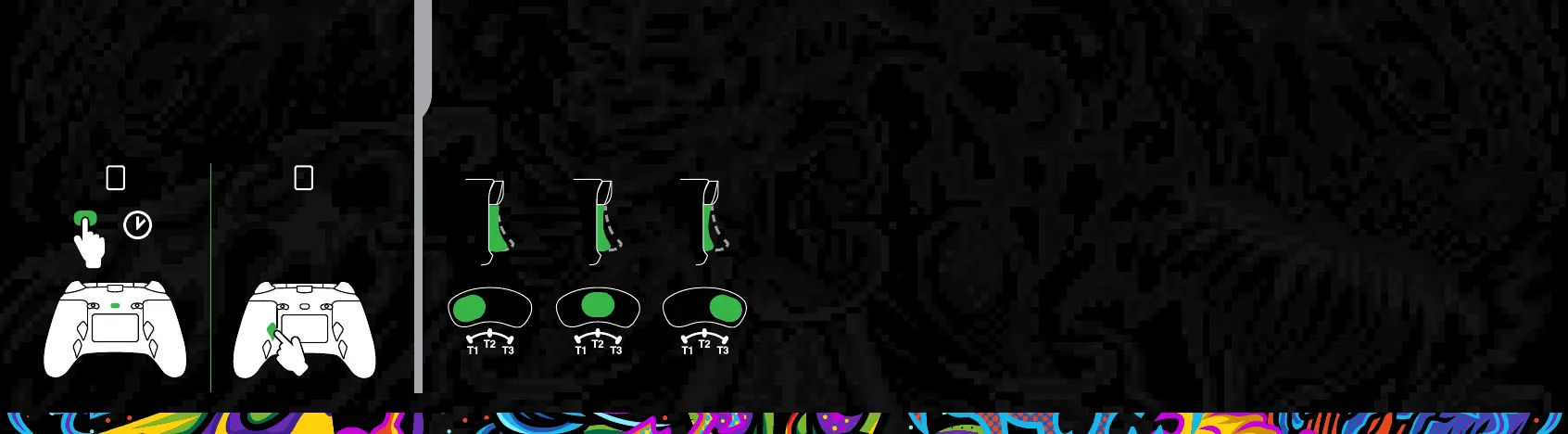
RESETTING THE
ADVANCED GAMING BUTTONS
3-WAY TRIGGER
LOCK ADJUSTMENT
RÉINITIALISER LES BOUTONS DE JEU AVANCÉS | RESTABLECIMIENTO DE LOS BOTONES DE JUEGOS AVANZADOS |
ZURÜCKSETZEN DER ERWEITERTEN GAMING-TASTEN | RIPRISTINO DEI PULSANTI DI GIOCO AVANZATI |
REDEFINIR OS BOTÕES DE JOGO AVANÇADO
RÉGLAGE DU VERROUILLAGE DE LA GÂCHETTE À 3 VOIES |
AJUSTE DE LOS BLOQUEOS DE GATILLO DE TRES POSICIONES |
EINSTELLEN DER 3-WEGE-TRIGGER-SPERREN |
REGOLAZIONE DEL BLOCCO GRILLETTO A 3 VIE |
3 POSIÇÕES DE AJUSTE DE BLOQUEIO DE AÇÃO
SETUP (ENGLISH)
1. Connect USB cable into available port on Xbox and into USB-C port on controller.
If Xbox is OFF, press Xbox Button to power “ON”. The controller’s Power LED will
illuminate.
2. For player and controller assignment, refer to the Xbox user manual.
USING THE SHARE BUTTON
Refer to Xbox documentation for details on functions and features related to the Share
button.
USING THE HEADSET DIAL
Once you insert the 3.5 mm plug from your headset into the audio jack, the dial will
become active and the LED will turn red to indicate mic is muted. Press down on dial
to mute/unmute mic. To adjust volume, tap left or right to adjust step by step, or
press and hold left or right to adjust volume to full up or full down.
NOTE: Audio controls within Xbox Settings will take first priority, followed by the
Headset Dial, and finally any audio or mute controls on your headset. Refer to your
Xbox and headset documentation for additional details.
TROUBLESHOOTING
For latest FAQs, visit PowerA.com/Support/
PROBLEM: Controller will not connect to game console.
SOLUTION: Confirm cable is properly connected to console.
PROBLEM: Advanced Gaming Buttons are not functioning properly.
SOLUTION: Review “Mapping Advanced Gaming Buttons” section above.
For additional troubleshooting, refer to your Xbox user guide.
MOTION WARNING
Playing video games can make your muscles, joints, skin or eyes hurt. Follow these
instructions to avoid problems such as tendinitis, carpal tunnel syndrome, skin
irritation or eyestrain:
• Avoid excessive play. Take a 10- to 15-minute break every hour, even if you don’t
think you need it. Parents should monitor their children for appropriate play.
• If your hands, wrists, arms or eyes become tired or sore while playing, or if you
feel symptoms such as tingling, numbness, burning or stiffness, stop and rest for
several hours before playing again.
• If you continue to have any of the above symptoms or other discomfort during or
after play, stop playing and see a doctor.


 To Next Page