This document describes the Multi-Channel Remote Guide for PowerShades, covering both handheld and wall-mounted remote controls.
Function Description:
The PowerShades Multi-Channel Remotes are designed to control motorized window shades. They allow users to adjust shade positions (up, down, favorite), manage channels, set limits, and control motor speed. The remotes are available in two main types: a Multi-Channel Handheld Remote (PSRMT_MC_2022) and a Multi-Channel Wall Remote (PSRMT_MCOW_2022). Both remotes feature a display, directional buttons (up, down, left, right), a stop button, a favorite button, and channel selection buttons. A program button (P) is located on the back of each remote for advanced settings and pairing.
Important Technical Specifications:
- Electrical Specification: Standard
- Battery Type:
- Hand-held: CR24503V1
- Wall-mounted: CR24303V2
- Working Temperature: -10°C to 50°C
- Radio Frequency: 433.92MHz ± 100KHz
- Transmit Distance: >=30m indoor
- Motor Compatibility: The manual illustrates compatibility with 15mm, 30mm, 18mm, 25mm, 35mm DC, and 35mm AC motors.
Usage Features:
Screen Indicators:
- Low Battery Indicator: Displays a battery icon when the battery is low.
- Group Indicator: Shows an icon resembling three interconnected circles.
- Favorite Button: Indicated by a heart icon.
- Left/Right Buttons: Represented by left and right arrow icons.
- Up/Down Buttons: Represented by up and down arrow icons.
- Stop Button: Indicated by a square icon.
- Directional Indicators: Show Wi-Fi-like signal icons.
Pairing Motors to Channels:
- Select the desired channel using the (Left/Right) Buttons.
- Hold the motor button for two seconds; the motor will jog up and down.
- Hold the Stop Button on the remote for three seconds; the motor will jog up and down, indicating it is now paired to the remote.
Unpairing a Remote from a Motor:
To unpair, press the (P) button on the motor twice, then press the (P) button on the remote once.
Direction Reversing:
Motor direction can be reversed by holding the motor button for three jog cycles. If limits have been set, hold the Favorite Button and the Stop Button for two seconds.
Limit Setting:
Shade limits can be set upon arrival at the facility or manually.
- Top Limit: Move the shade to the desired top position using the Up/Down Buttons, then hold the Up Button and the Stop Button for 2-3 seconds. The shade will jog to indicate the top limit is set.
- Bottom Limit: Move the shade to the desired bottom position using the Up/Down Buttons, then hold the Down Button and the Stop Button for 2-3 seconds. The shade will jog to indicate the bottom limit is set.
Adjusting Top Limit:
- Move the shade to the top limit using the Up/Down Buttons.
- Hold the Up Button and the Stop Button for 5 seconds until the shade jogs twice.
- Jog the shade with your Up/Down Buttons to your new desired top limit.
- Hold the Up Button and the Stop Button for 2-3 seconds. The shade will jog to indicate that the new top limit is set.
Adjusting Bottom Limit:
- Move the shade to the bottom limit using the Up/Down Buttons.
- Hold the Down Button and the Stop Button for 5 seconds until the shade jogs twice.
- Jog the shade with your Up/Down Buttons to your new desired bottom limit.
- Hold the Down Button and the Stop Button for 2-3 seconds. The shade will jog to indicate that the new bottom limit is set.
Setting Favorite Position:
- Move the shade to the desired favorite position with the Up/Down Buttons, then press the (P) Button.
- After the shade responds, press the Stop Button.
- After the shade responds again, press the Stop Button, and the shade will jog twice.
The favorite position can then be navigated to using the Favorite Button. To remove a favorite position, move the shade to the favorite position and repeat the setting commands.
Slowing/Speeding Motors Down/Up:
- Slowing Down: Press the (P) Button on the back of the remote once, then the Down Button twice. Wait for the motor to respond between presses.
- Speeding Up: Press the (P) Button on the back of the remote once, then the Up Button twice. Wait for the motor to respond between presses.
Position Percent Setting (Accurate Positioning):
- Press the Stop Button three times.
- Use the (Left/Right) Buttons to increase or decrease the percentage.
- After 2 seconds, the shade will move to that limit.
Setting Number of Channels (Optional):
- Select Channel "01" using (Left/Right) Buttons.
- Press Favorite Button and Right Button for 3 seconds; the display will show "E0".
- The remote will go to channel 16 with directional indicators on the side.
- Select the final channel number desired (cannot be higher than 16).
- Short press the Stop Button; the display will show "06".
Setting Number of Groups (Optional):
- Select Channel "00" using (Left/Right) Buttons.
- Press Favorite Button and Right Button for 3 seconds; the display will show "E0".
- The remote will go to group 6 with directional indicators on the side.
- Select the final group number desired (cannot be higher than 6).
- Short press the Stop Button; the display will show "06".
If Channel "00" is selected as the final channel, no groups will be on the remote. Groups can be re-added by following these steps and selecting the desired number of groups.
Modifying (Adding + Deleting Channels from Groups):
- Select the desired Group using (Left/Right) Buttons.
- Press Favorite Button and Right Button for 3 seconds; the display will show "E0".
- The remote will go to channel 1 with the group and directional indicators.
- Navigate to the desired channel to add or remove by using (Left/Right) Buttons.
- Short press Favorite Button to add to the group. If the channel has already been added, it will flash on and off. Press the Favorite button again to remove it from the group.
- Once channels are added to the desired group, short press the Stop Button. The display will show "06".
Removing Groups:
- Using the (Left/Right) Buttons, navigate to group "00" on the screen.
- Hold the Favorite Button and the Right Button until the screen displays "06" and the Group Indicator.
- Using the (Left/Right) Buttons, navigate to group "00" on the screen again.
- Short press the Stop Button.
- Using the (Left/Right) Buttons, confirm the Groups Indicator no longer appears on the screen.
To add groups back to your remote, repeat these steps, but instead of choosing "00" on Step 3, choose the number of groups to show before pushing the Stop Button.
Locking Function:
- Hold the (P) Button on the back of the remote for 10 seconds. Your screen will display a lock icon when the locking function is activated.
- To unlock, repeat Step 1.
When locked, these programming setting functions are not allowed.
Factory Reset:
To remove all shade pairings and limits, hold the motor button until the shade jogs 4 times.
Mounting Instructions:
- Mounting Handheld Remote:
- Place the magnetic remote mount on a wall where you'd like your remote to reside.
- Using the two screws provided, screw the mount into the wall through the designated screw holes.
- Make sure the mount is secure and place your remote on the magnetic mount.
- Mounting Wall Remote:
- Remove the magnetic mount from the back of the remote and place it on the wall in a desired location.
- Using the two screws provided, screw the mount into the wall through the designated screw holes.
- Make sure the mount is secure and place your remote on the magnetic mount.
Maintenance Features:
- Caution: The transmitter should not be exposed to moisture or impact.
- Battery Replacement: If the remote control distance is significantly shorter or less sensitive, check to see if the battery needs to be replaced. When the battery voltage is too low, the LCD screen will show a low battery indicator prompting replacement.
- Disposal: Properly dispose of used batteries.

 Need help?
 General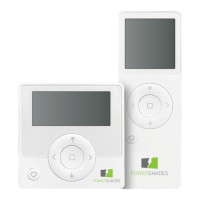

 To Next Page