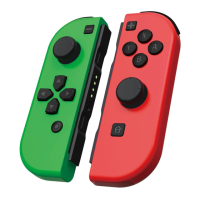
INSTRUCTIONS
SWITCH
WIRELESS
CONTROLLER
Android:
Press and hold HOME and X buttons for 5 seconds and the LED will flash quickly to enter
the Bluetooth search mode. After it is successfully connected, LED1 will be always on.
IOS 13:
Press and hold HOME and A buttons for 5 seconds and LED2+LED3 will flash quickly;
after it is successfully connected, LED2+LED3 will be always on. It can also be used to
play MFI games.
PC:
Press and hold HOME and X buttons for 5 seconds and the LED1 will flash quickly to enter
the Bluetooth search mode. After it is successfully connected, LED1 will be always on.
Wired:
Nintendo Switch™:
Connect the controller to the Nintendo Switch™ Console dock using a USB cable.
After connection, corresponding LED lights on the controller will be always on.
PC:
Connect the controller to the computer using a USB cable. e computer will automati-
cally detect and connect to the controller. e controller LED3 will be always on after
connection. (Note: e default mode of the controller on PC is X-INPUT mode).
2. Reconnect and Wake-Up
Reconnect Controller: When the controller is in sleep state, short press any button and
the LED1-LED4 will flash. Now the controller will automatically connect back to the
console.
Wake-Up Console: When the console is in sleep state, short press the HOME button and
the LED1-LED4 will flash. e console will wake up and the controller will automatically
reconnect.



 To Next Page