PROGRAMMING SENSORS
DO NOT PUT SENSORS ON TIRES. (You’d be amazed at the number of calls
received to prompt this note.) Simply follow the simple steps below and you’ll be
set-up in minutes!
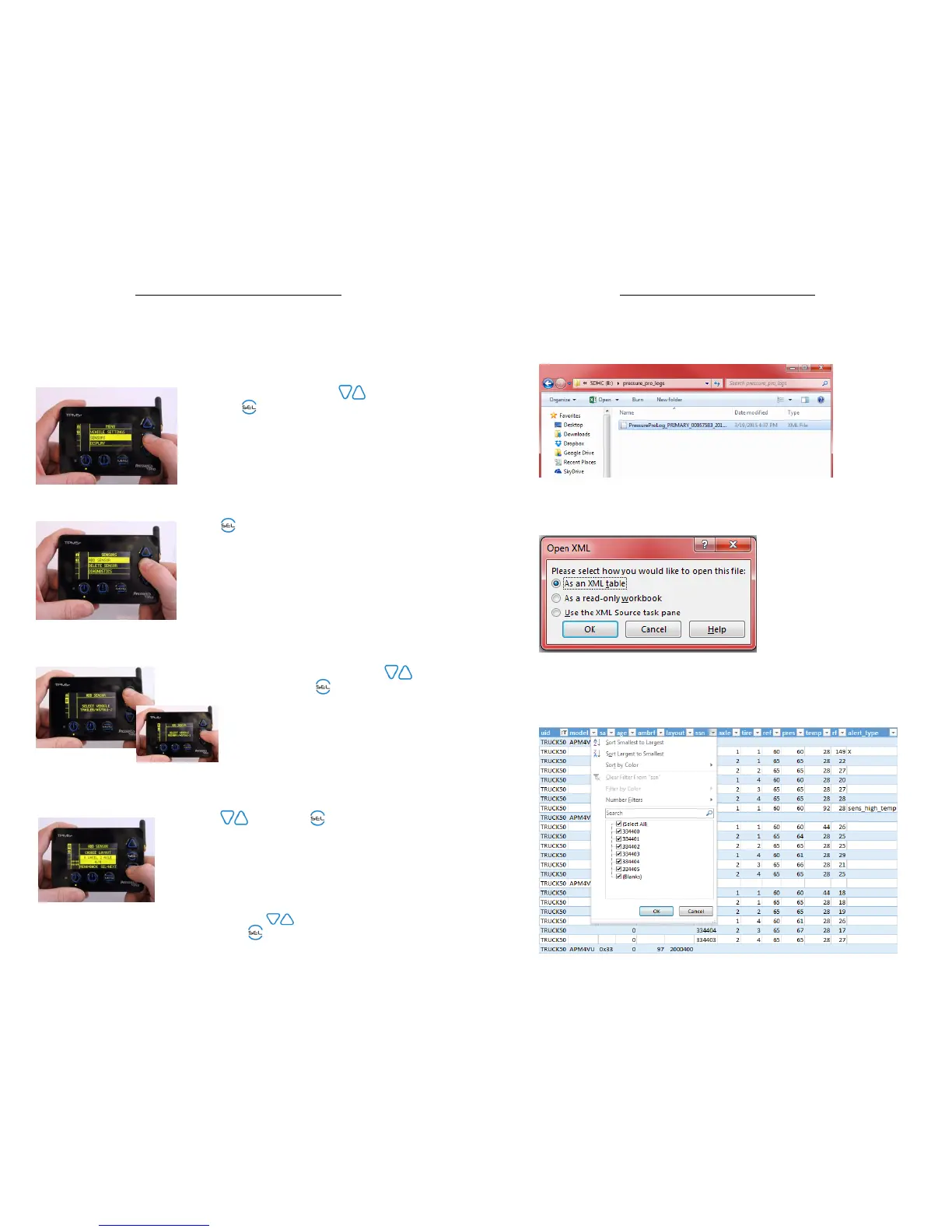
1. From the main “MENU”, scroll to “SENSORS”
and sel .
2. Sel “ADD SENSORS”.
3. If monitoring more than one unit, scroll to
desired vehicle and se .
4. Scroll through and sel the desired vehicle
layout (or create a custom layout) following
prompts.
Your Display will automatically populate your
configuration and default to the front, left tire
position for installation. To choose another
position, arrow to the desired location then
press .
6
DATA LOGGING IMPORT
1. Access the “Computer” menu and open the SD card folder.
2. Open “pressure_pro_logs” and locate files contained in the exported date.
3. Select the data log file you wish to open
4. Open as an XML table and click “OK” to allow Excel to create a schema
5. Your Excel should open with filterable tabs, allowing you to organize and
process your TPMS+ Data.
11


 To Next Page