29
USER MANUAL MultiPhone PAP5300 DUO
3. Tap the on-screen controls to control the video playback.
4. Press the volume button to adjust the volume.
5. Tap
to select more options.
Edit your photos
When viewing a photo, tap and use the following functions:
•Slideshow: Start a slideshow with the images in the current folder.
•Edit: Launch Paper Artist to edit the photo.
•Rotate left: Rotate anticlockwise.
•Rotate right: Rotate clockwise.
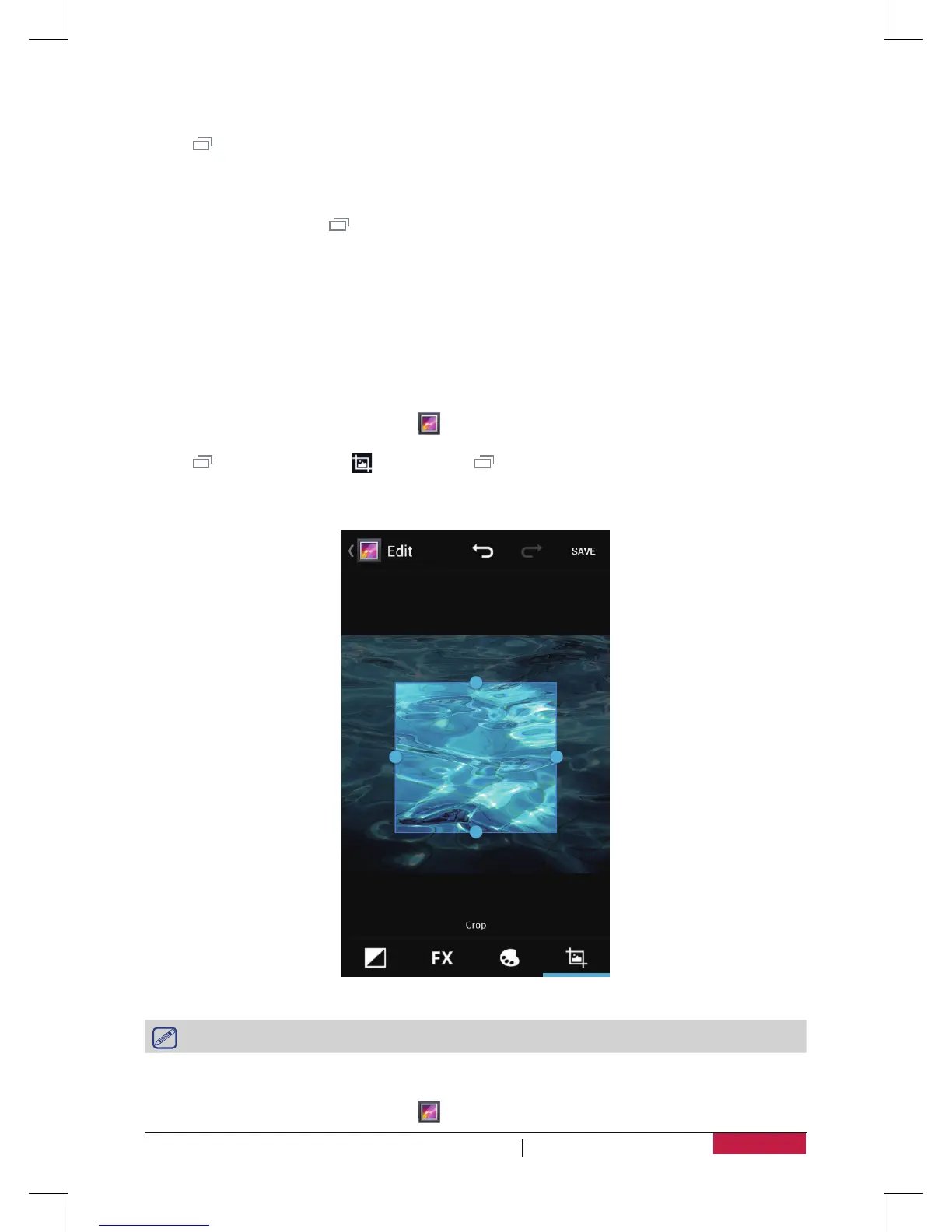
•Crop: Resize the orange frame to crop and save the photo in it.
•Set picture as: Set the photo as a wallpaper or a contact image.
•Details: Check information of the photo.
Crop a photo
1. On the home screen or list menu, tap
.
2. Browse to the photo that you want to edit.
3. Tap > Edit, and then tap > Crop; or Tap > Crop directly. You’ll see a crop box around
the photo.
- Drag the crop box over the part of the photo you want to crop.
- Press the edge of the crop box. Drag your finger inward or outward to resize the crop box.
4. Tap Save.
The cropped photo is saved as a copy. The original photo remains unedited.
Add photo effects
1. On the home screen or list menu, tap
.





 To Next Page