www.prestigio.com
Installation
Power on your phone
Home screens
List menu
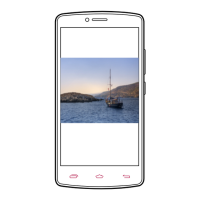
Personalise your wallpaper
Pick your favourite photo as your Home wallpaper.
Choose from the available wallpapers, or use any
photo you have taken with the camera.
1. On the home screen, tap > Wallpaper.
2. Select an image and tap Set wallpaper.
Add an app icon to home screen
1. On the home screen, tap to open the list
menu.
2. Tap and hold an applicaon icon.
3. Drag it into a panel preview.
Remove an item on home screen
1. Tap and hold an item to remove.
2. Drag the item to the Remove opon.
3. When the Remove opon turns red, release
the item.
Home screens
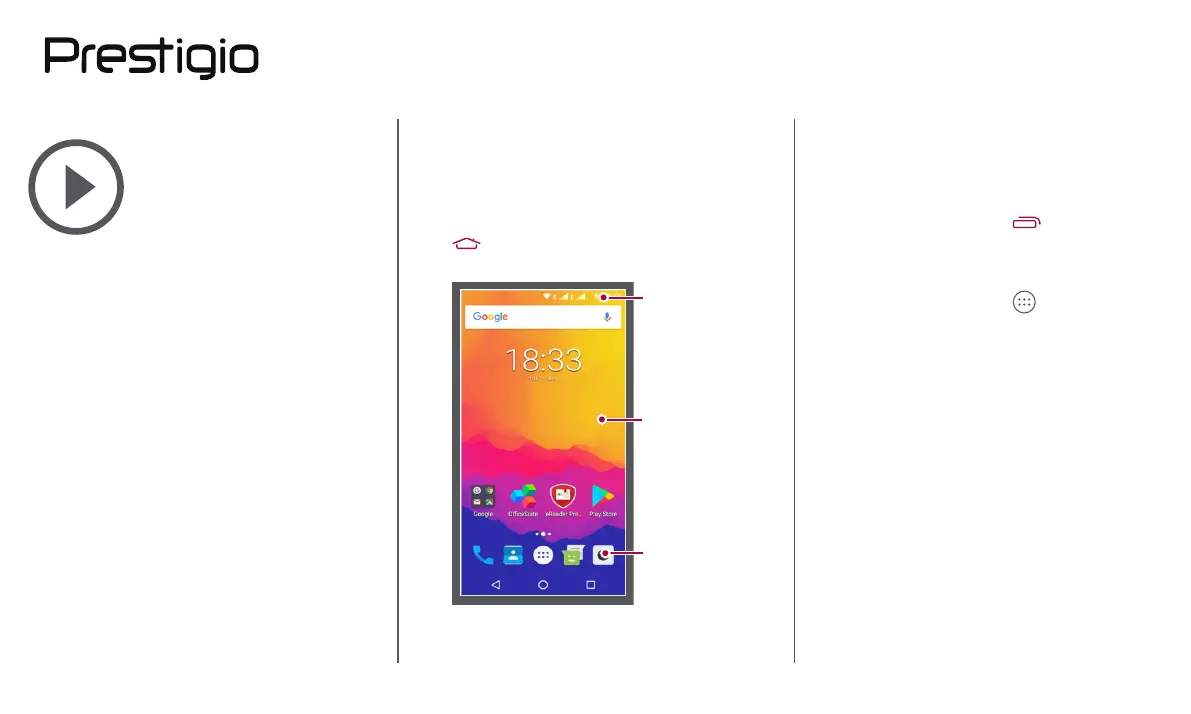
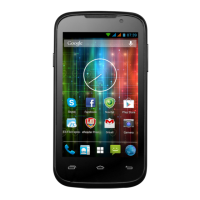
Your home screen is the starng point to access
all of your phone’s features. The home screen can
have mulple panels. To view other panels, swipe
le or right.
Tap to return to the home screen.
Your phone’s home screen consists of the following:
Status bar
Applicaons and
widgets
Shortcut



 To Next Page