BEFORE YOU BEGIN:
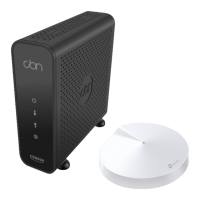
• Deco M5 Wi-Fi Pod and power cord
• Ethernet cable for your Wi-Fi pod
• Ensure you follow the steps in order shown
Additional Resources:
You can find additional self-help resources
at support.primus.ca.
Review the contents of your install kit:
• Coax cable to connect to the network
• CBN8000 modem and power cord
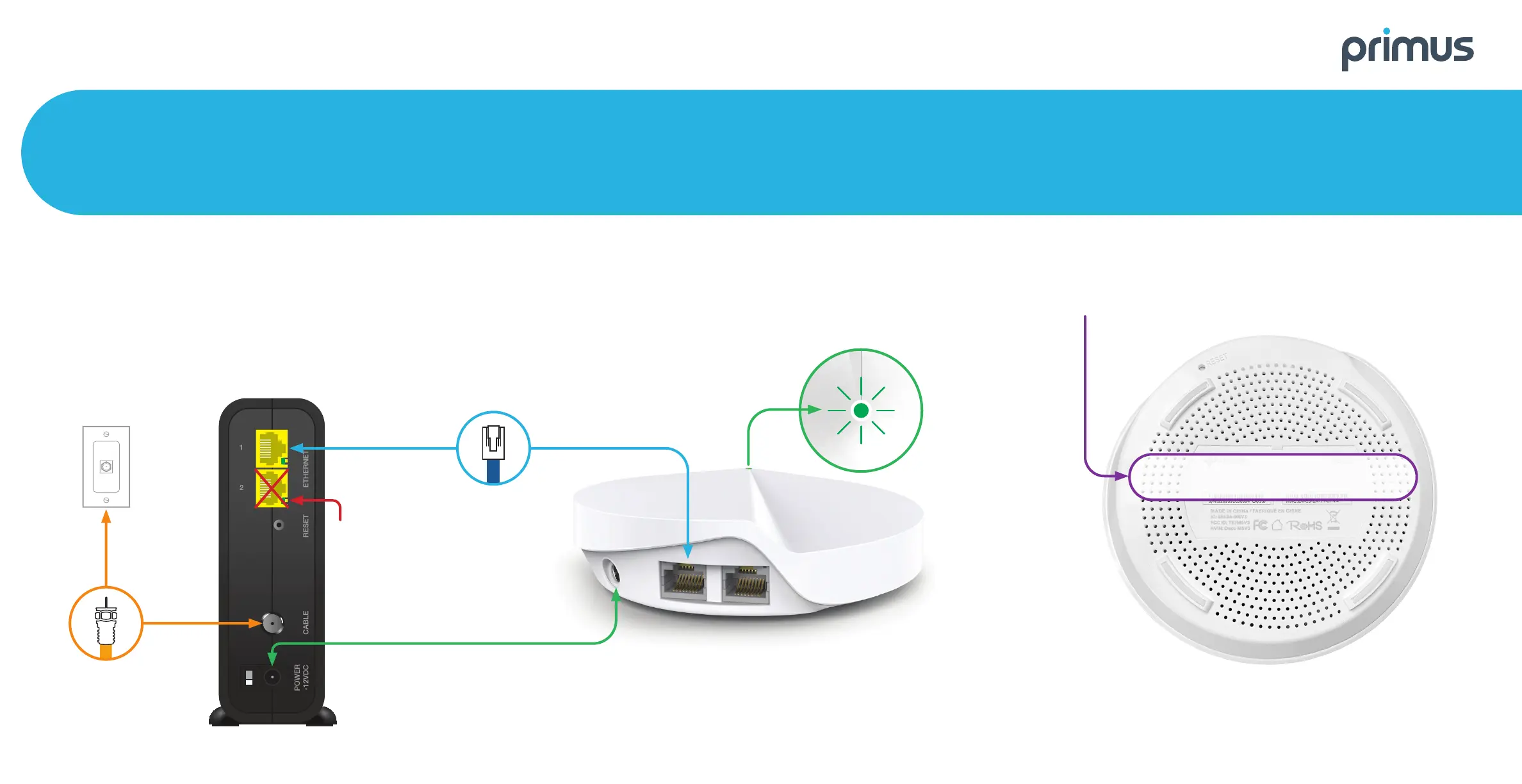
Connect one end of the Coax Cable to the Cable port on
your modem, then connect the other end to a nearby coax
wall outlet.
Place your Wi-Fi pod next to your internet modem.
Using the Ethernet Cable provided, connect one end to LAN
Port 1 on your modem and the other end to a port on your
Wi-Fi pod.
(Do not use LAN Port 2
of the modem.)
1
2
Setting Up Your High Speed Internet Service and Wi-Fi Network
Attach the Power Cord to the Power Port on your
modem, then plug the cord into a nearby power outlet.
Connect your Wi-Fi pod to a Power Outlet.
The Wi-Fi pod light will turn solid green. This can take
about 5 minutes.
Go to Wi-Fi settings on a device you would like to connect,
and search for available Wi-Fi networks. Select the Wi-Fi
Network (SSID) and enter the password that matches those
found on the bottom of your Deco M5 Wi-Fi pod.
That’s it, you should now be ready to
enjoy your Primus Wi-Fi!
3 4
For help changing your Wi-Fi Network (SSID) name or Wi-Fi password and for additional security tips visit support.primus.ca.
Power Ports
Wi-Fi Network (SSID): Primus12345
Password: 1234567891012
Tip: If the light is Red, reset the modem
and pod by unplugging the power adaptors.
Wait 30 seconds, plug in the modem.
Wait 30 seconds, plug in the pod.


 To Previous Page
 Loading...