EN 4
English
Frequently Asked Questions
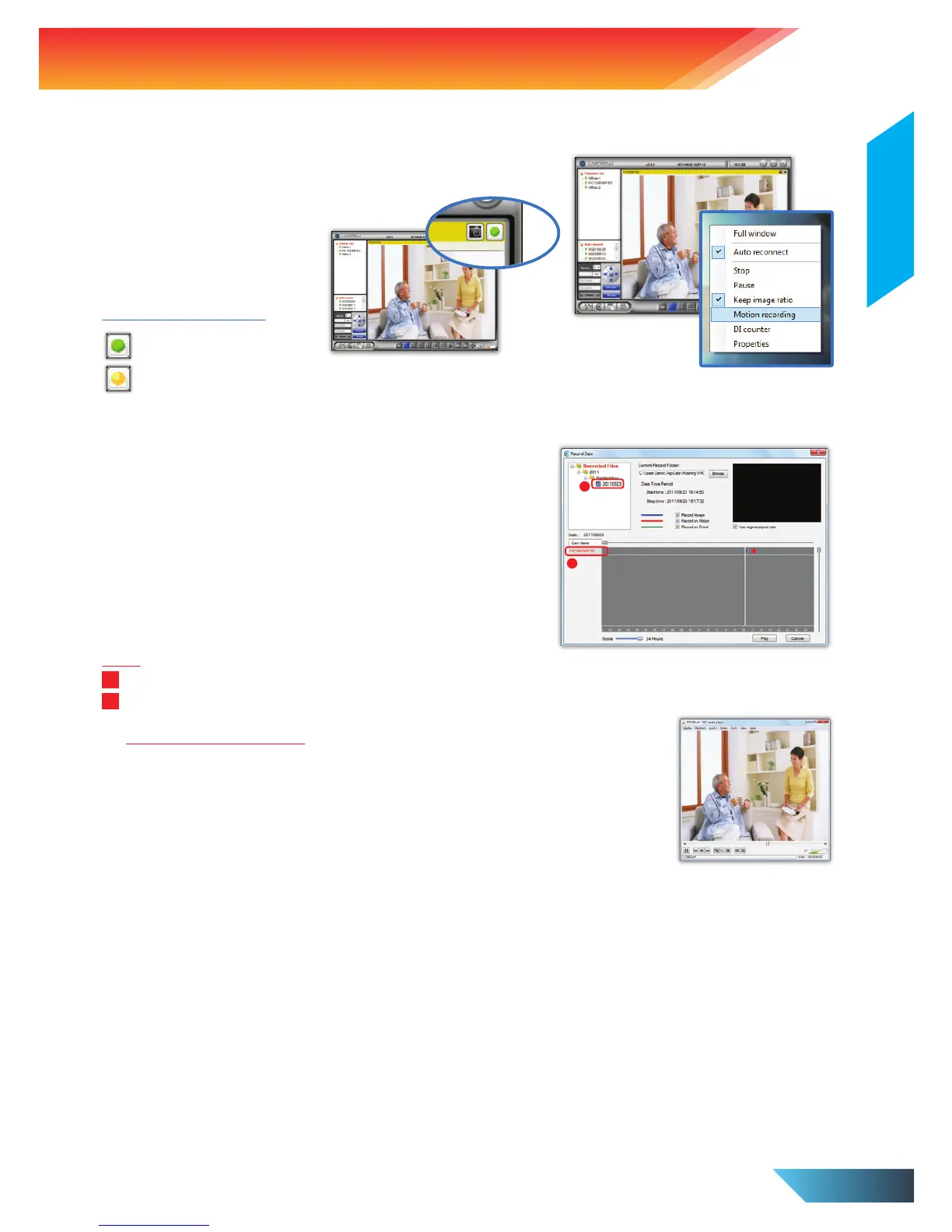
20. How to do Motion Recording in LiveView?
Right click camera image tick Motion Recording
Green : Standby mode
Yellow : Motion detected and Recording in progress.
Motion Recording Status:
21. How to view or playback the recorded clips?
(i) Execute LivePlay from Start All Programs PROLiNK(R)
IP Camera LivePlay
(ii) Click Open Record, the record data windows will be prompted
and all recorded clips are listed on the Recorded Files section
follow by date (YYYYMMDD) of the recording sessions. Select
a date.
(iii) Select Cam Name available on the left side (below the
Recorded Files) and the video clips will be playing
automatically.
1
2
Note:
All recorded video clips on the same day will be combined into one video clip playable by the LivePlay player.
User can playback the recorded video clips through third-party video player, eg: VLC Player (visit official
website
http://www.videolan.org/vlc), and:
(i) Open the video clips saved folder.
(ii) Right click the video clips (file type as .crf format)
(iii) Choose Open with option, then select to VLC media player.
iii
ii
22. When the recorded video is playback from my NAS storage, the top half of the video image will be running, but the
bottom half will be blurred out. Why is this so?
This video distortion is due to the CPU/RAM overload for the NAS device as it took a lot of CPU resources for
the NAS to write-in the video data from the many different IP Camera recording to the same NAS device.
Solution:
1. Decrease the number of IP Camera for NAS recording simultaneously (recommends not more than 3
camera at the same time).
2. Lower the video quality and bandwidth to make the video data smaller in order to reduce CPU load for the
NAS.


 To Next Page
 Loading...