a. Connect the gray power cable from the Battery Boost to your SimCube
simulator.
b. Insert four “AA” batteries into the battery carriage.
c. Position the switch on the battery module to “Batt ON.” The SimCube simulator
will power on.
3. Operation Guide
a. Battery Operation
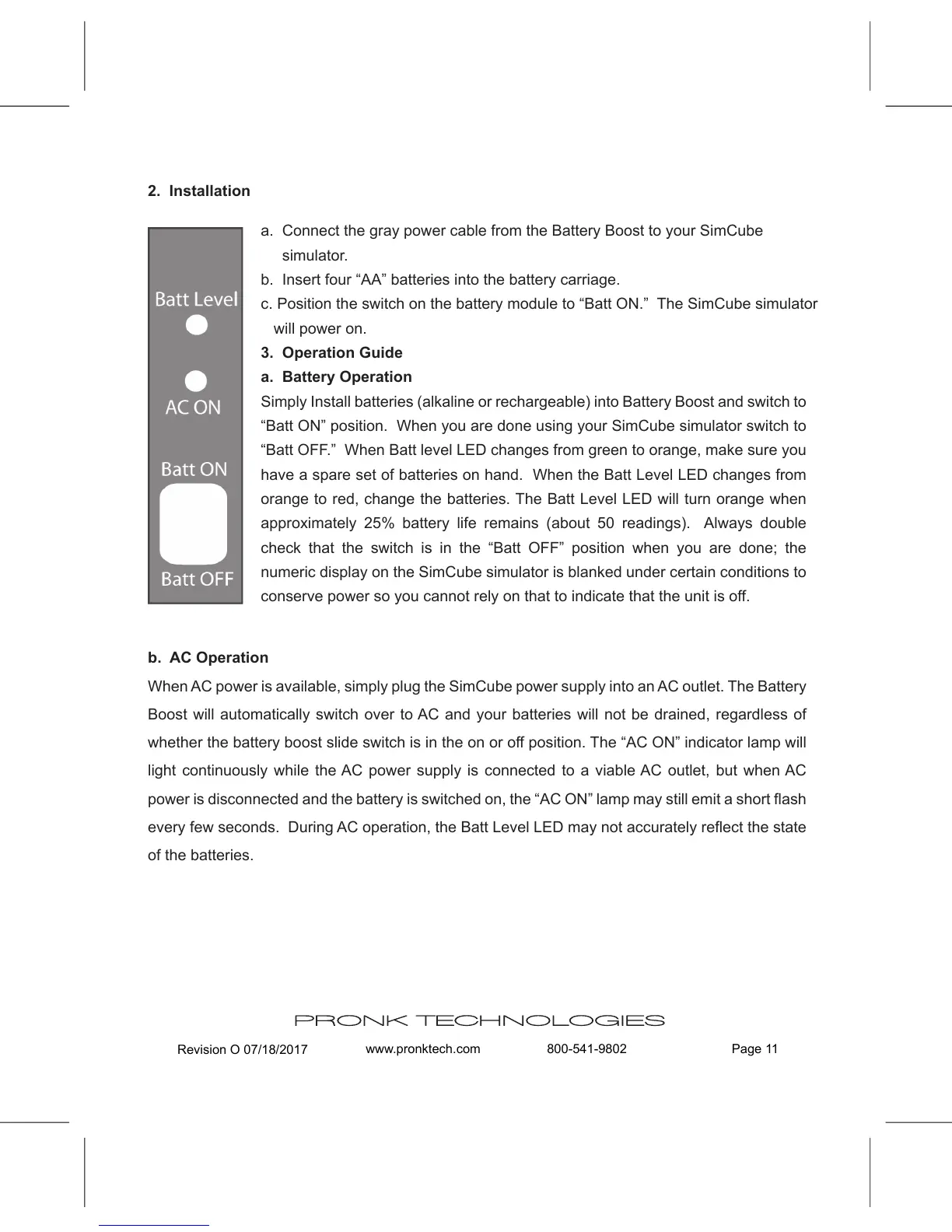
Simply Install batteries (alkaline or rechargeable) into Battery Boost and switch to
“Batt ON” position. When you are done using your SimCube simulator switch to
“Batt OFF.” When Batt level LED changes from green to orange, make sure you
have a spare set of batteries on hand. When the Batt Level LED changes from
orange to red, change the batteries. The Batt Level LED will turn orange when
approximately 25% battery life remains (about 50 readings). Always double
check that the switch is in the “Batt OFF” position when you are done; the
numeric display on the SimCube simulator is blanked under certain conditions to
conserve power so you cannot rely on that to indicate that the unit is off.
b. AC Operation
When AC power is available, simply plug the SimCube power supply into an AC outlet. The Battery
Boost will automatically switch over to AC and your batteries will not be drained, regardless of
whether the battery boost slide switch is in the on or off position. The “AC ON” indicator lamp will
light continuously while the AC power supply is connected to a viable AC outlet, but when AC
power is disconnected and the battery is switched on, the “AC ON” lamp may still emit a short flash
every few seconds. During AC operation, the Batt Level LED may not accurately reflect the state
of the batteries.
Revision O 07/18/2017
www.pronktech.com 800-541-9802 Page 11
PRONK TECHNOLOGIES
2. Installation


 To Next Page
 Loading...