3 4
NOTE: cellphone,Ipad and PC can not be read by USB Port.
You may connect them by BLUETOOTH or LINE IN function.
Bluetooth Usage
When in the BLUE mode,you can connect your bluetooth
device such as Ipad Iphone or PC to the amplifier.
Note:Remember to turn up the volume of the connected
device to a suitable level for a good sound effect.
MIC Usage
1
3
4
MIC IN
2
MIC IN
APPLICATION USES
SD and USB Insert Instrustions
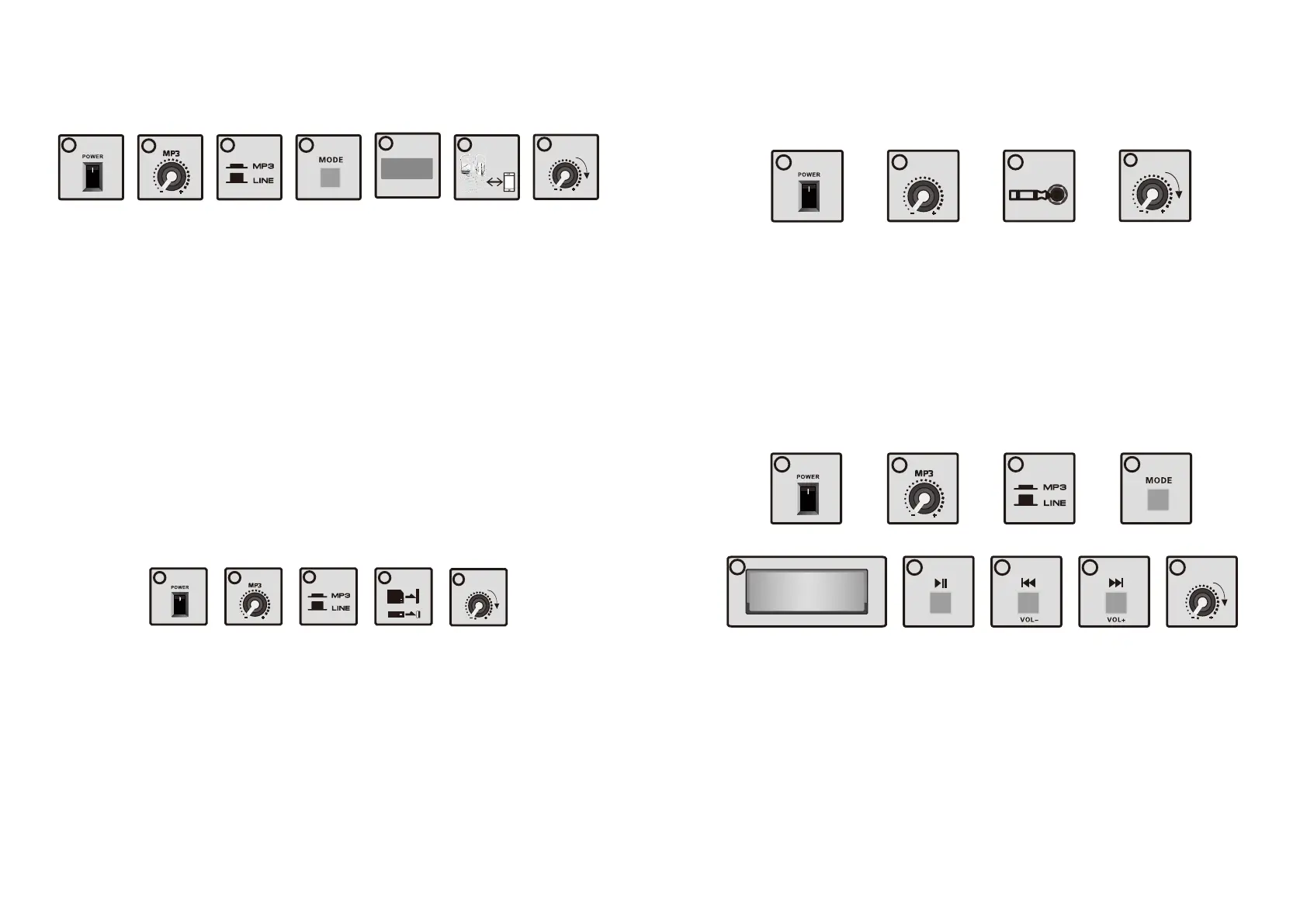
1.Turn on the power.
2.Turn the MP3 button to the minimal level.
3.Check the MP3/Line selector. If it is in "out" position,press it in.
4.Keep pushing the MODE button to find BLUE.
5.When in BLUE mode,the display will show BLUE.
6.Connect the device with BLUE function.
7.Turn the MP3 button to a suitable level respectively.
1.Turn on the power.
2.Turn the MP3 button to the minimal level.
3.Check the MP3/Line selector. If it is in "out" position,press it in.
4.Insert SD card or USB memory storage device.
5.Turn the MP3 button to a suitable level respectively.
1.Turn on the power.
2.Turn the MIC IN level button to the minimize level.
3.Use 1/4"input jack Mic to insert.
4.Turn the MIC IN button to a suitable level respectively.
5
blUe
6
7
MP3
1
4
2
3
1
4
OR
2
5
MP3
3
1.Turn on the power.
2.Turn the MP3 button to the minimal level.
3.Check the MP3/Line selector. If it is in "out" position,press it in.
4.Keep pushing the MODE button to find FM
5.When in FM mode,the display will show FM channel.
6.Press once to search radio stations and they can be saved automatically.
7.Press once to jump previous FM channel.
8.Press once to jump next FM channel.
9.Turn the MP3 button to a suitable level respectively
FM Usage
1
4
2
3
MP3
96 7 8
5
1053.53


 To Next Page
 Loading...