对折 基 准线
对折 基 准线
13
SiriusXM Section Operation
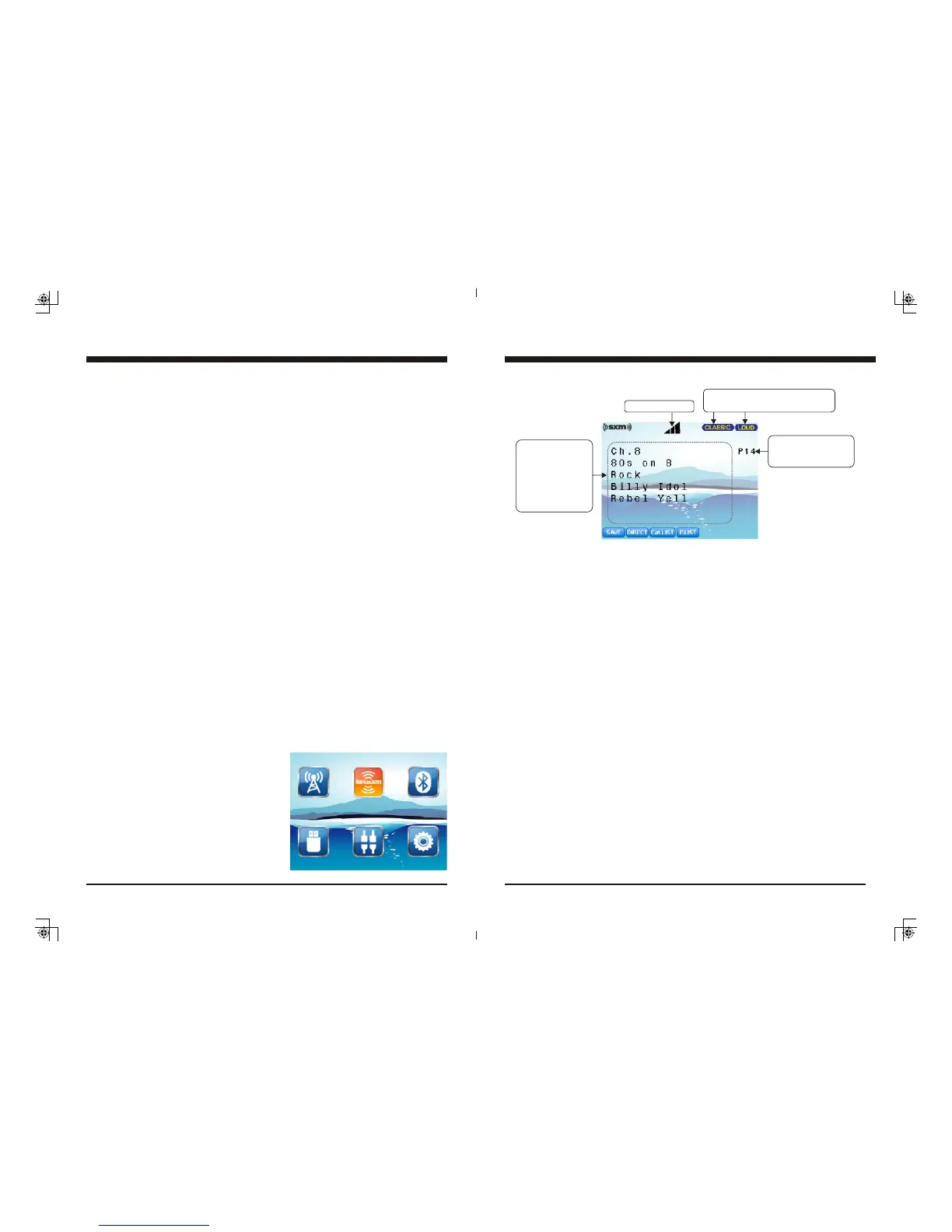
3. SiriusXM Screen Description
4. To Display Radio ID
Tune to Channel 0 or direct Tune to Channel 0 to display the Radio ID.
6. To Select the Previous / Next Channel
In SiriusXM mode, press TUNE Up or Down button to select the previous or next
channel. Press and hold TUNE Up or Down button to rapid tune/browse channels,
and release the button when the desired channel is displayed..
5. MUTE
In SiriusXM mode, press the MUTE button to mute sound output, and press it again
to resume sound output.
7. Storing a Channel as a Preset
In SiriusXM playing mode, tune to or direct tune to a channel which you want to store
as a preset, then press MENU button to activate bottom navigation. It will highlight at
SAVE, now press ENTER button. It will display the Global Preset List screen, press
TUNE UP/DN button to select a preset number and press ENTER button to save current
channel into Preset List. The Preset No. will display once the channel is saved. The unit
will revert back to the previous display if no operation is performed in 5s.
Only displays when EQ / LOUD ON
was selected in the Settings.
Display sequence:
Channel Number
Channel Name
Category Name
Artist Name
Song Title
Content Info.
Only displays when the
listening channel is a
preset channel.
SAVE:
DIRECT: To directly input a channel No.
Cat.List: To display the Category List.
P.LIST: To display the Global Preset List.
To save current channel into P.List.
SiriusXM signal
SiriusXM Section Operation
1. What is SiriusXM
Only SiriusXM brings you more of what you love to listen to, all in one place. Get over
140 channels, including commercial-free music plus the best sports, news, talk, comedy and
entertainment. Welcome to the world of satellite radio. A SiriusXM Vehicle Tuner and Sub-
scription are required. For more information, visit www.siriusxm.com
Activating your SiriusXM Subscription
1.
2.
2. To Select SiriusXM Mode
At Home Menu, press TUNE button to move
the highlight to SiriusXM source, then press
ENTER button to go into the SiriusXM mode.
Note: highlight movement indicated by the
icon background change.
®
After installing your SiriusXM Connect Tuner and antenna, power on your radio and select
SiriusXM mode. You should be able to hear the SiriusXM preview channel on Channel 1.
If you cannot hear the preview channels, please check the installation instructions to make
sure your SiriusXM Connect tuner is properly installed.
For more information on how to install the SiriusXM Connect Vehicle tuner, consult the
installation guide included with the tuner.
After you can hear the Preview channel, tune to Channel 0 to find the Radio ID of your tuner.
In addition, the Radio ID is located on the bottom of the SiriusXM Connect Vehicle Tuner
and its packaging. You will need this number to activate your subscription. Write the number
down for reference.
Note: the SiriusXM Radio ID does not include the letters I, O, S or F.
In the USA, you can activate online or by calling SiriusXM Listener care:
Visit www.siriusxm.com/activatenow
Call SiriusXM Listener Care at 1-866-635-2349
For Canadian Subscriptions, please contact:
Visit www.siriusxm.ca/activatexm
Call XM Customer Care at 1-877-438-9677
As part of the activation process, the SiriusXM satellites will send an activation message to
your tuner. When your radio detects that the tuner has received the activation message, your
radio will display:Subscription Updated, press Enter to continue. Once subscribed, you can
tune to channels in your subscription plan. Note, the activation process usually takes 10 to
15 minutes, but may take up to an hour. Your radio will need to be powered on and receiving
the SiriusXM signal to receive the activation message.
12



 To Previous Page
 Loading...