14
SiriusXM Section Operation
8. Direct Channel Input
In SiriusXM mode, first press MENU button to
activate navigation, then press TUNE Down button
to move highlight at DIRECT, and press ENTER
button. It will display the keyboard. Press VOL Up
or Down button to select the desired digit, then press
ENTER after each selection to move to next input.
After three digit input, simply press ENTER button
again to jump to the selected Channel.
Note: If a wrong digit is inputted, simply press TUNE
DN button to move to previous digit input. Repeat
above operation until the correct channel is inputted.
9. Category List
In SiriusXM mode, first press MENU button to
activate navigation, then press TUNE Down button
to move highlight to Cat.LIST and to display the
Category List. Press TUNE Up or Down button to
select and press ENTER button at your desired
Category. Then press TUNE Up or Down and ENTER
button to select a desired channel.
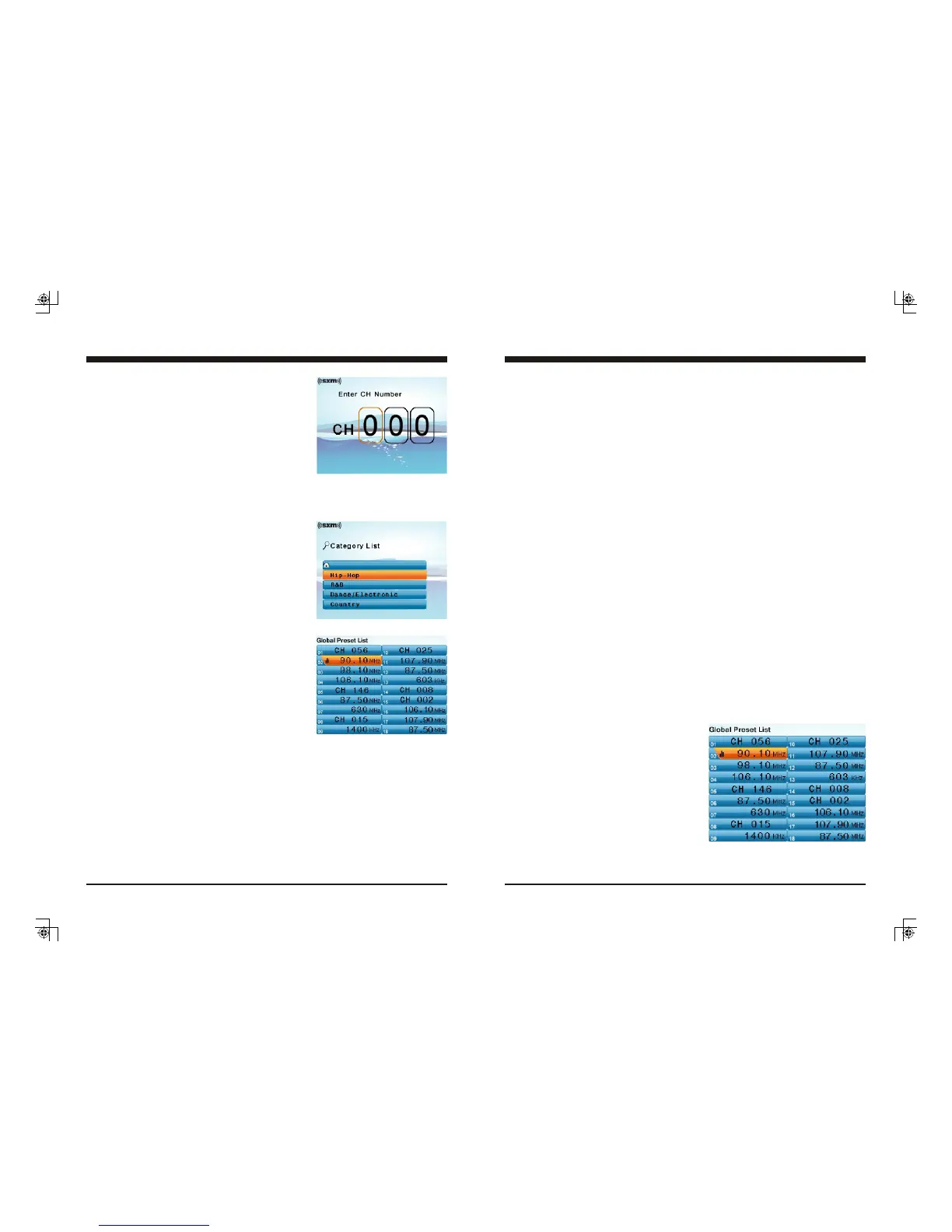
10. Preset List Channel Tuning
In SiriusXM play mode, press MENU button to
activate navigation, press TUNE UP/DN button
to move highlight to P.List, then press ENTER
button to display the Global Preset List.
Simply press TUNE Up or Down button to select
a desired preset and press ENTER button to listen
to it. It will let you listen to the selected channel for
10s before it reverts back to source playing screen.
During this time, you can select another channel
with TUNE UP/DN button.
11
3. AREA Selection
At Home Menu, move highlight to Settings, press ENTER button, then press TUNE Down
button to move highlight to AREA feature, press VOL Up or Down button to select between
USA and EUR.
4. BAND Selection
5
6. Manual Tuning
In Radio playing mode, press MENU button to activate navigation, then press TUNE Down
button to move highlight to BAND. Now press MENU button to toggle and select between
FM or AM band.
. Auto Tuning
In Radio playing mode, press TUNE Up/Down button to activate auto tune. This results in
automatically stopping at next station of sufficient signal strength.
In Radio playing mode, long press TUNE Up/Down button for 2s. This will activate manual
tune with MANU display on the top area. Then repeatedly press TUNE Up/Down button
to tune frequency by steps.
NOTE: Radio will revert back to AUTO tune mode after 5s without operation.
7. Station Save
In Radio play mode, manually or auto tune to a station, then press MENU button to activate
bottom navigation. Select SAVE icon and press ENTER button. The unit will display the
Global Preset List screen, press TUNE UP/DN button to select a preset No. and press
ENTER button to save current station into Preset List. The Preset number will display
once the station is saved. The unit will go back to previous display if no operation in 5s.
8. Preset List
In Radio play mode, press MENU button to activate navigation, press TUNE UP/DN button
to move highlight to P.List, then press ENTER button to display the Global Preset List.
Press TUNE Up or Down button to select a
preset and press ENTER button to listen to it.
This will let you preview the selected station
for 10s before it reverts back to Radio screen.
During this time, you can select another
station with TUNE UP/DN button.
NOTE:
1. Receiver can store up to 18 stations.
2. If there is no operation at Global Preset
List screen, it will go back to Radio
screen by itself after 5s or simply long
press MENU button for 2s to go back
to previous display.
Radio Section Operation



 To Next Page
 Loading...