Need help?
Do you have a question about the Provision ISR Ossia NVR5 Series and is the answer not in the manual?
Overview of the NVR series' purpose and capabilities.
Lists basic and live preview features of the NVR system.
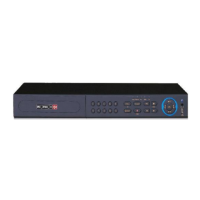
Details the indicators and their meanings for front panel type I.
Details indicators and controls for front panel type II.
Lists and describes connectors on the rear panel.
Explains VGA/HDMI video output connections.
Explains audio input/output connections.
Details alarm input/output connections.
Instructions for powering the device on and off.
Explains the function and use of the remote control.
Details mouse operations for live preview, playback, and text input.
Explains the on-screen keyboard layouts for text entry.
Describes the function of various system buttons.
Guides through initial NVR setup steps.
Overview of the main graphical user interface elements.
Details the primary functional categories of the NVR.
Instructions for adding and modifying IP cameras.
Steps to create and manage camera groups.
Explains the live viewing interface.
Details various live viewing display modes.
How to save and activate custom screen layouts.
How to set up automatic camera switching.
How to sequence cameras within a group.
Configure On-Screen Display (OSD) settings for cameras.
Adjust brightness, contrast, saturation, and hue.
Configure privacy masking for camera views.
Fine-tune image parameters like sharpness and WDR.
Interface for controlling PTZ cameras.
How to save and recall camera positions.
How to create and manage camera patrol routes.
Settings for configuring recording modes and parameters.
Selects between auto and manual recording modes.
Configures cycle record, pre/post-alarm times.
Sets video encoding, resolution, FPS, and bitrate.
Creates and manages recording schedules.
Defines schedules for sensor, motion, and normal recording.
Details manual recording options.
System records automatically based on schedule.
System records based on motion detection alarms.
System records based on sensor alarms.
Manages NVR disks and their status.
Allocates cameras to specific disks using disk groups.
Views disk status and health information.
Plays back recorded video immediately.
Overview of the playback interface and its controls.
Search and playback using image thumbnails.
Search and playback of recorded video by specific date/time.
Search and playback based on event types.
Search and playback using saved tags.
Backup recorded data by specified time periods.
Backup recorded data based on event types.
View and manage captured snapshots.
Monitor the status of ongoing and completed backups.
Configure sensor alarm triggers and responses.
Set up motion detection parameters and areas.
Define how the system responds to motion alarms.
Configure responses for system exceptions.
Configure responses for IPC offline alarms.
Configure various alarm event notifications.
Set duration for pop-up video and message boxes.
Set the holding time for the internal buzzer.
Manually trigger or clear alarms.
Monitor the current status of all alarms.
Manage user accounts and their permissions.
Steps to create a new user account.
Modify existing user account details and permissions.
Procedures for logging into and out of the system.
Manage user permission groups.
Create new permission groups with specific access rights.
Modify existing permission group settings.
Manage IP/MAC addresses for access control.
Configure network settings like IP address and DNS.
Set IP address, subnet mask, gateway, and DNS manually or automatically.
Configure HTTP, Server, and RTSP ports.
Set up Dynamic DNS for remote access.
Configure email settings for notifications.
Configure UPnP for automatic router port mapping.
Enable NAT for cloud service access.
Check the NVR's current network status.
Set device name, No., language, video format, and resolution.
Set device name, language, video format, and resolution.
Set system date, time, and time zone.
Reset the NVR to its factory default settings.
Instructions for upgrading the NVR firmware.
Backup and restore NVR configuration files.
View system logs for troubleshooting and auditing.
Display basic system hardware and software information.
Connect and view the NVR using a mobile app.
Access the NVR via web browser on the local network.
Access the NVR via web browser over the internet.
Control NVR settings and functions remotely via web browser.
View live camera feeds remotely.
Remotely playback recorded video.
Remotely backup recorded data.
Remotely configure NVR settings.
Troubleshooting steps for HDD detection issues.
Troubleshooting for missing camera video output.
Troubleshooting for no image after device startup.
Procedure to reset a forgotten administrator password.
Troubleshooting for adding cameras when channels seem available.
Troubleshoots PoE camera display issues in the list.
Troubleshoots ONVIF camera image output issues.
Troubleshooting steps for recording failures.
Troubleshoots remote web access issues.
Solves issues with ActiveX control download in IE.
Instructions on playing back recorded backup files.
 General
| Brand | Provision ISR |
|---|---|
| Model | Ossia NVR5 Series |
| Category | DVR |
| Language | English |

 To Next Page