After Sale Service
◆If the radio fails, please scan this QR code, and click “Ask a quastion”and log into
Amazon to contact us, we will provide you the best service:
◆You can also send your messages to our customer service e-mail:
wanwanus@outlook.com
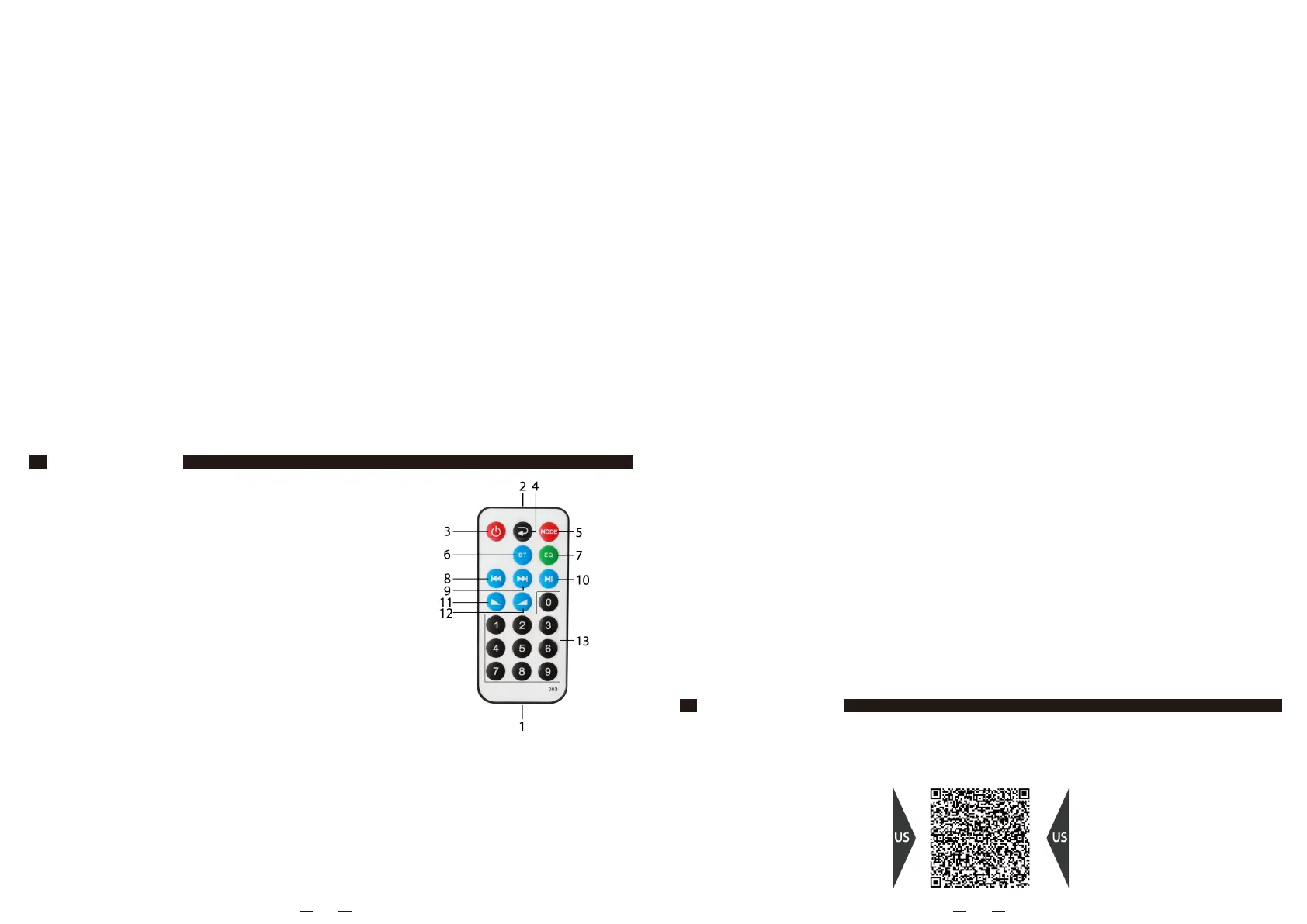
Remote Control
1. Battery Insulation Gasket
2. Remote Control Lamp
3. Power Button
4. Repeat
5. Mode Switch among USB/TF/AUX/Bluetooth
6. BT (Bluetooth)
7. EQ (Equaliser)
8. Previous Button
9. Forward Button
10. Play/Pause Button
11. Volume Down Button
12. Volume Up Button
13. 0-9 Number Buttons
1. Maintenance
1) Please pull <1. Battery insulation gasket> out from the battery compartment, so that
you can start using the remote control.
2) The remote control can be active only when the radio is in USB/TF/AUX/Bluetooth
mode.
3) In order to get the best from the remote control, please do your best to point the
remote control lamp at <17. IR (Infrared)>, when you are using it.
4) Every button only works in the mode where they were mentioned in the mode intro-
Music Playing
1. Play by Bluetooth
(1) Rotate the <12. Band Switch among MP3/ FM/AM/SW> to "MP3" mode, the radio will
give a "Bluetooth Mount" sound, which implies the Bluetooth connection is available
and ready pair;
(2) Switch on the Bluetooth on your services, such as: mobile phone, iPod, computer,
etc., search for the device named “BT-888”, and then connect it, the radio should have a
“Dingdong” sound, which means the device has been connected successfully.
(3) Open your music player app/software and choose your desired music;
EN EN
duction, if they weren’t mentioned in any mode introduction, that means the button is
invalid in this mode.
2. Uses of the Remote Control
(1) Bluetooth Mode
1) Press <3. Power Button> to disconnect or connect the Bluetooth;
2) Press <5. Mode Switch among USB/TF/AUX/Bluetooth> will change to other mode;
3) Press <7. EQ (Equaliser)> to adjust the timbres;
4) Press <8. Previous Button/9. Forward Button> to select the song you want to play;
5) Press <10. Play/Pause Button> to pause playing the current track; press this button
again will resume playing this track;
6) Press <11. Volume Down Button/12. Volume Up Button> to decrease/increase the
volume. When it turns to the minimum/maximum volume, it will give a “Di” sound.
(2) Flash Drive/ TF Card Playing Mode
1) Press <3. Power Button> to turn off or turn on the Flash Drive/ TF Card playing;
2) Press <5. Mode Switch among USB/TF/AUX/Bluetooth> will change to other mode;
3) Press <6. BT (Bluetooth)> will change to “Bluetooth mode”;
4) Press <7. EQ (Equaliser)> to adjust the timbres;
5) Press <8. Previous Button/9. Forward Button> to select the song you want to play.
Long press to rewind or fast-forward;
6) Press <10. Play/Pause Button> to pause playing the current track; press this button
again will resume playing this track ;
7) Press <11. Volume Down Button/12. Volume Up Button> to decrease/increase the
volume. When it turns to the minimum/maximum volume, it will give a “Di” sound;
8) Press <13. 0-9 Number Buttons> to select one specific mp3 (For example, continuous-
ly press buttons 1+6+8 to select the 168th mp3, but if the total numbers of the mp3 files
are not more than 168, it will play the current mp3.
(3) AUX Mode
1) Press <3. Power Button> to disconnect or connect AUX;
2) Press <5. Mode Switch among USB/TF/AUX/Bluetooth> will change to other mode;
3) Press <6. BT (Bluetooth)> will change to “Bluetooth mode”;
4) Press <7. EQ (Equaliser)> to adjust the timbres;
5) Press <10. Play/Pause Button> to mute the radio (!), press it again to resume the
sound;
6) Press <11. Volume Down Button/12. Volume Up Button> to decrease/increase the
volume. When it turns to the minimum/maximum volume, it will give a “Di” sound.
(4) Short press <2. Forward /3. previous> to select the song you want to play;
(5) Short press <4. Play/Pause/Mode button > to pause the current play, press this
button again to resume playback.
2. Play by Flash Drive/ TF card
(1) Rotate the <12. Band Switch among MP3/ FM/AM/SW> to "MP3" mode;
(2) Insert the Flash Drive/TF card loaded with MP3 format into the <5.Flash drive slot /
6.TF card slot >. Once mp3 files are detected, it will play automatically;
(3) Short press the <2. forward/3. previous> button to select the song you want to play;
Long press to fast forward/rewind down;
(4) When playing mp3 tracks pressing the <4. Play/Pause/ button> will pause playing the
current track; pressing this button again will resume playing this track.
3. Play by AUX
(1) Rotate the <12. Band Switch among MP3/FM/AM/SW> to "MP3" mode, long press <1.
Mode Switch among USB/TF/AUX/Bluetooth> to switch the radio mode to AUX mode,
then the radio will give a "AUX mode" sound;
(2) Insert one end of the AUX cable into the "AUX" jack of the radio, and insert the other
end into the earphone jack of the mobile phone or computer, and then open the music
software/app to play music;
(3) Short press <4. Play/Pause button> to mute the radio (!), press it again to resume the
sound.
(4) Short press <1. Mode Switch among USB/TF/AUX/Bluetooth> will change to other
mode.


 To Previous Page
 Loading...