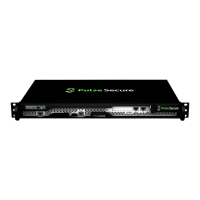
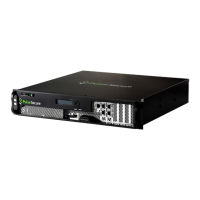
Power On the System
Do this:
1.
Connect the AC power cord from the power supply to a power source.
2.
The appliance will power-on automatically.
3.
Observe the status LEDs (where applicable) on each power supply faceplate. If an AC power supply is
correctly installed and functioning normally, the AC OK and DC OK LEDs light steadily, and the PS FAIL
LED is not lit.
Note: After powering off a power supply, wait at least 60 seconds before turning it back on. After
powering on a power supply, wait at least 60 seconds before turning it off.
After a power supply is powered on, it can take up to 60 seconds for status indicators—such as the status
LEDs on the power supply and the show chassis command display—to indicate that the power supply is
functioning normally. Ignore error indicators that appear during the first 60 seconds.
Configure Basic Settings
When you boot an unconfigured PSA5000, you need to enter basic network and machine information through
the console to make it accessible to the network. Based on your selection of personality, a different binary
will boot up in the system. After entering these settings, you can continue configuring the PSA5000 through
the administrator Web console.
During this basic setup process, you define the “personality” of the PSA5000. For example, you can set up
the PSA5000 to act as a Pulse Connect Secure or Pulse Policy Secure device. You can switch personalities at
any time by reconfiguring the PSA5000.
The installation process may take up to 20 minutes.
Do this to perform basic setup:
1. Enter the number corresponding to the personality for which you want to configure the PSA5000.
For example, if your screen looks like this:
Please select a factory preset personality:
[1] Pulse Connect Secure (VPN)
[2] Pulse Policy Secure (NAC)
Press 1 to install the Pulse Connect Secure package. Press 2 to install the Pulse Policy Secure package.


 To Next Page