11
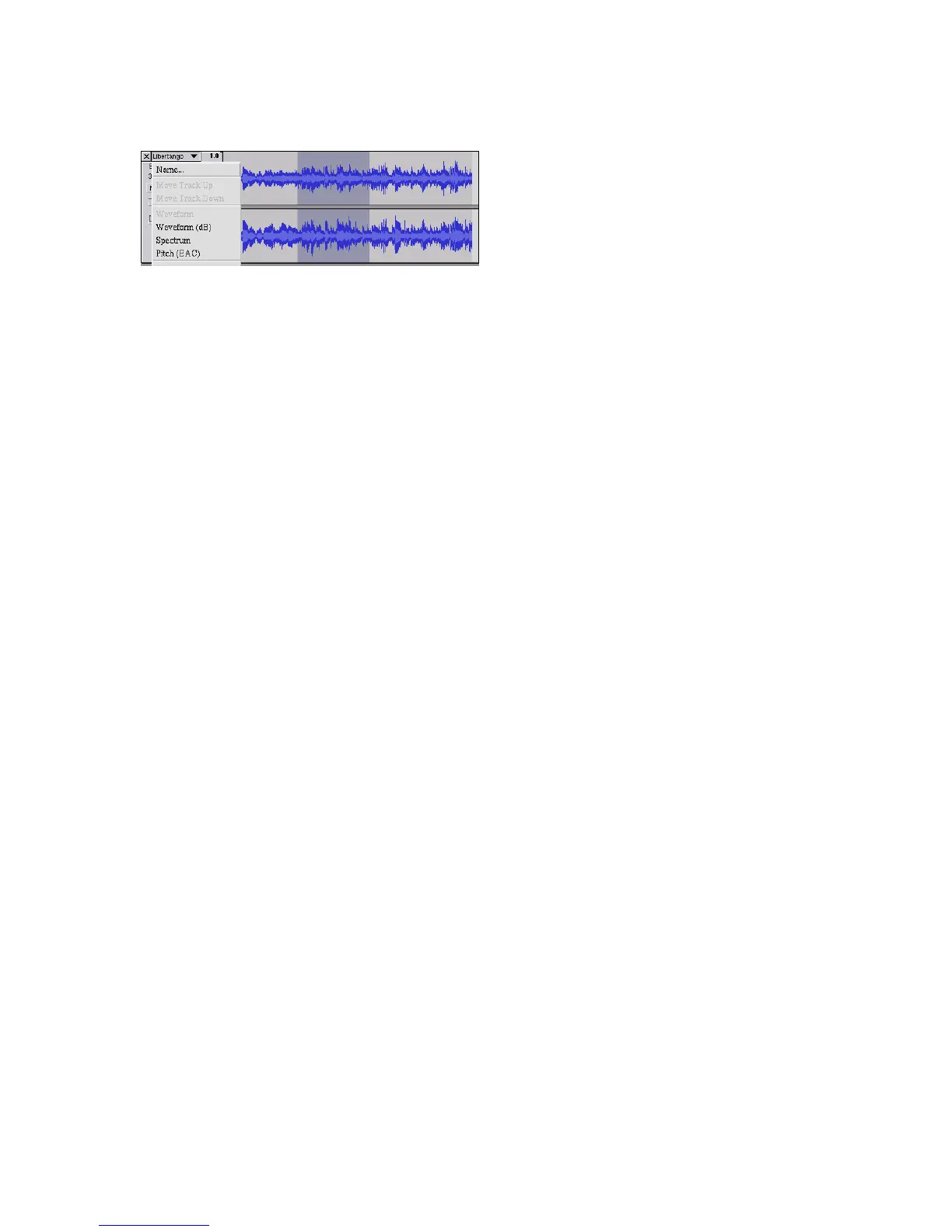
Track Pop-Down Menu
The Track Pop-Down Menu
appears when you click in a track's
title. This lets you access a few
special commands that apply to
individual tracks.
Name... - lets you change the name
of the track.
Move Track Up - exchange places
with the track above this one.
Move Track Down - exchange
places with the track below this one.
Waveform - sets the display to
Waveform - this is the default way
of visualizing audio.
Waveform (dB) - similar to
Waveform, but on a logarithmic
scale, measured in decibels (dB).
Spectrum - display the track as a
spectrogram, showing the amount
of energy in different frequency
bands.
Pitch (EAC) - highlights the contour
of the fundamental frequency
(musical pitch) of the audio, using
the Enhanced Autocorrelation (EAC)
algorithm.
Mono - makes this track a mono
track, meaning it is played out of
just one speaker, or played out of
the left and right speakers equally.
Left Channel - makes this track
come out of only the left speaker.
Right Channel - makes this track
come out of only the right speaker.
Make Stereo Track - if there is
another track below this one, joins
them to make a single stereo track,
with the top track representing the
left speaker, and the bottom track
representing the right speaker.
When tracks are joined into a stereo
pair, all edits automatically apply to
both the left and right channel.
Split Stereo Track - if the selected
track is a stereo track (a pair of left
and right tracks joined together as a
single track), this operation splits
them into two separate tracks that
you can modify and edit
independently.
Set Sample Format - this
determines the quality of the audio
data and the amount of space it
takes up. 16-bit is the quality used
by audio CD's and is the minimum
quality that Audacity uses internally
(8-bit audio files are automatically
converted when you open them).
24-bit is used in higher-end audio
hardware. 32-bit float is the highest
quality that Audacity supports, and
it is recommended that you use 32-
bit float unless you have a slow
computer or are running out of disk
space.


 To Next Page
 Loading...