EasyManua.ls Logo

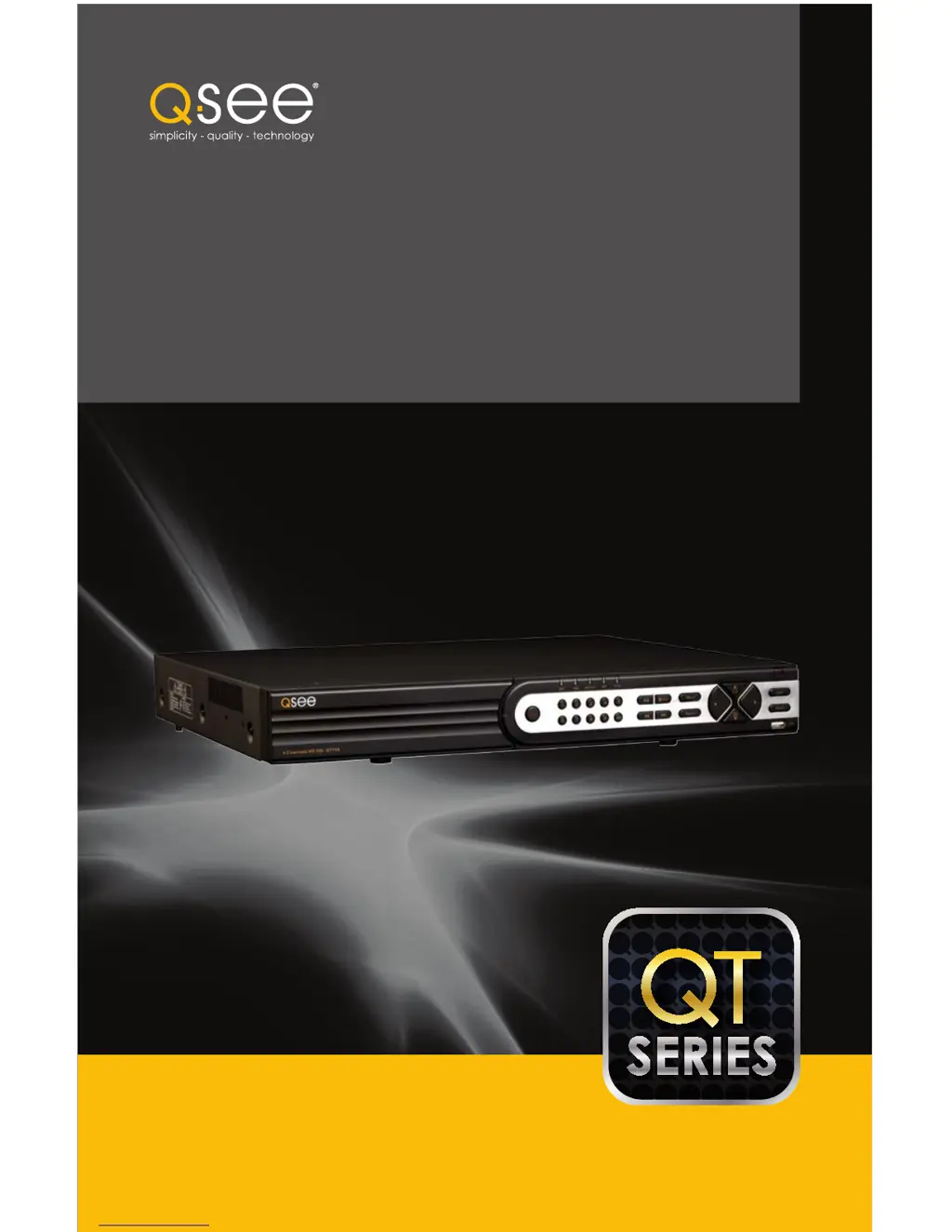
QSee QT SERIES - User Manual

QSee QT SERIES
75 pages
Print Icon
To Next Page IconTo Next Page
Loading...
1
User Manual
Conventional and SDI DVRs
QT SERIES

Table of Contents

Questions and Answers

  • M
    Mary TranJul 26, 2025
    Why QSee QT is not recording?
    • J
      Juan BaldwinJul 26, 2025
      If you cannot record with your QSee DVR, the HDD might not be formatted, so format it manually first. The record function might not be enabled or set up correctly. The HDD might be full, and the recycle function is not enabled. The HDD might be damaged and require replacement.
  • S
    scottwatsonJul 31, 2025
    Why won't my QSee DVR turn on?
    • D
      Dr. Michelle HarmonJul 31, 2025
      If your QSee DVR doesn't start after connecting the power, the power adapter might be damaged or not providing enough power. Try changing the adapter. It's also possible the DVR isn't getting enough power from the outlet or surge protector, or there could be an issue with the system board.
  • M
    Manuel HillAug 4, 2025
    What to do if QSee QT indicator lights are on but there is no output?
    • C
      Carol PetersAug 4, 2025
      If your QSee DVR indicator lights are on, but there's no output, the power adapter may be damaged or not providing enough power, so try changing it. The video format of the DVR might also differ from that of the monitor. Also, check the cable and ports of both the monitor and DVR to ensure they are properly connected.
  • J
    Joel SchultzAug 8, 2025
    Why QSee QT cannot find hard drive?
    • Z
      zjohnsonAug 8, 2025
      If your QSee DVR cannot find the hard disk drive, it might be due to the power adapter not providing enough power or not getting enough power from the outlet. Check the power and data cables on the HDD to ensure they are properly connected. It's also possible that the HDD is damaged and needs replacement.
  • J
    judith01Aug 12, 2025
    What to do if QSee QT DVR displays 'please wait'?
    • J
      James WrightAug 12, 2025
      If your QSee DVR starts and displays 'please wait……' all the time, check the hard drive power and data cable connections to ensure they are secure. If it's still not working, unplug them and plug them in again. You can try reformatting or replacing the hard drive. Also, try connecting the DVR to a different surge protector and power outlet.
  • M
    Mr. Peter TaylorAug 17, 2025
    Why QSee QT shows no images on some channels?
    • R
      Raymond ThompsonAug 17, 2025
      If you are not getting images displayed on some or all channels of your QSee DVR, check the cables and ports of the camera and DVR to ensure they are properly connected. Check the cameras by attaching them directly to a TV or a working port on the DVR. It's also possible that the video format (NTSC/PAL) of the DVR is different from that of the cameras, so change the DVR video format.
  • J
    Juan ChristensenAug 21, 2025
    What to do if mouse is not working with QSee QT DVR?
    • M
      Michelle MontgomeryAug 21, 2025
      If you cannot use the mouse with your QSee DVR, wait 5 minutes after connecting the mouse and then try again. Ensure the mouse is securely connected by plugging and unplugging it several times. The mouse might also be incompatible with the system, so try another mouse.

Summary

INTRODUCTION

FOR YOUR SAFETY

Details critical safety warnings for installation and operation to prevent injury or damage.

BASIC FUNCTIONS

3.1 POWER ON;OFF

Details the procedure for powering the DVR on, logging in, and powering it down safely.

3.2 THE CONTROL BAR

Explains the functions of the control bar for quick access to menus and operations.

DISPLAY MODE

3.3 LIVE VIEWING AND RECORDING

3.4 QUICK PLAYBACK

PLAYBACK CONTROL BAR

MAIN MENU SETUP

4.1 BASIC CONFIGURATION

Covers essential system settings like date, time, device name, and video format.

4.2 LIVE CONFIGURATION

4.3 RECORD CONFIGURATION

Time Tab

4.4 SCHEDULE CONFIGURATION

4.5 NETWORK CONFIGURATION

Network Tab

Covers network settings like HTTP port, IP address, and DNS server configuration.

Email Tab

4.6 USER MANAGEMENT

USER ACCOUNTS AND PASSWORDS

Explains how to set up user accounts, passwords, and define access authority.

4.8 FILE SEARCH, PLAYBACK AND MANAGEMENT

EVENT SEARCH

FILE MANAGEMENT

BACKUP

6.4 FIRMWARE UPGRADE

6.6 SHUT DOWN

Preset

Cruise

ALARMS

8.1 ALARM INPUT

Details the criteria and connections required for alarm inputs.

8.2 ALARM OUTPUT

8.3 ALARM CONFIGURATION

To Record

MOTION

VIDEO LOSS

OTHER ALARM

ALARM OUT

HARD DISK DRIVE

9.1 INSTALLATION;REMOVAL

Guides on the process of installing or removing the hard disk drive from the DVR.

9.2 CALCULATING THE RECORDING CAPACITY OF A HARD DRIVE

APPENDIX

A.1 TROUBLESHOOTING

Provides solutions for common DVR operational issues and connection problems.

A.3 RACK MOUNTING

CAMERA PLACEMENT

QSee QT SERIES Specifications

General IconGeneral
SeriesQT Series
CategoryDVR
CompressionH.264
Remote ViewingYes
Operating SystemEmbedded Linux
Video OutputHDMI, VGA
Channels4, 8, 16
Recording Resolution1080p, 720p
Hard Drive CapacityUp to 6TB
Mobile App SupportYes
Network InterfaceRJ45
USB Ports2