Approved Document Number DNU6500005 Rev 4
/4
At this point the Quantec panel lid can be closed. A pairing code will be shown on the panel‘s display (example
shown below).
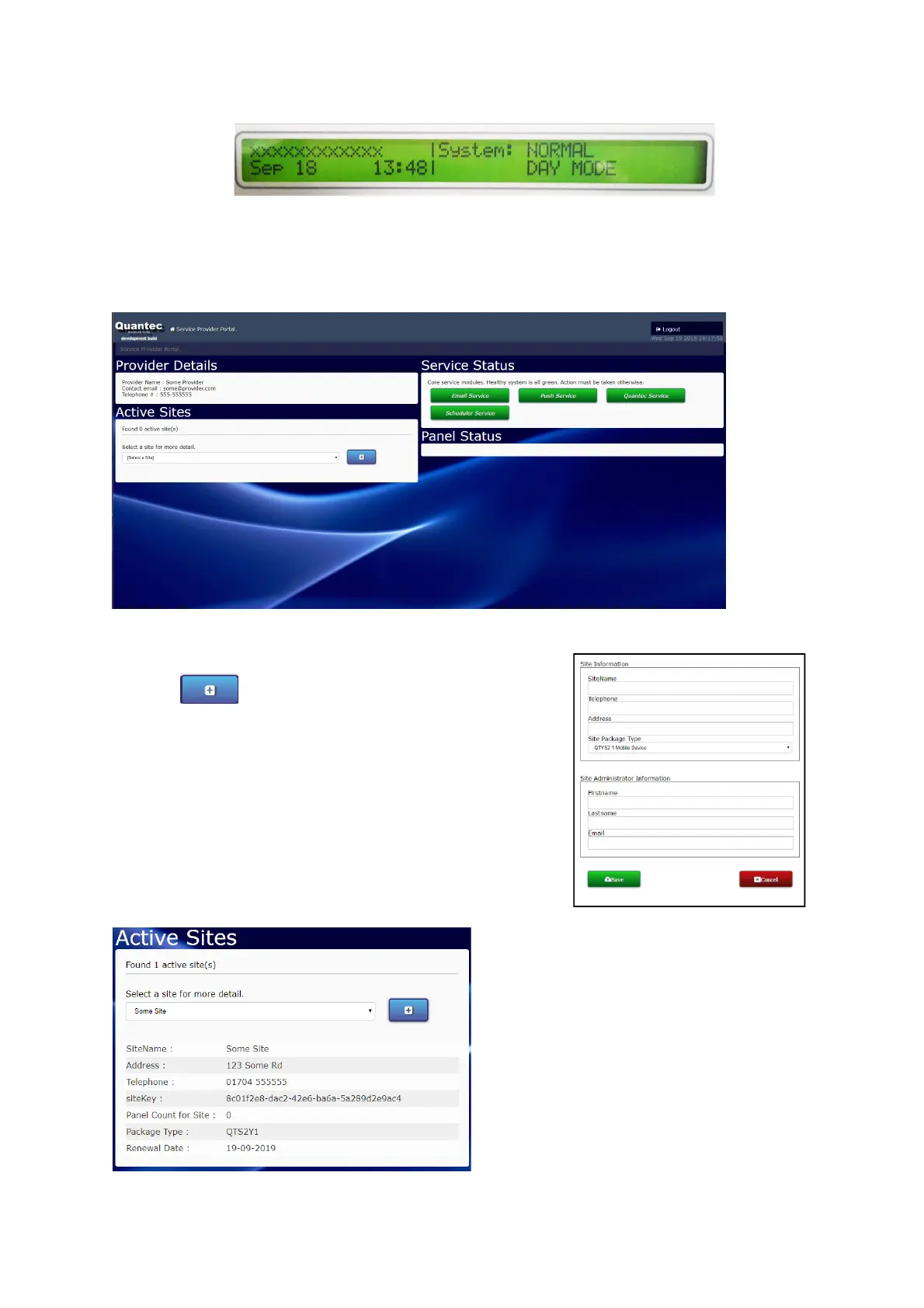
Panel displaying pairing code as ‘xxxxxxxxxxxx’
Each Quantec panel connected to Surveyor 2 with an IOT Connect Card will display a different pairing code.
You should now make a note of these codes and the panel they are allocated to then log into your Surveyor 2
provider account: quantec.c-tec.co.uk. If you do not have a provider account please contact C-TEC.
In Active Sites window (shown above) you will see a drop list of all sites attached to your provider account.
Click the button to add a new site and open the Site
Information popup (shown right).
All fields must be filled in correctly. The Site Administrator details are
very important, this relates to the overall Site Manager and this
information is used to create the initial Admin account for that site.
The details of which are emailed to the Site Administrator.
Once complete click the ‘Save’ button.
You will then be able to select your new site from
the drop-down list.
When a site is selected the Active Sites window will
show detailed information regarding that site
(example shown left).
As this is a new site and no panels have been paired
the panel count will show ‘0’.
The Renewal Date should also be one year in the
future.


 To Next Page
 Loading...