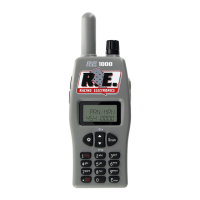
How to operate your RE3000
Getting start and select one of the SERIES that you desired.
a. Turn the power switch on, then scanner’s display will illuminate.
b. Press and hold the “SQ” button to adjust the volume to a safe and comfortable level before connecting the
headset
c. Install the headset.
d. Press the Left Soft Key/ Right (MENU) Key and select RACE SERIES. Note! Series channels must be
programmed and will need to be updated for each race.
e. Use the 4-Ways key to scroll through series options, the series and start scanning all
programmed/selected channels within that series.
To Edit SCAN LIST
a. Select SCAN LIST from the main menu. The channels for the selected series will be displayed.
b. Scroll through driver channels and press th
e Left Soft Key (SELECT/DESELECT) to select /deselect channels on the
scan list. There is an arrow mark beside the name to identify that the channel has been selected on the SCAN LIST
.
c. Press the Right Soft Key when done to return to main menu.
d. When inside SCAN LIST, press MENU key to enter secondary pop-up menu.
e. Scroll up and down to highlight desired function, press Right (MENU) to select
.
To Edit FAVORITE CHANNEL:
There are two ways to edit user’s favorite driver, one is from MAIN MANU, and another is on scan mode.
a. From MAIN MANU:
• Select SERIES (series0, series1, series2 or series3).
• Select FAVORITE CHANNEL from the Main Menu. The programmed channels for the selected series
will be displayed.
• Scroll through driver channels and press Left Soft Key (SELECT) to assign a priority to the selected
channel.
• Pressing the Left Soft Key repeatedly will scroll through the priority selection (3,2,1).
• Press Right Soft Key (DONE) when the priority is assigned.
b. To memorize favorite driver on scan mode
• Push CAR key and enter the desired car number, then push CAR or Enter key to let scanner stand on the wanted
channel. Push and hold FUNC and numeric key (1,2,or 3) for 3 seconds to store favorite driver in that key (1,2,or
3)
The previous record will be overwritten after above procedure is performed.
To Set MY PREFERENCES
BACKLIGHT: Select Display light preferences, the following options are:
a. ON WHEN RECEIVE: Display illuminates for 10 seconds when receiving.
b. ON WHEN KEY PRESSEES: Display illuminates for 2 seconds when key presses.
c. OFF: No Display lighting.
d. ALWAYS ON: Display continuously lighted.
SQUELCH:
Squelch filters out unwanted noise. Squelch operates much like a gate to reduce noisy transmissions. If the
transmission is strong, the gate will open and the transmission will be heard. If the transmission is weak or
mostly static, the gate will remain closed and the transmission will not be heard. User can set SQUELCH level
to low, mid, or sensitivity.
FAVORITE SCAN: Set FAVORITE SCAN to on or off.
a. Set to on: Favorite drivers will be scanned more frequently on scanning mode, and they can be scanned on
listening mode.
b. Set to off: Turn favorite drivers to off.


 To Next Page
 Loading...