TR8100VTM Timer Switch Instructions
ver 2.0
See overleaf for further setting up information
Page1
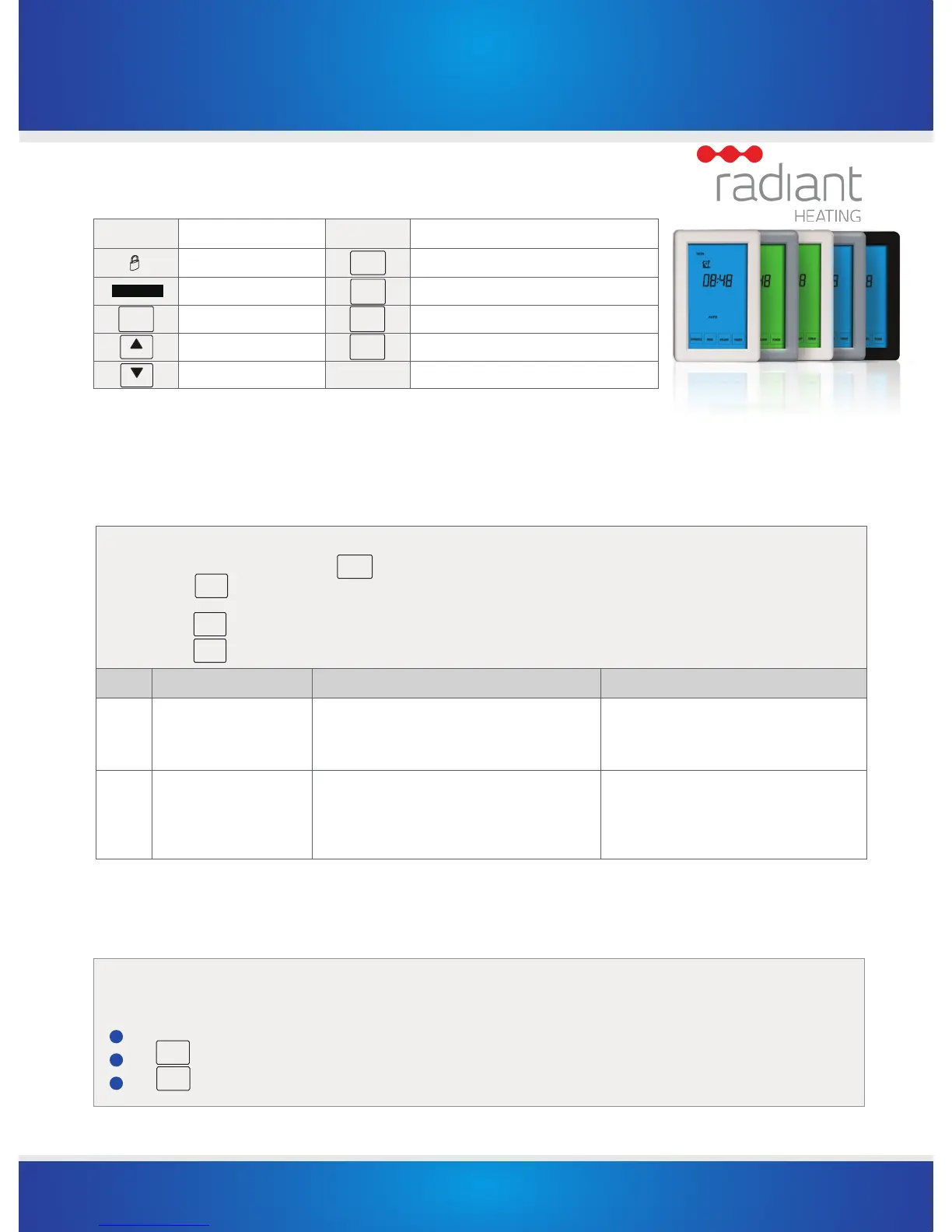
LCD symbols
Symbol Event
The buttons are locked
Power button, to turn on/off the timer switch
Menu button, to enter into menu settings
Program button, to program your thermostat
To confirm your settings
To move to the next setting options
To increase the set value
To decrease the set value
Symbol Event
Temporary override
Configuration Menu
To enter into the setting menu please follow the steps below:
Step 1, Turn the timer switch off by pressing ;
Step 2, Press
, you will then see menu 01.
Step 3, Use the up and down arrows to adjust Menu 01
Step 4, Press
to move to the next Menu and once you have all the menu options set,
Setp 5, Press to accept and store.
Menu # Feature Explanation Adjustment(press up & down buttons to adjust)
01
02
Clock Format
You can select the clock to show in either 12 or 24 hour time
24 (default), 12
Program Mode
This allows you to program either 5 days at once, then the 2
days of the weekend separately, or a full 7 days at the same
time or 7 days separately, or countdown timer only
01 = 5+2 day programmable (default)
02 = 7 day programmable
Setting the clock and day of the week
This timer switch is fitted with a real time clock. It is essential that the clock time and day are set accurately if you require your programmed events to start
on time. To set follow the steps below:
Touch the time display and the time will start flashing. Use the up and down arrows to set the time.By holding the arrow down the time will change faster.
Press
to move to the Day setting and use the up and down arrows to get to the correct day.
Press
to store and exit.
Override
NEXT
MENU
MENU
SCHEDULE
DONE
NEXT
POWER
POWER
DONE
1
2
3
NEXT
DONE


 To Next Page
 Loading...