Need help?
Do you have a question about the Rakuten Kobo Series and is the answer not in the manual?
Instructions for setting up a new Kobo eReader in demo mode, covering language, Wi-Fi, and initial configuration.
Additional steps for Kobo Sage/Elipsa to enable Kobo Stylus and Notebook Experience in demo mode.
Steps to perform a factory reset on a Kobo device, preparing it for demo mode re-setup.
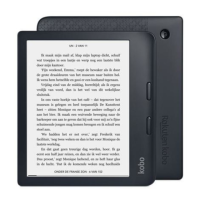
This document outlines the setup instructions for "Demo Mode" on all Kobo eReaders, catering to both new devices and those already in use. The primary function of Demo Mode is to enable a retail demonstration experience, featuring a demo screensaver and disabling purchasing and syncing options, making the device suitable for display in a retail environment.
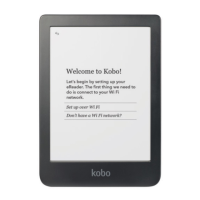
For a brand new device, fresh out of the box, the setup process begins by selecting the desired language on the "Welcome to Kobo!" screen. To initiate Demo Mode, a specific gesture is required: a triple tap on the top right corner of the screen. Following this, users are prompted to enter a password, which is "demomodeon". Connectivity is a crucial step; if Wi-Fi is available, the device should be connected to download and install the latest software updates automatically. If Wi-Fi is unavailable, the "Skip" option can be selected. The next step involves selecting the region, if prompted. Once these steps are completed, the device enters demo mode, and a demo loop will commence after a few minutes of inactivity.
For specific Kobo models, namely the Kobo Sage and Kobo Elipsa, additional steps are necessary to set up the Kobo Stylus and Notebook Experience within Demo Mode. These steps must be performed while connected to Wi-Fi. The user needs to tap "My Notebooks" in the bottom menu, then tap "New" to create a New Notebook, specifically selecting "Advanced Notebook." Any letter can be typed to name the Notebook. A prompt will then appear asking to Sync, at which point "Sync Now" should be tapped. If not already connected, the device will prompt to connect to Wi-Fi. The sync process must be allowed to complete, indicated by a progress bar. Once complete, the Notebook will open. The final step is to exit the Notebook, at which point Demo Mode for the Kobo Stylus and Notebook is fully set up.
If the Kobo eReader is already set up, either in demo mode or as a regular customer device, a "Factory Reset" is required before proceeding with the new device setup instructions. This ensures a clean slate for the demo mode configuration. The factory reset process involves several steps: first, tapping the menu button (represented by three lines) in the top right corner of the screen. Next, "Settings" should be selected, followed by "Device Information." Within "Device Information," the user will find and select "Factory Reset," then confirm with "Reset now." If the device is currently in demo mode, a password will be required: "demomodeoff." After entering the password, a "Restoring" message will appear on the screen. Once the reset is complete, the device will prompt the user to plug it into a computer or any other powered USB source. After this, the user can proceed to follow the "brand new, just out of the box" instructions outlined above to set up Demo Mode.
The "Demo Mode" functionality is designed for retail environments, providing a controlled demonstration of the eReader's features without allowing full user interaction like purchasing or syncing personal content. This ensures that the device remains in a pristine, display-ready state for potential customers. The technical specifications implicitly include Wi-Fi connectivity for software updates and content synchronization (during initial setup for the Stylus/Notebook experience), a touch-sensitive screen for navigation and interaction, and a password-protected system for entering and exiting demo mode. The usage features primarily revolve around showcasing the eReader's interface and capabilities through a pre-defined demo loop. Maintenance features include the ability to perform a factory reset to restore the device to its original state, which is crucial for managing devices that have been used or configured differently. The detailed steps for setting up the Kobo Stylus and Notebook Experience on specific models highlight the device's advanced note-taking and creative functionalities, which are also part of the demonstration. The overall process emphasizes a structured approach to preparing Kobo eReaders for retail display, ensuring consistency and ease of management for sales personnel.
 General
| Brand | Rakuten |
|---|---|
| Model | Kobo Series |
| Category | eBook Reader |
| Language | English |

 To Next Page