Get started with your Uconnect
®
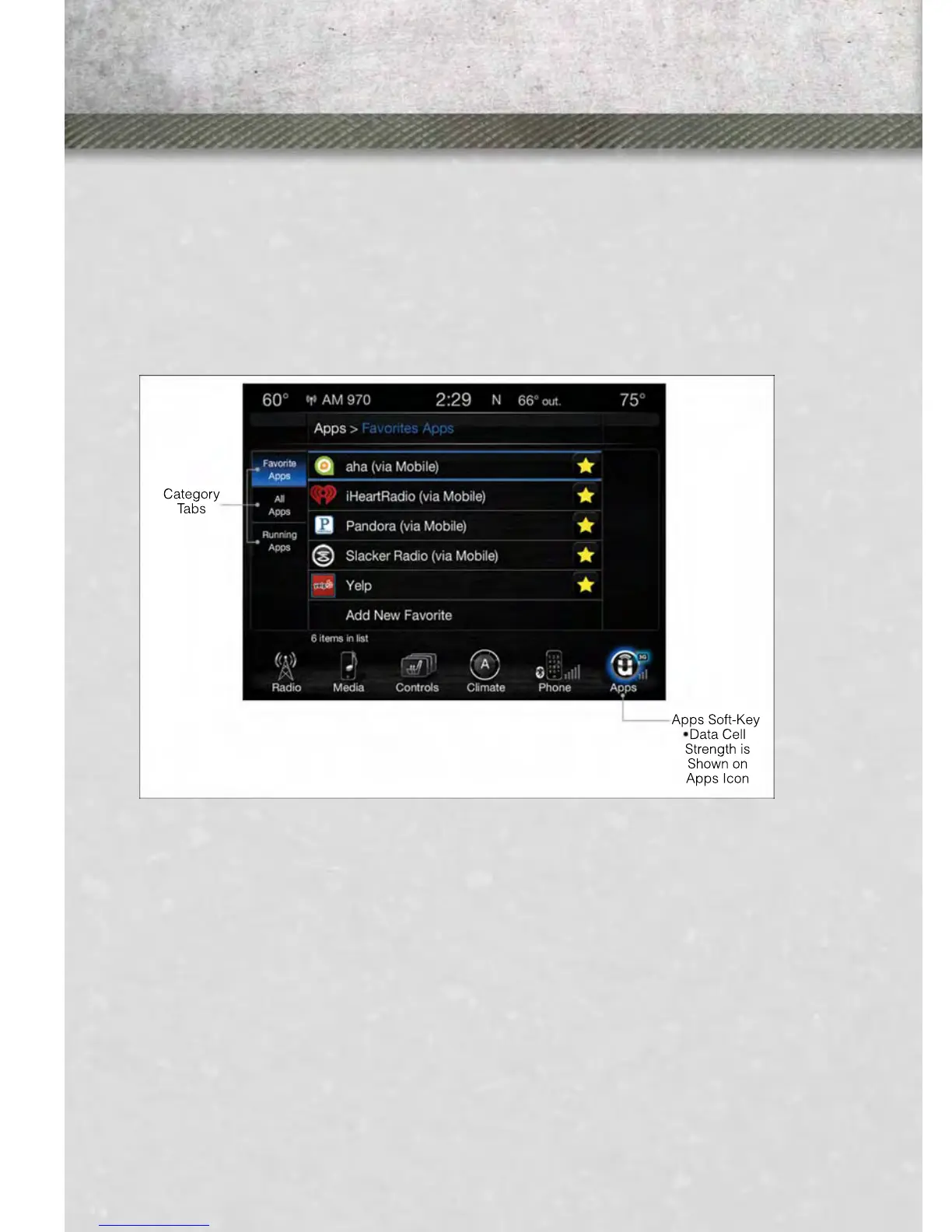
Access apps by pressing the Uconnect
®
“Apps”
button on the menu bar at the bottom right corner of the radio touchscreen. Available
apps and features are organized by the tabs on the left of the screen:
Favorite Apps — This is the default screen when you first press the “Apps” button on
the touchscreen, and is a good place to put the apps you use most frequently.
To make an App a “favorite”, press the “settings” button on the touchscreen to the
right of the app, and select “Make a favorite.”
All Apps — Organizes your Uconnect
®
Access apps (when available).
Running Apps — Press this tab to see which apps are currently running.
Maintaining Your Uconnect® Access Account
Reinstalling An App (Uconnect® 8.4AN Only)
You can easily correct many Application related issues you may be experiencing by
resetting the App back to the factory setting. From the vehicle’s radio touchscreen,
complete the following steps:
1. Press the “Uconnect
®
App” and open the Uconnect
®
Store. Go to My Apps.
2. In My Apps, select “Settings,” then “Reinstall App.” Press “Continue.”
3. Your Apps have been successfully re-installed.
Canceling Your Subscription
Should you want to cancel your subscription, you can remove your account informa-
tion using the same procedure contained in the Selling Your Vehicle section.
ELECTRONICS
58


 To Next Page