

EasyManua.ls Logo

Razer Base Station Chroma - User Manual

Razer Base Station Chroma
20 pages
Print Icon
To Next Page IconTo Next Page
Loading...
RAZER USB HUB
MASTER GUIDE
Question and Answer IconNeed help?

Do you have a question about the Razer Base Station Chroma and is the answer not in the manual?

Summary

Package Contents and System Requirements

Technical Specifications

Device Specifications

Lists the material, features, and ports of the Razer USB Hub.

Installing Razer Synapse

Software Installation Steps

Steps to connect the Razer device and install Razer Synapse software.

Configuring Razer Synapse

Accessory Tab Configuration

Accessory Tab Functionality

Details on customizing device settings via the Accessory tab in Synapse.

Lighting Customization

Quick Lighting Effects

Lists and describes preset lighting effects available for the device.

Quick Lighting Effect Details

Advanced Lighting Effects

Option to choose or create Chroma Effects using Chroma Studio.

Profiles and Linked Games Management

Chroma Tab Configuration

Chroma Studio

Create and edit custom Chroma Effects for compatible Razer devices.

Chroma Effect Layers and Apps

Safety and Maintenance Guidelines

Safety Guidelines

Guidelines for safe operation, handling, and environment for the device.

Maintenance and Use

Recommendations for cleaning and maintaining the Razer Base Station Chroma.

Overview

The Razer USB Hub, also known as the Razer Base Station Chroma, is a versatile accessory designed to organize and enhance your gaming setup. It functions as a headphone stand, a 3-port USB hub, and features Razer Chroma lighting for notifications and aesthetic customization.

Function Description:

The Razer Base Station Chroma serves multiple purposes:
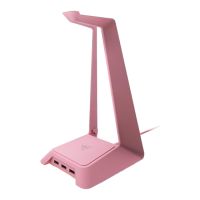
  • Headphone Stand: Provides a dedicated and stable place to store your gaming headset, keeping your desk tidy.
  • USB Hub: Expands your computer's connectivity with three USB 3.0 SuperSpeed downstream ports, allowing you to connect multiple peripherals.
  • Razer Chroma Lighting: Offers customizable lighting effects and notifications, integrating with Razer Synapse 3 for a personalized and immersive experience.

Important Technical Specifications:

  • Material: Made from lightweight, high-grade plastic, ensuring durability without adding unnecessary bulk.
  • USB Ports:
    • 3x USB 3.0 Standard-A downstream ports for connecting peripherals.
    • 1x USB 3.0 Standard-A upstream port for connecting to your computer.
  • Audio Port: Features a 3.5mm hybrid output port, likely for audio pass-through or direct audio connection.
  • Lighting:
    • Access to Chroma lighting effects and notifications via Synapse.
    • Chroma SDK compatibility, allowing for advanced lighting integrations with games and applications.
    • Underglow lighting for ambient illumination.
  • Stability: Equipped with anti-slip feet and a non-slip rubber base to ensure the stand remains stable on your desk.
  • Design: Includes a detachable headphone stand for flexibility.
  • Power: Powered by a power adapter with interchangeable plugs (may vary by region).

System Requirements:

  • PC or Mac with a free USB 3.0 port.
  • Operating System: Windows® 7 / OS X 10.9 (or higher).
  • Devices with USB Standard-A connectors.

Usage Features:

Installation and Software:

  1. Connection: Connect the Razer device to a USB port on your computer using the provided USB 3.0 Standard-A to USB Type-C cable and adapter.
  2. Razer Synapse 3: Install Razer Synapse 3 (either prompted or downloaded from razer.com/synapse). This software is crucial for configuring lighting effects and other features.
  3. Razer ID: Create a Razer ID or log in with an existing account to access all Synapse features.

Razer Synapse 3 Configuration:

  • Dashboard: Provides an overview of your Razer devices, modules, and online services.
  • Accessory Tab (Lighting): The main tab for customizing the Razer Base Station Chroma's settings.
    • Brightness: Adjust the luminance of the device's lighting or turn it off completely.
    • Switch Off Lighting: A power-saving feature that disables lighting when the display is turned off.
    • Quick Effects: Offers a selection of preset lighting effects:
      • Breathing: Lighting fades in and out of selected color(s) (up to 2 colors or randomize).
      • Spectrum Cycling: LEDs cycle indefinitely through 16.8 million colors (no further customization needed).
      • Starlight: Each LED fades in and out at random times and durations (up to 2 colors, randomize, and duration selection).
      • Static: LEDs remain lit in a single selected color.
      • Wave: Lighting scrolls in a selected direction (clockwise or counterclockwise) with a default spectrum of colors.
    • Chroma Sync: Synchronize quick effects with other supported Razer Chroma-enabled devices.
    • Advanced Effects (Chroma Studio): Allows users to create and edit custom Chroma Effects. This feature provides granular control over lighting, including layering effects, grouping, duplicating, and deleting layers. Users can also revert layers to original settings and save modified layers. Quick Selections within Chroma Studio allow for easy customization of lighting regions or individual LEDs.
  • Profiles Tab: Manages all your profiles and links them to games and applications.
    • Devices Subtab: View which Razer device is using a specific profile. Create new profiles, rename, duplicate, or delete existing ones.
    • Link Games: Set profiles to automatically activate when a specific application is run.
    • Linked Games Subtab: Add games, view linked peripherals, and sort games alphabetically, by last played, or most played.
  • Chroma Tab:
    • Studio Subtab: Accesses the Chroma Studio for advanced lighting effect creation.
    • Apps Subtab: Enable or disable third-party integrated apps for Razer Chroma-enabled peripherals. Directs users to the Chroma Workshop to download these apps, which provide immersive lighting experiences integrated with games and applications.
  • Settings Window: Accessible via a gear icon, this window allows you to:
    • Configure startup behavior (e.g., start Synapse automatically, minimize to system tray).
    • Change the display language.
    • View the master guide for connected Razer devices.
    • Perform a factory reset on Razer devices with on-board memory (erases all stored profiles). For devices without on-board memory, a factory reset creates a new profile with default settings.
    • View brief software information, copyright statements, terms of use, check for software updates, and access Razer's social communities.

Maintenance Features:

  • Cleaning: The Razer Base Station Chroma requires minimal maintenance. Once a month, unplug the device from the computer and clean it using a soft cloth or cotton swab with a bit of warm water.
  • Avoid Harsh Cleaners: Do not use soap or harsh cleaning agents, as these can damage the device.

Safety Guidelines:

  • Troubleshooting: If the device malfunctions, unplug it and contact Razer support (support.razer.com).
  • Disassembly: Do not attempt to take apart the device, as this will void the warranty.
  • Current Loads: Do not operate the device under abnormal current loads.
  • Environmental Conditions: Keep the device away from liquid, humidity, or moisture. Operate within a temperature range of 0°C (32°F) to 40°C (104°F). If the temperature exceeds this range, unplug or switch off the device to allow it to stabilize.

Razer Base Station Chroma Specifications

General IconGeneral
BrandRazer
ModelBase Station Chroma
CategorySwitch
LanguageEnglish