
 Need help?
Do you have a question about the Razer HUNTSMAN V2 and is the answer not in the manual?
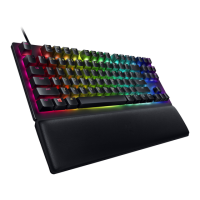
The Razer Huntsman V2 is an optical gaming keyboard designed for competitive gaming, offering near-zero input latency and a suite of high-end features to enhance the user's experience. It is a comprehensive package for gamers seeking a responsive and feature-rich keyboard.
The Razer Huntsman V2 serves as a primary input device for computers, specifically optimized for gaming. Its core functionality revolves around providing precise and rapid keystroke registration through Razer™ Optical Switches, ensuring that every command is executed with exceptional speed. The keyboard integrates Razer™ HyperPolling Technology, which delivers an ultra-high polling rate, further minimizing input lag and providing a competitive edge.
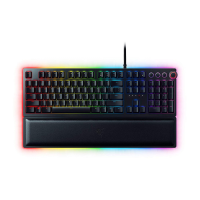
Beyond basic typing, the Huntsman V2 incorporates a multi-functional digital dial alongside dedicated media keys, allowing users to control audio playback, volume, and other media functions conveniently. The keyboard also features Razer Chroma™ RGB customizable backlighting, offering 16.8 million color options for personalized aesthetics and immersive gaming environments. This backlighting can be synchronized with other Razer Chroma-enabled devices and integrated with various applications and games for dynamic lighting effects.
A key gaming-centric feature is the Gaming Mode, which disables specific Windows functions (like the Windows Key, Alt + Tab, and Alt + F4) to prevent accidental interruptions during intense gameplay. The keyboard supports on-the-fly macro recording, enabling users to program complex sequences of keystrokes and button presses for quick execution in games or other applications. With N-key roll-over and anti-ghosting capabilities, the Huntsman V2 ensures that multiple simultaneous key presses are accurately registered, preventing missed commands.
The device also boasts hybrid onboard storage, allowing users to save up to five keybinding profiles directly on the keyboard. This feature is particularly useful for gamers who switch between different games or applications and require distinct key configurations without relying solely on software.
Setting up the Razer Huntsman V2 is straightforward. Users connect the keyboard to a computer's USB port. An ergonomic wrist rest is included, designed to slide into position below the keyboard, providing comfort during extended use.
The keyboard's functionality is significantly enhanced by the Razer Synapse app, which is recommended for installation. Synapse 3 allows users to customize the keyboard's lighting, create and manage various profiles tailored to different playstyles, and configure key assignments.
The media control buttons are intuitive, allowing users to play/pause tracks, skip backward, and skip forward. The multi-function digital dial, by default, controls the audio output volume (increase/decrease) and can mute/unmute the audio with a press. When muted, the dial illuminates in red, providing a clear visual indicator.
On-the-fly macro recording is initiated by a specific key combination (fn + F9). Once activated, the macro record key lights up, indicating readiness. Users then type the desired sequence of keys, and the recording is stopped by pressing the same key combination or the ESC key. The macro record key blinks to confirm that the recording has stopped and is ready to be saved to a desired key. Razer Synapse must be running for macro recording to function.
Gaming Mode is activated by pressing fn + F10. When active, the Gaming Mode key lights up, and the keyboard disables the Windows Key, Menu/Apps Key, Alt + Tab, and Alt + F4 by default, though these settings can be customized in Razer Synapse.
The Razer Synapse software provides extensive customization options. The "Customize" tab allows modification of key assignments and Gaming Mode settings. Users can reassign any key to a variety of functions, including:
The "Lighting" tab in Synapse allows users to modify the keyboard's light settings. Brightness can be adjusted via a slider or toggled on/off. The "Switch Off Lighting" feature is a power-saving tool that disables lighting when the display turns off or after a period of inactivity.
Various "Quick Effects" for lighting are available, including:
These quick effects can be synchronized with other Razer Chroma-enabled devices. For more advanced lighting customization, the "Studio Effects" option, accessible via the Chroma Studio button, allows users to create their own Chroma Effects.
The "Profiles" tab facilitates managing profiles and linking them to games or applications. Users can import/export profiles, create new ones, rename, duplicate, or delete them. Profiles and Chroma Effects can be set to automatically activate when a linked application is run. The "Linked Games" subtab allows users to add games, view linked peripherals, and configure profiles to launch automatically during gameplay.
The "Settings" window provides general configurations for Razer Synapse 3, including display language, startup behavior, and theme (Light/Dark). Users can view master guides for connected devices, manually sync profiles to the cloud, and check for software updates. The "Reset" tab allows for a factory reset of connected Razer devices with onboard memory and resets Synapse 3 tutorials. The "About" tab displays software information, copyright details, and links to Razer's social communities.
The Razer Huntsman V2 requires minimal maintenance to ensure optimal condition and longevity. Users are advised to perform basic cleaning regularly.
Once a month, it is recommended to unplug the device from the computer. After unplugging, the keyboard should be cleaned using a soft cloth or a cotton swab. This helps to prevent the buildup of dirt, dust, and debris that can accumulate between keys and in crevices.
It is crucial to avoid using soap or harsh cleaning agents, as these can damage the keyboard's finish, keycaps, or internal components. Gentle wiping with a soft, dry cloth or a slightly damp cloth (with water only) is generally sufficient for cleaning.
Beyond cleaning, users are advised against disassembling the device, as doing so will void the warranty. Operating the device under abnormal current loads should also be avoided to prevent damage.
For safety and optimal performance, the keyboard should be kept away from liquids, humidity, and excessive moisture. It is designed to operate within a specific temperature range (0°C to 40°C / 32°F to 104°F). If the ambient temperature exceeds this range, the device should be unplugged or switched off to allow it to stabilize to an optimal level.
In case of operational issues that cannot be resolved through basic troubleshooting, users are encouraged to contact Razer support rather than attempting repairs themselves.
For ergonomic comfort and to prevent physical discomfort or injury from prolonged use, several guidelines are provided:
If any physical discomfort (pain, numbness, tingling in hands, wrists, elbows, shoulders, neck, or back) is experienced, consulting a medical doctor immediately is advised.
 General
| Polling Rate | 1000 Hz |
|---|---|
| Key Roll-over | N-Key Roll-over |
| Keycaps | Doubleshot PBT Keycaps |
| Switch Type | Razer Optical Switches |
| Key Feel | Clicky or Linear |
| Backlighting | Razer Chroma RGB |
| Connectivity | Wired |
| Media Keys | Dedicated |
| Wrist Rest | Yes, Plush Leatherette Magnetic Wrist Rest |
| Onboard Memory | Hybrid onboard storage – up to 5 profiles |
| Actuation Point | 1.5 mm (Linear) |
| Actuation Force | 40 g (Linear) |
| Total Travel Distance | 3.5 mm |
| Cable Length | 2.0 m |
| Additional Features | Sound dampening foam |


 To Next Page