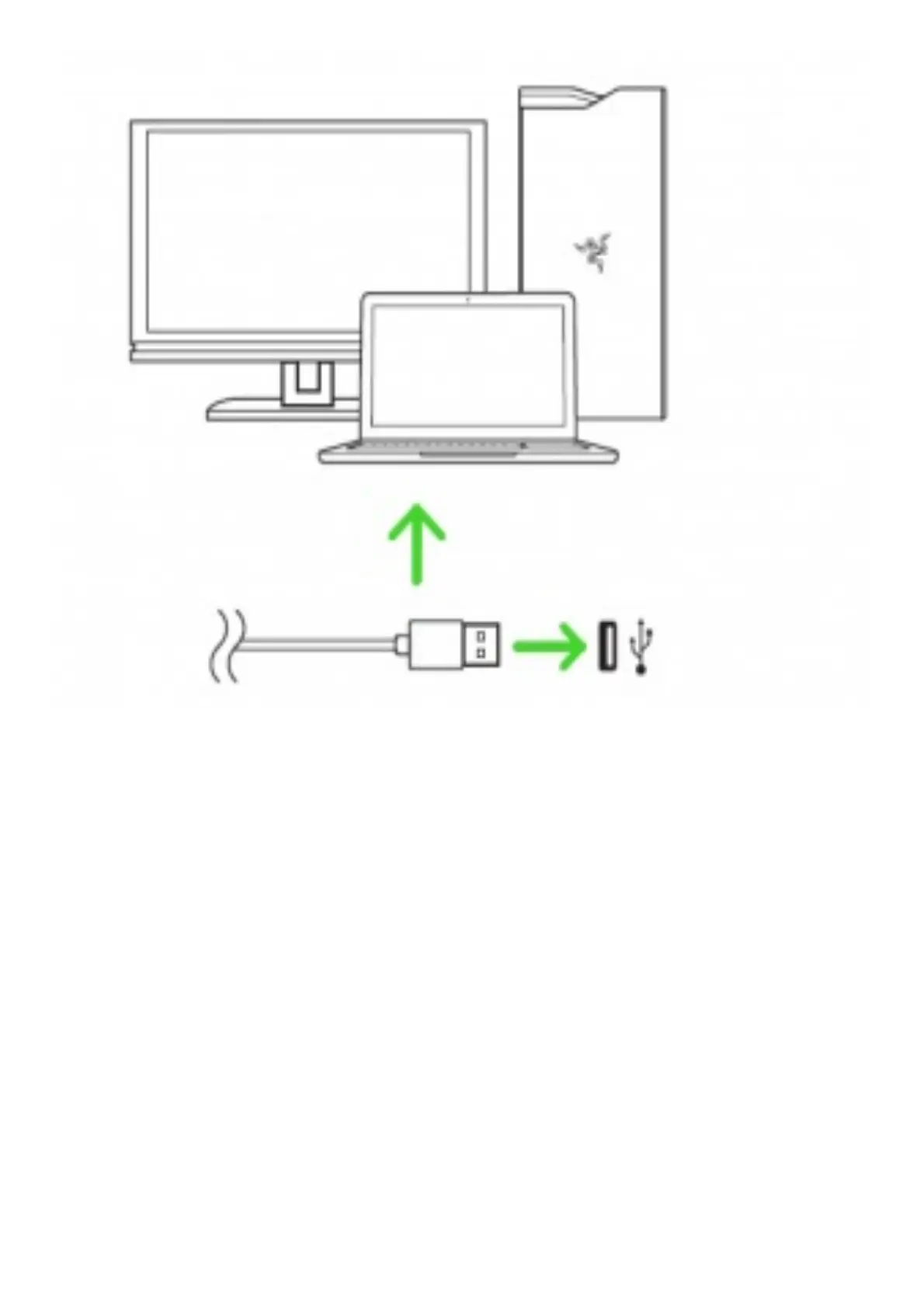
Step 1: Make sure your Razer device is connected to the USB port of your computer.
Step 2: Install Razer Synapse 3 when prompted* or download the installer from
razer.com/synapse.
Step 3: Create your Razer ID or log in using an existing account.
*Applicable for Windows 8 or later.
7. CONFIGURING YOUR RAZER KRAKEN ULTIMATE VIA RAZER SYNAPSE 3
Disclaimer: The features listed here require vou to log in to Razer Svnapse. These features are also
subject to change based on the current software version and your Operating System.
SYNAPSE TAB
The Synapse tab is your default tab when you first launch Razer Synapse 3. This tab allows you to
navigate the Dashboard subtab.
DASHBOARD
The Dashboard subtab is an overview of your Razer Synapse 3 where you can access all your Razer
devices, modules, and online services.












 To Next Page