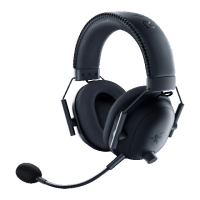
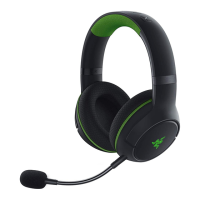
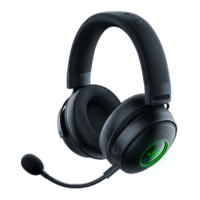
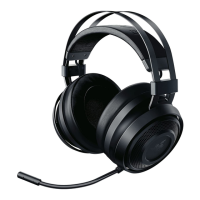
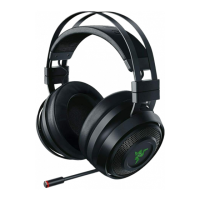
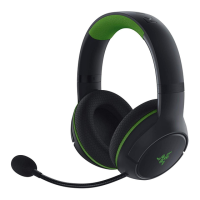
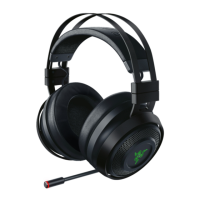
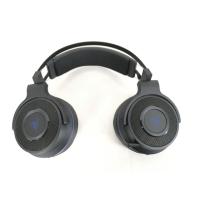
The device described is a Razer Gaming Headset (RZ04-0403) and a USB Wireless Transceiver (RC30-0403), designed for an immersive gaming experience.
Function Description:
The Razer Gaming Headset is a wireless audio device primarily for gaming, offering both Type-C wireless dongle connectivity for PlayStation consoles (PS4/PS5) and PC (Windows 10 64-bit or higher), and Bluetooth connectivity for other devices. It features Razer HyperSense technology, which converts sound signals into real-time vibrations within the earcups, providing tactile feedback for enhanced immersion. The headset includes a detachable Razer HyperClear Supercardioid Mic for clear communication. The USB Wireless Transceiver facilitates the Type-C wireless connection to gaming platforms. The Razer SmartSwitch feature allows the headset to be connected to both a PC or PlayStation console (via Type-C wireless dongle) and a mobile device (via Bluetooth) simultaneously, enabling users to manage calls from their mobile device while gaming.
Important Technical Specifications:
- Gaming Headset (RZ04-0403):
- Radio Frequency: 2.4GHz SRD/Bluetooth
- Operating Frequency: 2402MHz - 2480MHz
- Max. Output Power: <12dBm
- Battery: Li-ion rechargeable battery. Fully charges in approximately 4 hours.
- USB Wireless Transceiver (RC30-0403):
- Radio Frequency: 2.4GHz SRD
- Operating Frequency: 2402MHz - 2480MHz
- Max. Output Power: <12dBm
- Product Requirements: PlayStation 4 / PlayStation 5 or PC (Windows 10 64-bit or higher), USB Type-C or Type-A port, devices with Bluetooth audio capability.
- Razer Audio / Razer Chroma RGB App Requirements: iOS 12 / Android 8.1 Oreo (or higher) device with Bluetooth connectivity, Internet connection for app installation.
Usage Features:
- Charging: The headset is charged by connecting it and the USB Wireless Transceiver to a powered USB port using the provided charging cable (Type-A to Type-C). A depleted headset fully charges in about 4 hours. The status indicator shows charging status (fully charged or charging).
- Connecting to PlayStation/PC (Type-C Wireless Dongle): Plug the Type-C wireless dongle into the console or PC. Press and hold the Power button on the headset until the status indicator lights up or a voice prompt is heard. The status indicator will turn static green when connected.
- Connecting to Other Devices (Bluetooth): While powered on, press the Multi-function button for 5 seconds to activate Bluetooth pairing mode. Select "Razer Kaira Pro" from the device's Bluetooth list. The status indicator will briefly turn static blue when paired.
- Audio Settings (PlayStation/PC):
- PlayStation 5: Go to Settings > Sound. Set Input Device to Razer Kaira Pro and Output Device to Razer Kaira Pro.
- PlayStation 4: Go to Settings > Devices > Audio Devices. Set Input Device and Output Device to Razer Kaira Pro.
- PC/Laptop: Right-click the sound icon in the system tray, select Open Sound settings. Set Razer Kaira Pro as the default Output and Input device.
- Razer SmartSwitch: Allows simultaneous connection to a PC/PlayStation (via dongle) and a mobile device (via Bluetooth). The status indicator will show static white when connected to both audio sources.
- Battery Level Check: When powered on, the status indicator shows connection and battery status. A voice prompt will indicate when the headset needs to be recharged.
- Power ON/OFF: Press and hold the Power button to turn the headset on or off. An audio prompt will notify when the headset is powered on or off.
- Type-C Wireless Dongle as Audio Source: When powered on and using Bluetooth as an audio source, press the Power button to switch to the Type-C wireless dongle.
- Razer HyperSense: Enabled by default, this feature converts sound into vibrations. The intensity can be cycled through Low, Medium, High, and Disable by pressing the Multi-function button. Intensity can also be customized via the Razer Audio app.
- Multi-function Button:
- Use Bluetooth as Audio Source: When powered on and using the Type-C wireless dongle as audio source, press the Multi-function button to switch to Bluetooth.
- Enable/Disable Gaming Mode: While connected via Bluetooth, triple press the Multi-function button then hold the last press for 2 seconds to activate Gaming Mode, which provides lower latency and real-time audio feedback. Repeat to disable.
- Other Functions:
- Single press: Play/pause, accept incoming call or end current call, put call on-hold and accept incoming call, end call and swap to on-hold call, set Bluetooth as audio source.
- Press and hold for 2 seconds: Reject incoming call, swap calls.
- Press and hold for 5 seconds: Activate Bluetooth pairing mode.
- Double press: Skip track.
- Triple press: Previous track.
- Triple press then hold the last press for 2 seconds: Enable or disable Gaming Mode.
- Volume Wheel: Rotate to increase or decrease the volume.
- Sidetone Wheel: Rotate to adjust the volume of your own voice heard through the headset.
- Razer HyperClear Supercardioid Mic: Plug the mic into the headphone and bend it parallel to the mouth, ensuring the diaphragm is in front and the air vent faces away from the mouth. The mic mute switch allows muting/unmuting.
- Personalization: The Razer Audio app allows advanced customization, including HyperSense intensity, EQ settings, and auto shutoff features. The Razer Chroma RGB app allows customization of the headset's lighting with 16.8 million colors.
Maintenance Features:
- Comfort: Stretch the headset before placing it over the head to minimize headband stress.
- Cleaning: The Gaming Headset & USB Wireless Transceiver require minimum maintenance. Clean once a month with a soft cloth or cotton swab to prevent dirt buildup. Do not use soap or harsh cleaning agents.
- Battery Warning: The headset contains a Li-ion rechargeable battery. Avoid opening, mutilating, or exposing to conducting materials, moisture, liquid, fire, or heat to prevent leaks or explosions. Do not leave the battery discharged or unused for extended periods. Replace only with the same or equivalent type. Avoid disposal into fire or hot oven, or mechanically crushing/cutting, which can result in explosion. Avoid high/low extreme temperatures or low air pressure during use, storage, or transportation.

 Need help?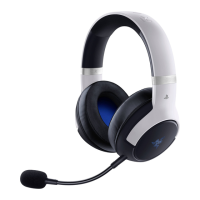

 To Next Page
 General