Settings
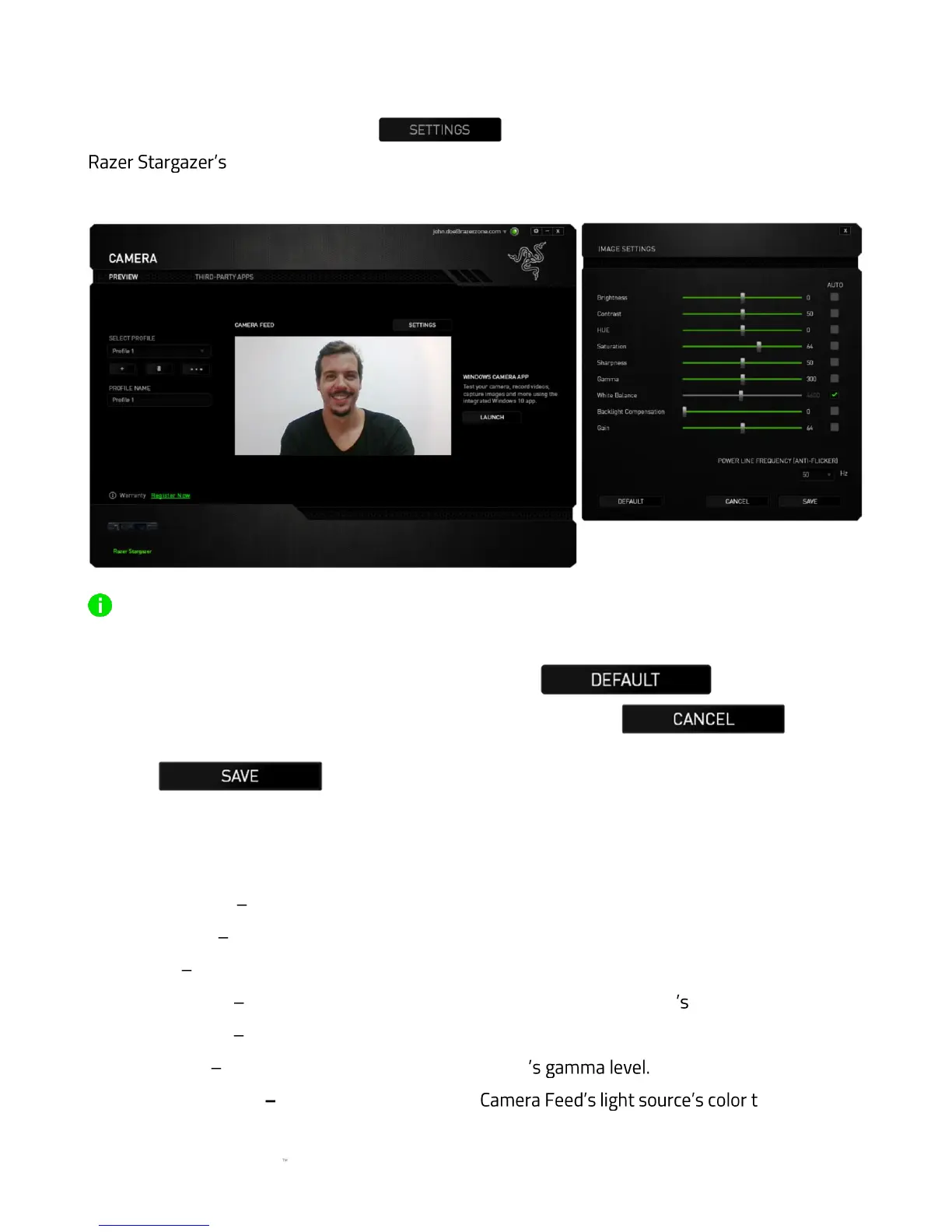
Accessible from the Profile tab is the button which you can use to customize your
Camera Feed preview. Click this button to open the IMAGE SETTINGS window
and begin exploring the customization options available for your camera.
NOTE: You may move the Image Settings window away from the Camera Feed to see all changes
made on your Razer Stargazer in real time.
You may reset all changes to its default state through the button or remove
all made changes and close the Image Settings window through the button.
Click the button to save all changes made on the Image Settings window. All
saved changes would automatically register on the selected profile.
Listed below are the customization options from the Image Settings window:
Brightness Allows you to control the overall brightness of the Camera Feed.
Contrast Allows you to highlight the separation of tones within the Camera Feed.
Hue Allows you to alter the color shade used by your camera.
Saturation Allows you to change the intensity of the Camera Feed color
Sharpness Allows you to adjust the clarity of the Camera Feed.
Gamma Allows you to control the Camera Feed
White Balance Allows you to control the emperature.



 To Next Page