7
Description of Buttons on the TV
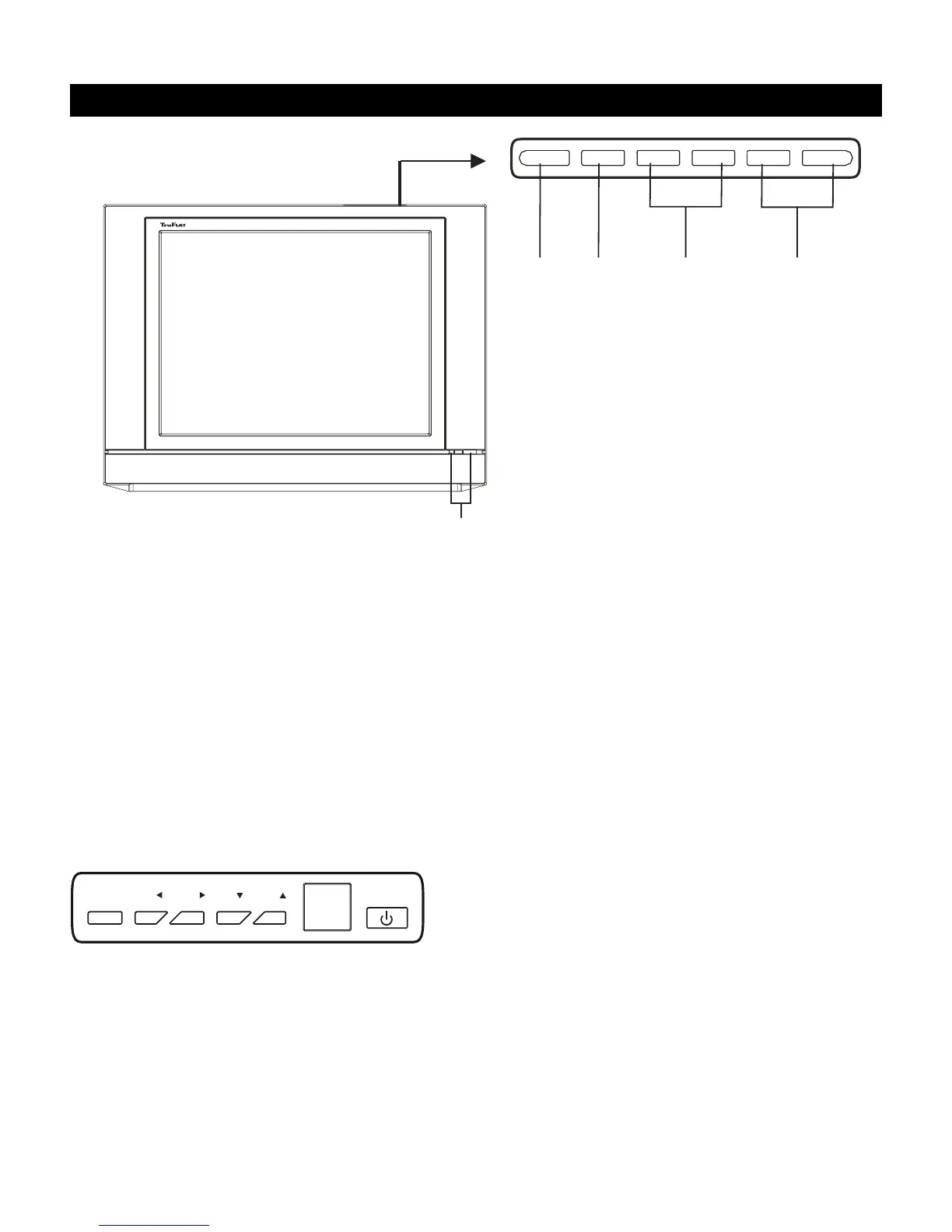
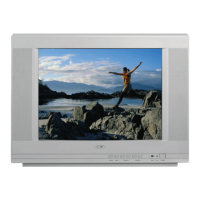
Front Panel Buttons (Models 20F511T, 20F512T and
24F512T)
If you cannot locate your remote, you can use the
buttons on the front of your TV to operate many of the
TV’s features.
Your button layout and design may differ from above.
Front View
STANDBY (LED INDICATOR) Lights to show AC power
is available.
SENSOR Receives infra-red signals from the remote.
POWER Turns the TV on and off.
43 2 1
TV/VIDEO
MENU VOLUME - VOLUME +
CHANNEL - CHANNEL +
MENU
VOL
CH
CH
VOL
POWER
Front Panel Buttons (Model 27V512T and 27V513T)
Front View
MENU Brings up the Main menu. Press for the
on-screen display to clear the screen.
VOLUME BUTTONS Press to decrease/increase the
volume. In the menu system, acts like the right or left
arrow buttons. Press to select highlighted items and
make adjustments.
CHANNEL BUTTONS Selects channel numbers. In the
menu system, acts like the up or down arrow buttons. Use to
highlight items.
SENSOR Receives infra-red signals from the remote.
POWER Turns the TV on and off. Lights to show TV is on.
Front View buttons
Top View
1. CHANNEL BUTTONS Selects channel numbers. In the
menu system, acts like the up or down arrow buttons.
Use to highlight items.
2. VOLUME BUTTONS Press to decrease/increase the
volume. In the menu system, acts like the right or left
arrow buttons. Press to select highlighted items and
make adjustments.
3. MENU Press to display the main menu. Press for the on-
screen display to clear the screen.
4. TV/VIDEO (INPUT) Choose between TV programming
and the AV input.


 To Next Page