18
Network Settings(Continued)
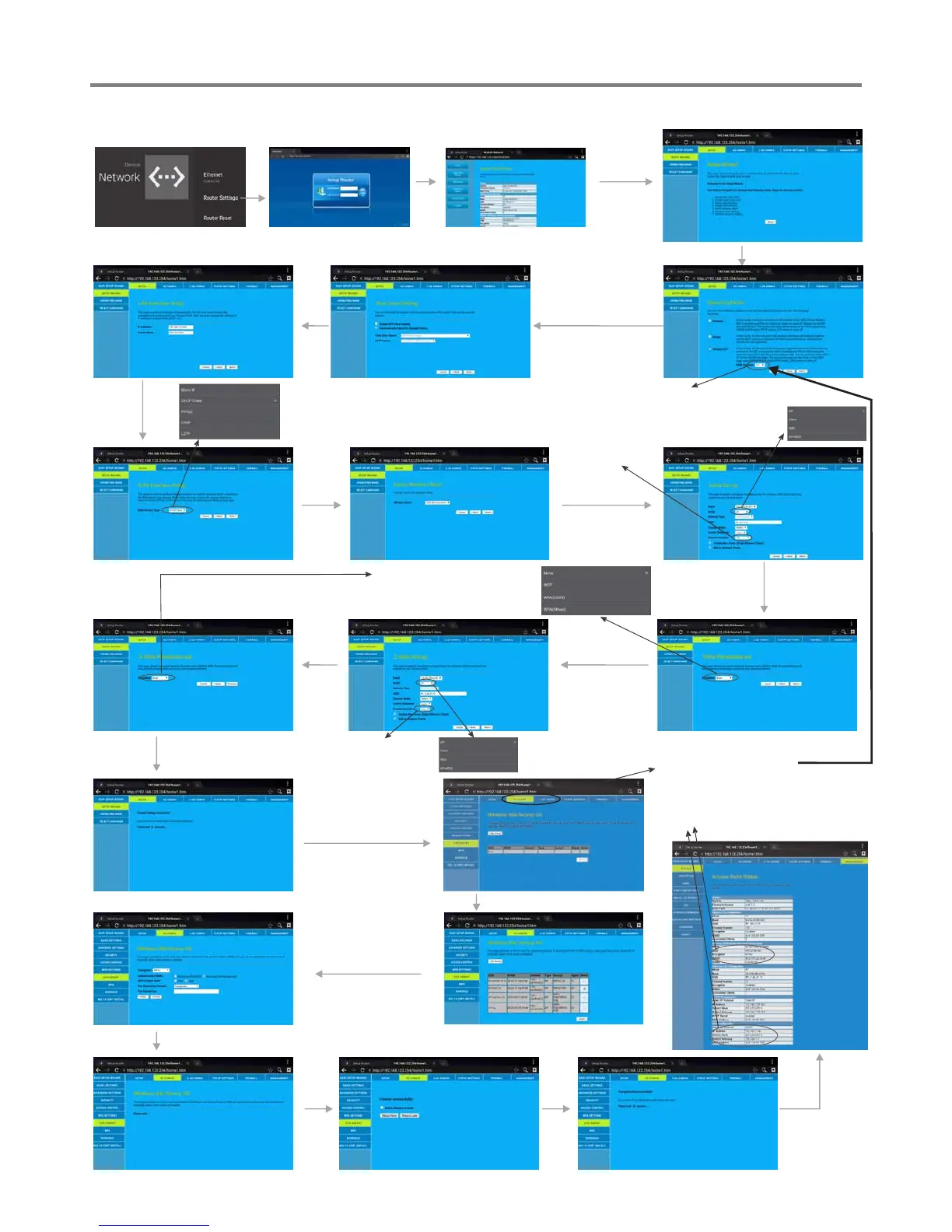
Wireless Network Setting ( )Internal router
Select Wireless ISP
Next
Next
Next
Next
Next
Next
Note: Recommended to select the DHCP
Client connection. Automatically
obtain IP information from your ISP.
Select SETUP, then SETUPWIZARD
5GHz Setup
Recommended
to select Auto.
Next
2.4GHz Setup
Successfully
connected to return .
Select SITE SURVEY
Confirm Site Survey
Select your desired
WiFi signal.
Connect
Input Password
Select from 5G, 2.4G.
Select from 5G, 2.4G,
based on the WAN Interface.
Method 2: Advanced Mode (For example, )WAN lnterface:5G
Next
Password Setting Format
Recommended
to select Auto.
Finished
Recommended
to select AP
Input the default UserName: admin, skip the
default password setting as there is no default
password, then press Login button login.
WiFi Password of Internal Router in the IFP.
(Password should be set at least 8 characters. )
Select
Advanced
Mode
Get IP,
Changed setting successfully.
Next
Recommended
to select AP


 To Next Page