IPMI Fence Device Configuration Procedure
15
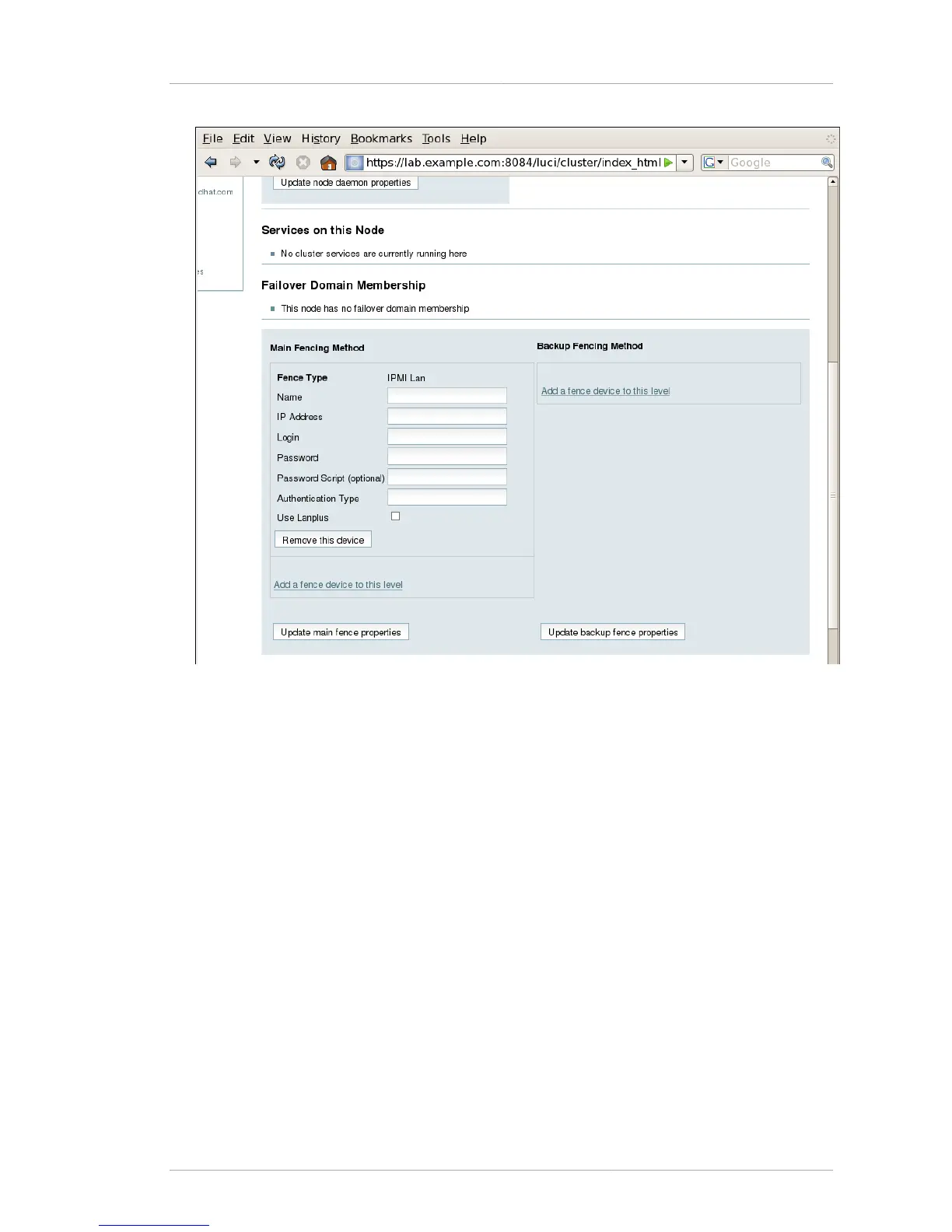
Figure 3.2. Creating an IPMI Fence Device
5. For Name, enter ipmifence1.
6. For IP Address, enter 10.15.86.96.
7. For Login, enter ipmilogin.
8. For Password, enter ipmipword.
9. For Password Script, leave the field blank.
10. For Authentication type, enterpassword. This field specifies the IPMI authentication type.
Possible values for this field are none, password, md2, or md5.
11. Leave the Use Lanplus field blank. You would check this field if your fence device is a Lanplus-
capable interface such as iLO2.
12. Click Update main fence properties. This causes a confirmation screen to be displayed.
13. On the confirmation screen, click OK. After the fence device has been added, a
progress page is displayed after which the display returns to the configuration page for
clusternode1.example.com in cluster ipmiclust.



 To Next Page