4
Drawing No. LP0909 Revised 03/2023
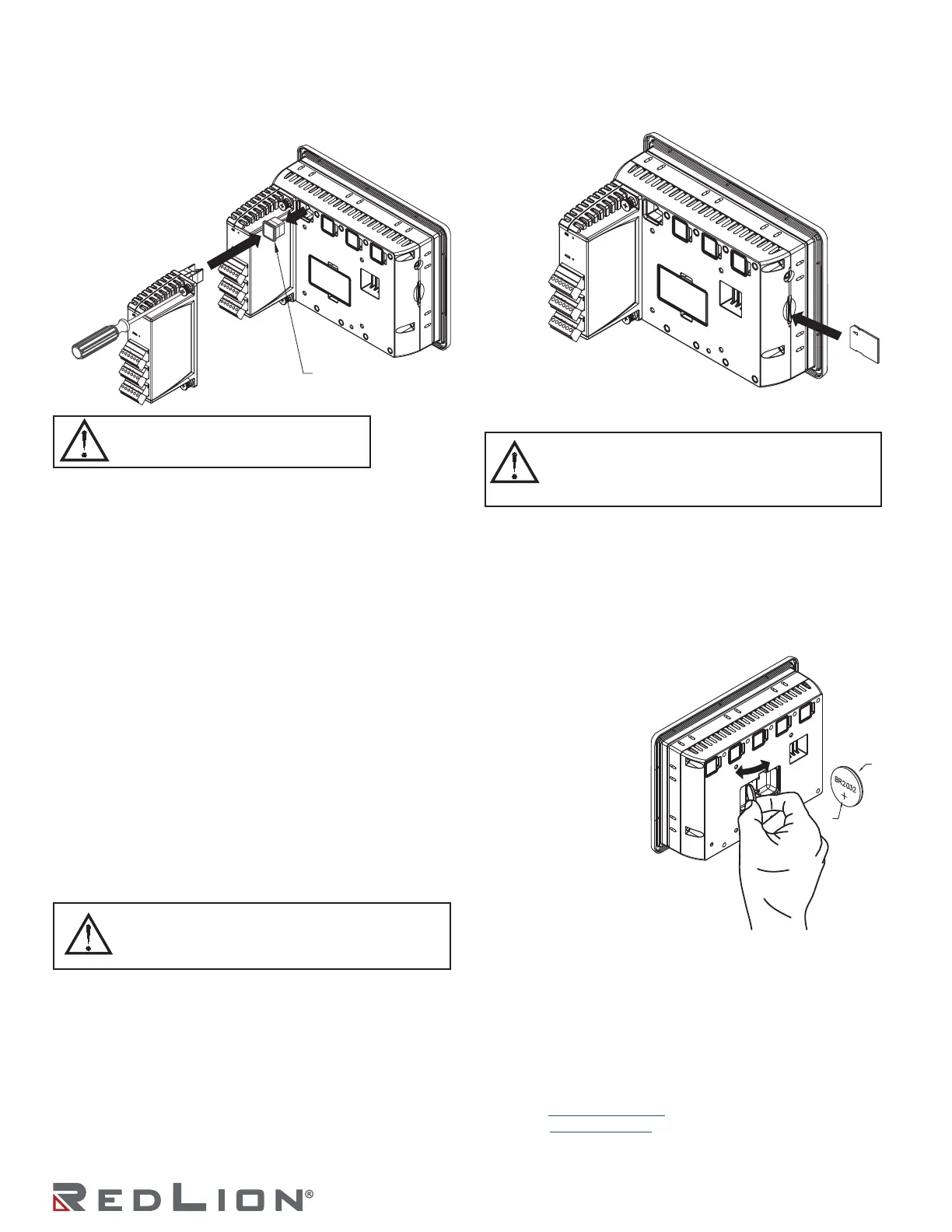
I/O MODULE INSTALLATION
The physical order of all installed modules must match the
modules order in Crimson. Torque screws to 6.0 pound-force inch
[96 ounce-force inch] (0.68 N m).
COMMUNICATING WITH THE G10
CONFIGURING A G10
The G10 is configured using Crimson
®
software. Crimson is
available as a no charge download from Red Lion’s website.
Crimson updates for new features and drivers are posted on the
website as they become available. By configuring the G10 using
the latest Crimson version, you are assured that your unit has the
most up to date feature set. Crimson software can configure the
G10 through the RS232 PGM port, USB port, or SD card.
The USB port is connected using a standard USB cable with a
Type B connector. The driver needed to use the USB port will be
installed with Crimson.
The RS232 PGM port uses a programming cable made by Red
Lion to connect to the DB9 COM port of your computer. If you
choose to make your own cable, use the “G10 Port Pin Out
Diagram” for wiring information.
The SD can be used to program a G10 by placing a configuration
file and firmware on the SD card. The card is then inserted into
the target G10 and powered. Refer to the Crimson literature for
more information on the proper names and locations of the files.
USB, DATA TRANSFERS FROM THE SD CARD
In order to transfer data from the SD card via the USB port, a
driver must be installed on your computer. This driver is installed
with Crimson and is located in the folder C:\Program Files\Red
Lion Controls\Crimson 3.0\Device\ after Crimson is installed.
This may have already been accomplished if your G10 was
configured using the USB port.
Once the driver is installed, connect the G10 to your PC with a
USB cable, and follow “Mounting the SD” instructions in the
Crimson 3 user manual.
INSERTION/REMOVAL OF THE SD CARD
Insert the SD card into the slot provided with the card oriented
as shown. The card is inserted properly when the end of the card
is flush with the
Graphite case. To
remove the SD
card, push in
slightly on
the card.
BATTERY & TIME KEEPING
A battery is used to keep time when the unit is without power.
than one minute per month drift. The battery of a Graphite unit
does not affect the unit’s memory, all configurations and data is
stored in non-volatile memory.
Changing the Battery
To change the battery of a Graphite, first
remove power to the unit. Remove the
battery cover. Grasp the top edge
of the battery and push to the
left to remove the battery
from the holder. Lift the
battery out and replace
with a new battery.
Replace the battery
cover, and re-apply
power. Using Crimson or
the unit’s keypad, enter
the correct time and date.
* Please note that the old
battery must be disposed of in a
manner that complies with your local
waste regulations. The battery must not be
disposed of in fire, or in a manner whereby it may be damaged and its
contents could come into contact with human skin.
The battery used by the panel is a lithium type BR2032.
RED LION CONTROLS TECHNICAL SUPPORT
If for any reason you have trouble operating, connecting, or
simply have questions concerning your new product, contact Red
Lion’s technical support.
Support: support.redlion.net Inside US: +1 (877) 432-9908
Website: www.redlion.net Outside US: +1 (717) 767-6511
Red Lion Controls, Inc.
35 Willow Springs Circle York, PA 17406
WARNING: Disconnect all power to the
unit before installing or removing modules.
WARNING - Do not connect or disconnect cables
while power is applied unless area is known to be non-
hazardous. USB device port is for system set-up and
diagnostics and is not intended for permanent connection.
WARNING - EXPLOSION HAZARD - Disconnect power
and ensure the areas is known to be non-hazardous
before servicing/replacing the unit and before installing
or removing I/O wiring and battery.
+



 To Previous Page
 Loading...